
Ever been the one who has to ask for the WiFi password again because your phone forgot it? Or maybe you need to connect a new device but can’t remember the 20-character password you set ages ago. This guide is for anyone with an Android phone who wants to recover a saved WiFi password without pulling their hair out. By the end, you’ll have three working methods—some requiring no extra tools, others needing a bit of tinkering. Whether you’re on a stock Android or a custom ROM, there’s a solution here for you.
We’ll start with the easiest built-in trick (QR code sharing), move on to using ADB commands for a deeper look, and finally cover third-party apps that can do the job safely. No matter which method you choose, you’ll walk away with the plain-text password ready to copy or share. Let’s dive in.
What You’ll Need
- An Android device (Android 6.0 or newer recommended).
- The WiFi network you want to recover must be currently saved on your phone.
- For the ADB method: a computer (Windows/macOS/Linux) with USB debugging enabled on the phone.
- A USB cable for the ADB method.
- Optional: a QR code scanner app (most modern Android phones have one built-in).
Step 1: Share the WiFi Password via QR Code (No Root)
This is the quickest method and works on nearly every Android version. If you just need the password for a friend or another device, this will show it in plain text.
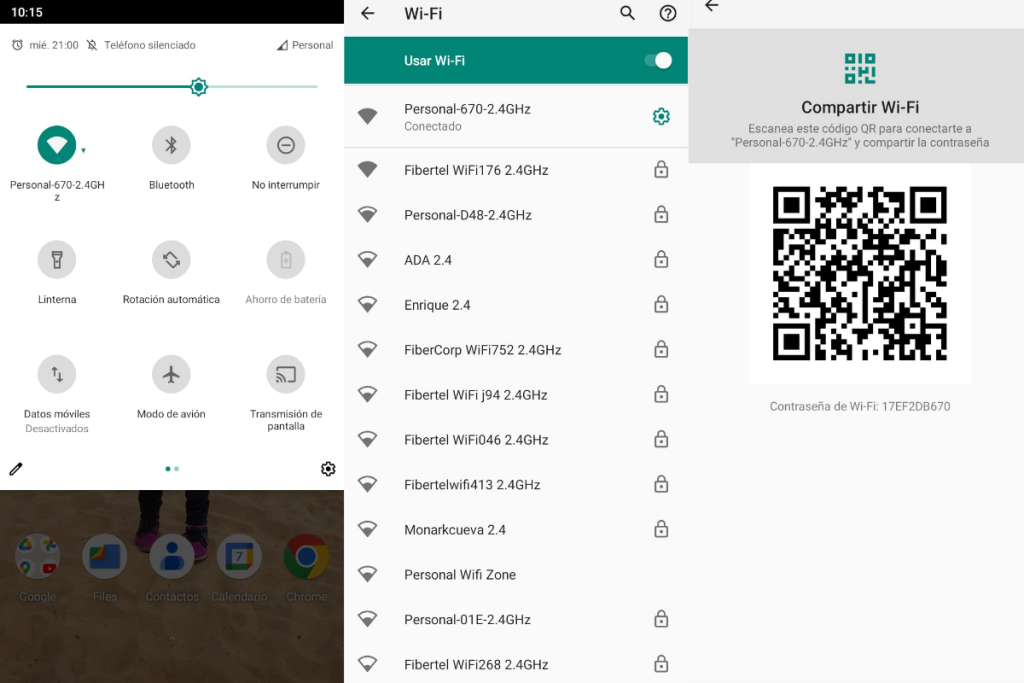
Go to Settings > Network & Internet > WiFi. Tap the gear icon next to the network you’re connected to (or saved). You’ll see a “Share” button—tap it. Your phone may ask for your PIN, pattern, or password to verify it’s you. Once authenticated, a QR code appears on the screen. Below the QR code, you’ll see the network name and the password in plain text. Tap “Copy” or write it down.

Step 2: Use ADB to Extract Saved WiFi Passwords (Root or No Root)
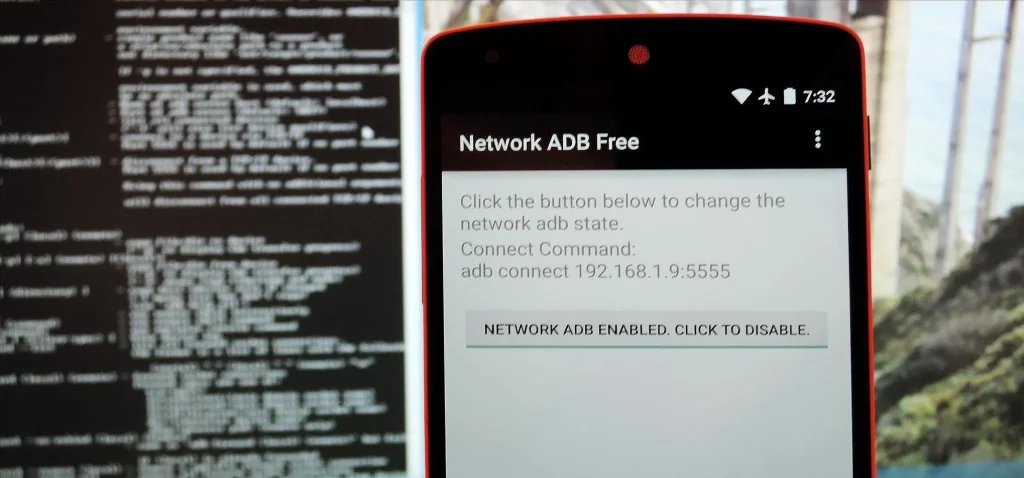
If the QR method isn’t available (e.g., you’re not currently connected) or you want to recover passwords for multiple networks, ADB is a powerful option. This method requires enabling Developer Options and USB Debugging on your phone and using a computer. For a detailed walkthrough, check out our dedicated guide on wifi password recovery via adb.
Enable Developer Options by going to Settings > About Phone and tapping “Build Number” seven times. Then go to Settings > Developer Options and enable USB Debugging. Connect your phone to your computer and run the command: “adb shell” then “su” (if rooted) or for non-root, use “adb shell” and navigate to /data/misc/wifi to pull the wpa_supplicant.conf file (older Android) or use the “cmd wifi” command on newer versions. For Android 10+, you can run: “adb shell cmd wifi list-networks” and then “adb shell cmd wifi get-wifi-config” to get the password. This will output the SSID and password in plain text.
Step 3: Use a Third-Party App (Proceed with Caution)
If you prefer a graphical interface and don’t want to mess with ADB, there are apps on the Play Store that can show saved WiFi passwords. However, most of them require root access on Android 10+ due to security restrictions. Common options include “WiFi Password Viewer” or “WiFi Key Recovery.” Always check reviews and permissions—only choose an app that is widely recommended. Our guide on wifi password recovery app safe can help you pick a trustworthy one.
After installing, open the app, grant root permission if asked, and you’ll see a list of saved networks with their passwords. If you don’t have root, some apps may use the QR code sharing trick or backup data. However, on stock Android (non-root), the most reliable non-root method remains the QR code sharing built into the system.
Common Pitfalls
- **QR code does not appear**: If the “Share” button is missing or grayed out, you might be using an older Android version (Android 9 or below). In that case, use the ADB method or try a third-party app. Also, ensure you’re looking at the correct network settings.
- **ADB says ‘device unauthorized’**: This happens when you haven’t accepted the RSA key fingerprint prompt on your phone. Unplug and reconnect, and watch your phone screen for the “Allow USB debugging?” dialog. Check the box that says “Always allow from this computer” and tap OK.
- **Permission denied when pulling wpa_supplicant.conf**: On Android 10+, the file is encrypted and not readable without root. Use the “cmd wifi” commands instead. If root is required and you don’t have it, stick to the QR method or a non-root app.
Where to Next
Now that you have your passwords back, consider backing them up so you never lose them again. You can restore wifi passwords from cloud if you have Google backup enabled or use a password manager. If you need recovery on other devices, check out our guides on wifi password recovery for forgotten password on Windows or Mac. And if you’re dealing with a business network, our wifi password recovery for business wifi tips may come in handy.
Remember to keep your passwords secure and share them responsibly. Happy surfing!



