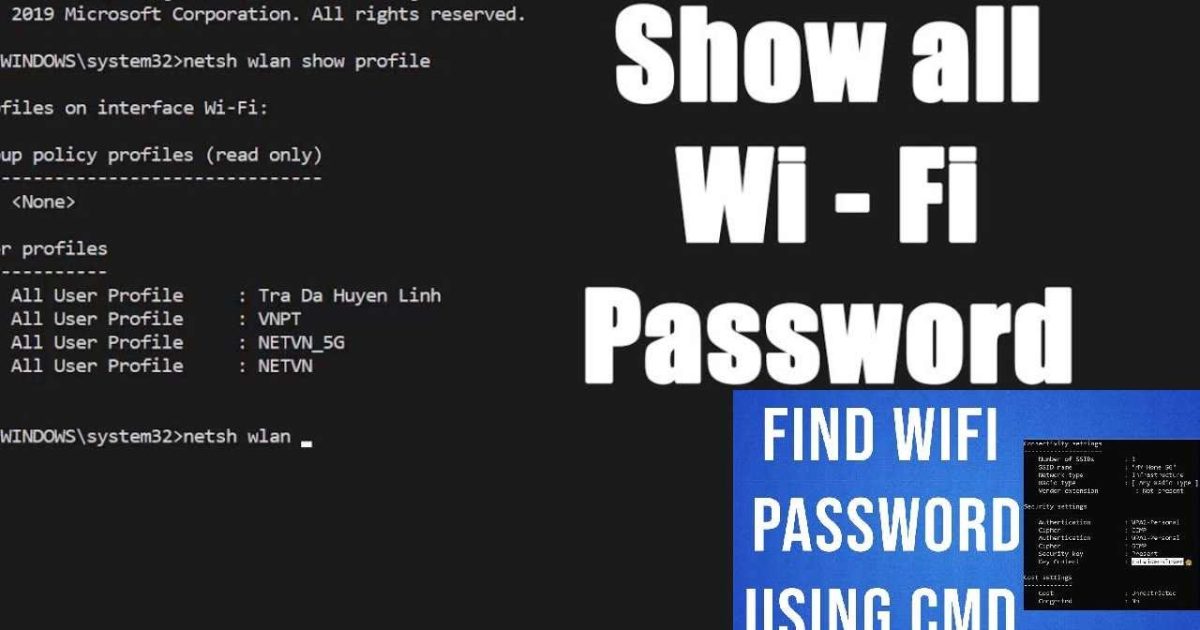
Ever been in that awkward spot where someone asks for the WiFi password and your mind goes blank? Or maybe you set up a network years ago and the sticky note with the password has long disappeared. Whatever the reason, if you’re on a Windows PC that’s already connected to that WiFi network, you can pull the password out in seconds using nothing but the Command Prompt. This guide is for anyone who has a Windows laptop or desktop and wants to recover a saved WiFi password without installing sketchy third-party software. By the end, you’ll have the plain-text password for any network your computer has ever connected to.
We’ll walk through the whole process step by step, from opening Command Prompt as an administrator to using the right netsh commands. I’ll also show you how to list all saved profiles so you can pick the right one, and how to view the password for any network — even one you’re not currently connected to. This method works on Windows 7, 8, 10, and 11. Let’s dive in.
What You’ll Need
- A Windows PC (7, 8, 10, or 11) that has connected to the WiFi network before
- Administrator access to that PC (you’ll need to run Command Prompt as admin)
- The name (SSID) of the WiFi network you want to recover the password for (if you don’t know it exactly, we’ll cover how to list all profiles)
That’s it. No extra tools, no downloads, just a few commands.
Step 1: Open Command Prompt as Administrator
First, you need to launch Command Prompt with administrator privileges. Press the Windows key on your keyboard, type “cmd” or “Command Prompt”, then right-click on the result and select “Run as administrator”. If prompted by User Account Control, click “Yes”. A black window with white text will appear — that’s your command line.

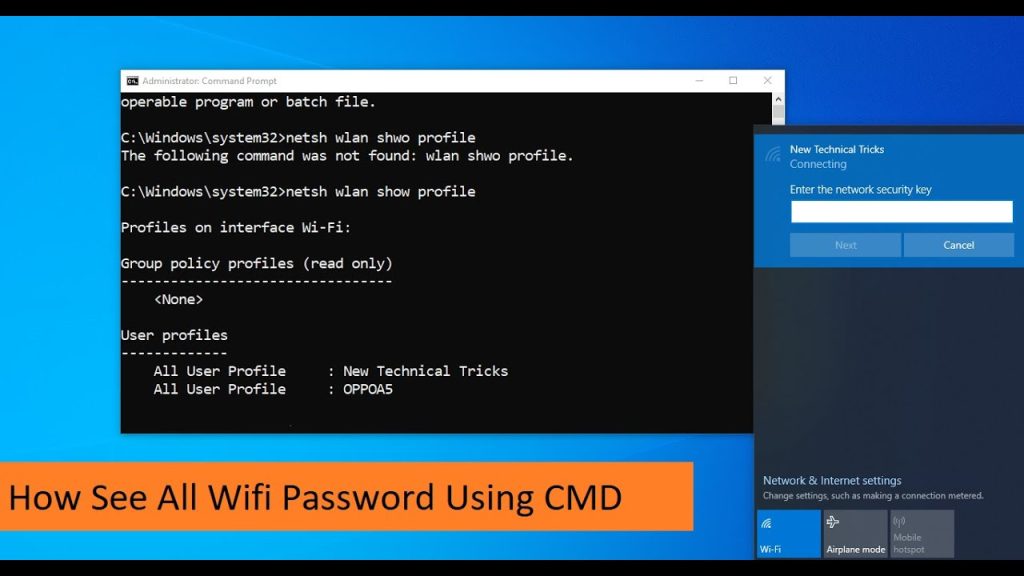
Step 2: View All Saved WiFi Profiles
In the Command Prompt window, type the following command and press Enter:
This will display a list of every WiFi network your computer has ever connected to. Look for the network name (SSID) you need the password for. If you see it, note it down exactly as shown — including any spaces or special characters.
Step 3: Get the Password for a Specific Network
Now run this command, replacing “NETWORK_NAME” with the actual SSID you found in the previous step:
A lot of information will scroll by. Look for a section called “Security settings”. Inside that, you’ll see a line that says “Key Content” — that’s your WiFi password in plain text. It will be right there next to it. For example: Key Content : MySecretPassword123.
Step 4: Optional — Export All Passwords to a Text File
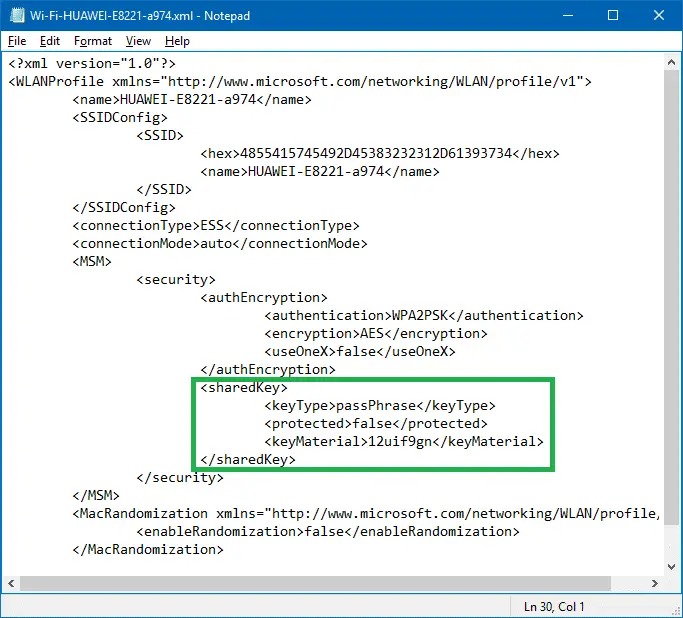
If you want to save all your WiFi passwords for backup, you can use a little trick. First, create a folder on your desktop called “WiFiBackup”. Then run these two commands:
This will create an XML file for every saved network. Open any of those XML files with Notepad, search for “keyMaterial”, and you’ll find the password there. This is especially handy if you want to transfer WiFi settings to another computer or just keep a backup.
Common Pitfalls
- You forget to run as administrator. If you run Command Prompt without admin rights, you’ll get an “Access is denied” error. Always right-click and select “Run as administrator”.
- The network name has spaces or special characters. If your SSID contains spaces, you must enclose it in quotes in the command. For example:
netsh wlan show profile name="My Home WiFi" key=clear. - The network is not in the list. If the network doesn’t appear in the profiles list, that means your computer has never connected to it. This method only recovers passwords for networks that have been saved on that specific PC.
Where to Next
Now that you’ve got your WiFi password back, you might want to check out our other guides for more recovery scenarios. If you’re on a different device, our wifi password recovery windows guide covers other methods. For home networks, see our detailed home wifi password recovery tutorial. If you’re using Windows 10 specifically, the recover wifi password windows 10 article has even more tips. And if you want a completely free method, check out wifi password recovery free for alternatives.



