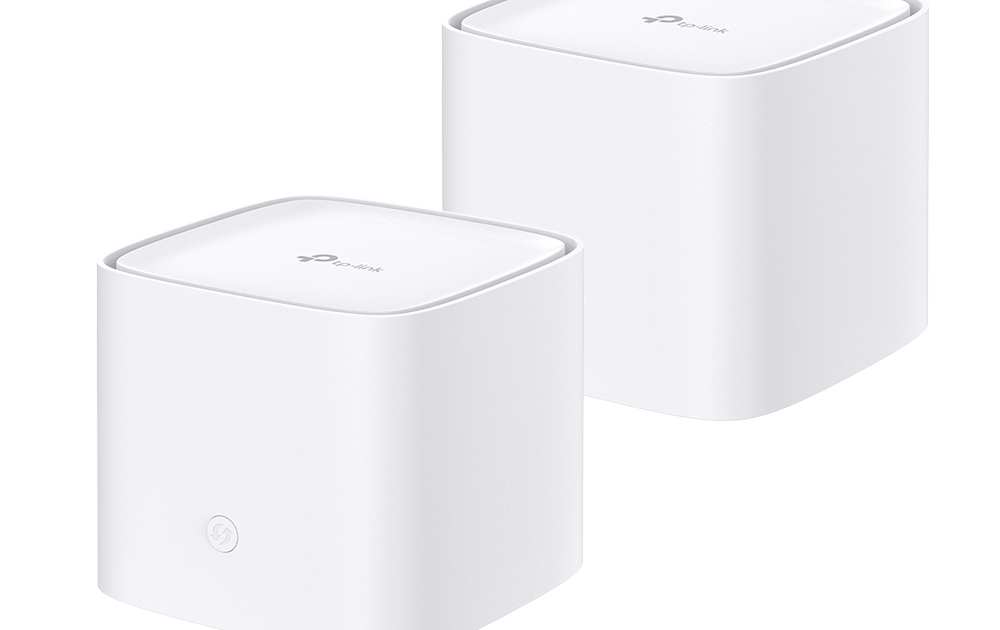
So you’ve just set up a shiny new mesh WiFi system—maybe Google Wifi, Eero, or Orbi—and within a week you’ve already forgotten the password. Or maybe a guest asks for it and you draw a blank. Don’t worry, it happens to everyone. By the end of this guide, you’ll have your mesh WiFi password back in your hands without needing to reset the whole network.
This tutorial is for anyone using a modern mesh WiFi system who needs to recover or change their WiFi password. We’ll cover the easiest methods first—using the mesh app or web admin—and then fallback options like pulling it from a connected Windows or Mac device. No advanced tech skills required.
What You’ll Need
- Your mesh WiFi system (e.g., Google Nest Wifi, Eero, Netgear Orbi, TP-Link Deco)
- Admin credentials for the mesh app or web portal (usually the username/password you set during setup)
- A smartphone or tablet with the mesh app installed, or a computer connected to your mesh network
- Access to the physical router if you need to factory reset (as a last resort)
- Optional: Another device already connected to your WiFi (to recover the password from its settings)
Step 1: Open Your Mesh App
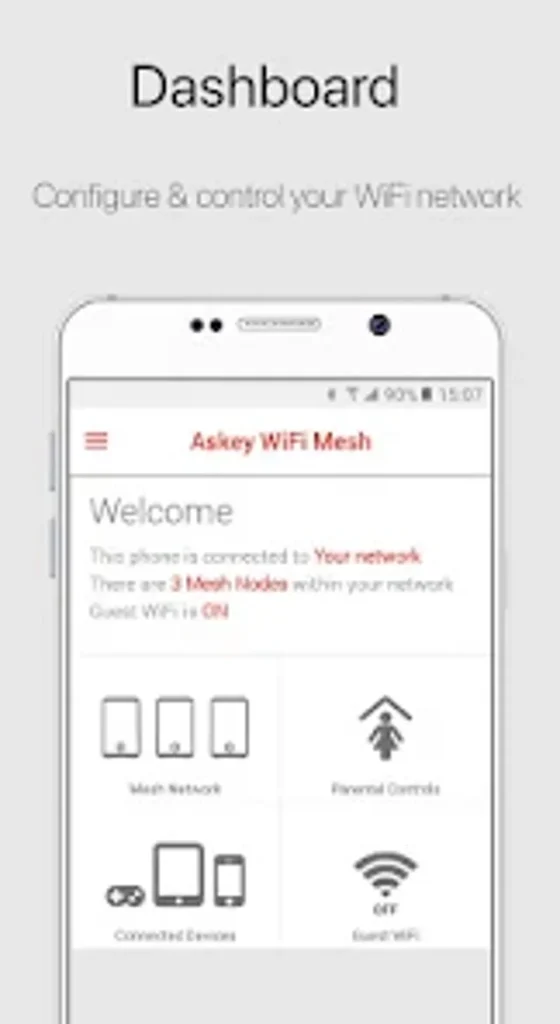
Most mesh systems have a dedicated mobile app—Google Home for Nest Wifi, Eero app for Eero, Orbi app for Netgear Orbi, Deco app for TP-Link Deco, etc. Grab your phone, open that app, and log in with your account credentials (the email and password you used when you first set up the system). If you haven’t installed the app yet, download it from the App Store or Google Play.
Step 2: Navigate to WiFi Settings
Once you’re in the app’s main dashboard, look for a “WiFi Settings”, “Network”, or “Advanced” section. In most apps, the password is under a “Guest Network” or “WiFi Password” option. For example, in Google Home, tap the network name, then “Settings” > “WiFi Password”. In Eero, tap “Settings” > “Network Settings” > “Change Password”. The exact label varies, but it’s usually intuitive.
Step 3: View or Copy the Password
Most apps show the current password with a toggle to reveal it (an eye icon). Tap that to see the password in plain text. You can copy it to your clipboard or write it down. If you don’t see an option to view it, you may need to change it—just make sure to write down the new one before saving. If you change it, all devices will disconnect, so only do that if you’re ready to reconnect them.
Step 4: Use the Web Admin Panel (If App Isn’t Available)
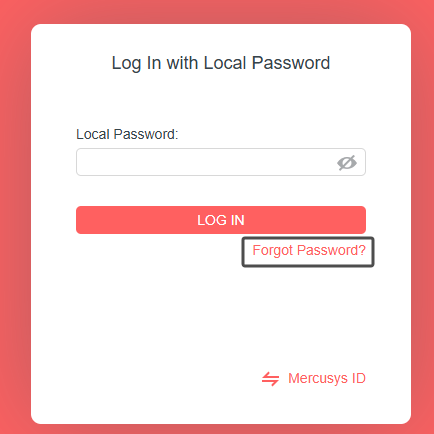
Can’t find the app or having login issues? Many mesh routers also have a web admin interface. Connect a computer to your mesh network via Ethernet or WiFi (if you’re still connected), open a browser, and enter your router’s IP address (common ones: 192.168.0.1, 192.168.1.1, or 10.0.0.1). You can usually find the IP on a sticker on the router or in your device’s network settings. Log in with the admin username and password (often “admin”/“admin” or what you set up). Then look for “Wireless” or “WiFi” settings to view or change the password.
Step 5: Recover Password from a Connected Windows PC
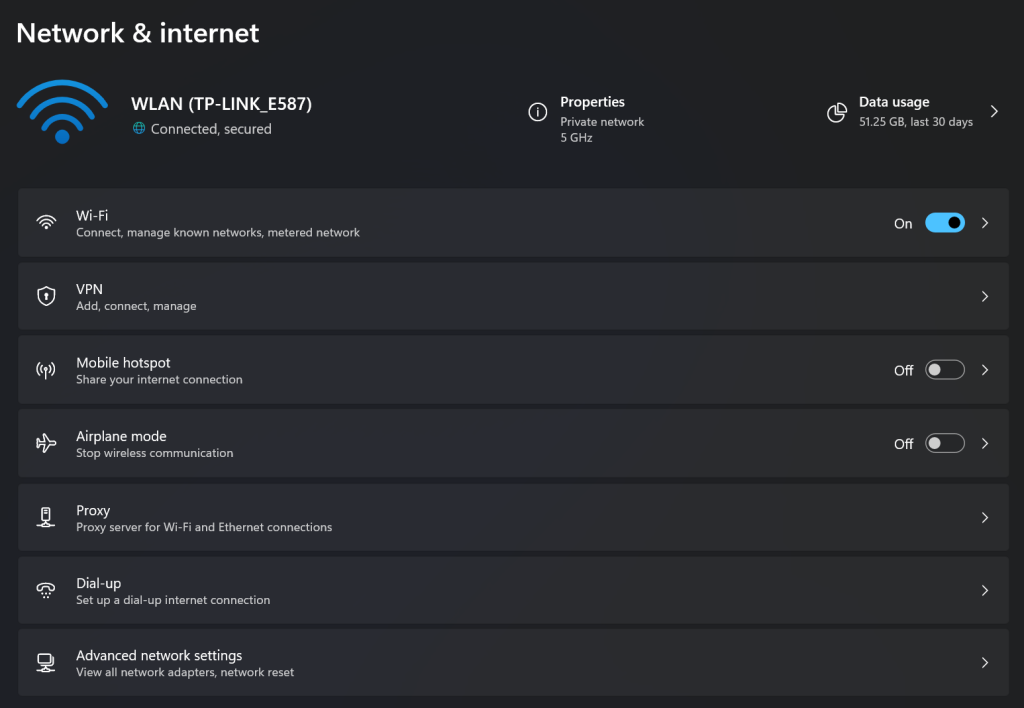
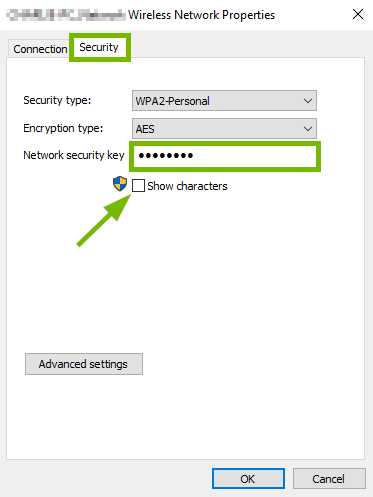
If you have a Windows laptop that’s already connected to the mesh WiFi, you can pull the password from its saved network profiles. For a detailed walkthrough, check out our guide on wifi password recovery windows. The short version: go to Control Panel > Network and Sharing Center > click on your WiFi network name > Wireless Properties > Security tab > check “Show characters”. You’ll see the password in the Network Security Key field.
Step 6: Recover Password from a Connected Mac
On a Mac, open Keychain Access (from Applications > Utilities), search for your network name (SSID) in the search bar, double-click it, and check the “Show password” box. You’ll need your Mac’s admin username and password to reveal it. This works for any WiFi network, including mesh. For more details, see our article on how to recover wifi password on mac.
Common Pitfalls
- Forgot your app login credentials: If you can’t log into the mesh app, try the “Forgot password” option to reset your account. If that fails, you may need to factory reset the router (press and hold the reset button for 10 seconds) and set up from scratch. This will erase all settings, so it’s a last resort.
- App can’t find the router: Make sure your phone is on the same WiFi network as the mesh system. Sometimes a phone on cellular data won’t be able to discover the router. Connect to the WiFi first.
- Web admin IP doesn’t work: Not all mesh systems have a web admin; some are app-only. If you can’t log in via browser, search for “[your mesh brand] web admin” online. Also, try pinging the router’s IP or check your router’s manual.
Where to Next
Now that you’ve recovered your mesh WiFi password, consider backing it up so you never lose it again. Our tutorial on restore wifi passwords from cloud shows you how to sync passwords across devices safely. If you have guests often, set up a guest network with a separate password—it’s more secure. And if you ever need to recover a forgotten password on Android, our how to recover wifi password on android guide has you covered. Happy surfing!



