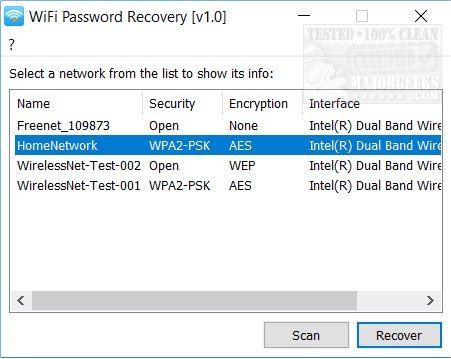
You’re sitting at your desk, coffee in hand, and your laptop asks for the office WiFi password. But you can’t remember it—and your IT guy is out to lunch. Don’t panic. This guide is for any office worker who needs to recover a WiFi password without calling for help. By the end, you’ll have the password in hand, whether you’re on Windows, Mac, or Android.
We’ll cover several methods: checking the physical router, asking IT (the smart way), digging into your computer’s saved networks, and even using a command line trick. No special tools, no admin rights required for most steps. Let’s get you connected.
What You’ll Need
- A computer or phone that has connected to the office WiFi at least once
- Optional: physical access to the router (usually in a server closet or break room)
- A few minutes of patience
Step 1: Check the Router Sticker
The easiest method: walk to the router and look for a sticker. Most office routers have a label with the default SSID and password. If the password hasn’t been changed, you’re done. If it has, move to Step 2.

Step 2: Ask IT Nicely (But Be Prepared)
Before you pester IT, check if they have a self-service portal. Many companies post the WiFi password on an internal wiki or Slack channel. If you must ask, phrase it politely: ‘Hi, could you remind me of the guest/employee WiFi password? I need to reconnect my device.’
Step 3: Recover from a Windows PC That’s Already Connected
If you have a Windows 10/11 laptop that’s already on the office WiFi, you can easily view the password. Go to Settings > Network & Internet > Status > Network and Sharing Center. Click on the WiFi network name, then Wireless Properties > Security tab, and check ‘Show characters’. This is a classic method—check out our full wifi password recovery guide for more details.


Step 4: Recover from a Mac That’s Connected
On a Mac, open Keychain Access (Applications > Utilities > Keychain Access). Search for the network name in the System keychain, double-click it, and check the ‘Show password’ box. You’ll need your Mac login password. For a detailed walkthrough, see our guide on how to recover wifi password on mac.
Step 5: Recover from an Android Phone (If It’s Connected)
On most Android phones (Android 10+), go to Settings > Network & Internet > WiFi. Tap the gear icon next to the connected network, then tap ‘Share’ or a QR code icon. You’ll see the password below the QR code. No root needed. For more methods, check our guide on wifi password recovery for forgotten password.

Step 6: Use Command Prompt on Windows (No GUI Needed)
Open Command Prompt as admin (search ‘cmd’, right-click, Run as administrator). Type ‘netsh wlan show profile name=”OfficeWiFi” key=clear’ (replace OfficeWiFi with the actual network name). Look for ‘Key Content’—that’s your password. This is the wifi password recovery via cmd method.
Common Pitfalls
- The router sticker may have a default password that was changed months ago. Always try before assuming.
- You might not have admin rights on your work PC. If the ‘Show characters’ option is grayed out, try the CMD method or ask IT.
- Some office networks use enterprise security (WPA2-Enterprise) with a username/password combo. The saved password you see may be only part of the credentials.
Where to Next
Now that you’re back online, consider backing up your saved passwords. For home networks, our wifi password recovery for business wifi guide has extra tips. If you’re still having trouble, the full recover wifi password windows 10 article covers advanced scenarios. Happy surfing!