If you’re an IT manager, small business owner, or employee who needs to connect a new device to the office network but can’t find the sticky note with the password, this guide is for you. Business WiFi passwords often change more frequently than home ones, and they’re usually stored on multiple devices or hidden deep in router admin panels. By the end of this tutorial, you’ll have the WiFi key in hand—no router reset required.
We’ll cover four methods: recovering the password from a Windows 10 PC that’s already connected, pulling it from a Mac’s keychain, accessing the router’s admin interface, or using a free third-party tool. Each method works for most small-to-medium business networks, and we’ll point out where you might hit roadblocks.
What You’ll Need
- A computer (Windows or Mac) that is already connected to the business WiFi network
- Administrator access on that computer (or a user who can run admin commands)
- The router’s IP address (often 192.168.0.1, 192.168.1.1, or 10.0.0.1)
- The router’s admin username and password (if you plan to log into the router)
- A free tool like WirelessKeyView (Windows) or Keychain Access (Mac)—no payment needed
Step 1: Recover WiFi Password on Windows 10 (No Software)
On any Windows 10 PC that’s already connected to the business WiFi, you can retrieve the password through the network settings. This is the fastest method and doesn’t require extra tools. For a deeper dive, check out our dedicated guide on how to recover wifi password windows 10.
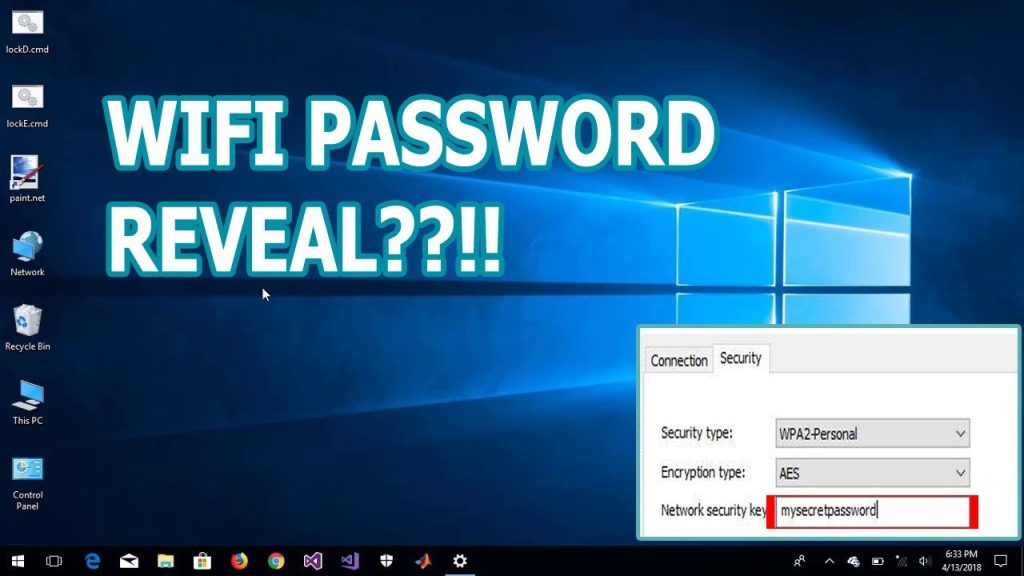
- Click the WiFi icon in the system tray (bottom-right) and select ‘Network & Internet settings’.
- Click ‘Status’ on the left sidebar, then ‘Network and Sharing Center’.
- Click the name of your business WiFi network (next to ‘Connections’).
- In the WiFi Status window, click ‘Wireless Properties’.
- Go to the ‘Security’ tab and check the box that says ‘Show characters’.
- The password appears in the ‘Network security key’ field.
Step 2: Recover WiFi Password on Mac (Keychain Access)
If you’re using a Mac that’s already connected to the network, the password is stored in the Keychain. This method works on macOS 10.10 and later. For ongoing management, we recommend you backup wifi passwords mac to avoid future lockouts.

- Open ‘Keychain Access’ from Applications > Utilities or via Spotlight (Cmd+Space).
- In the search bar, type the name of your business WiFi network.
- Double-click the network entry (it should have a lock icon).
- Check the box ‘Show password’ and enter your Mac’s administrator username and password.
- The WiFi password is now visible in the ‘Show password’ field.
Step 3: Recover via Router Admin Panel
If you have access to the router’s admin interface, you can view or change the WiFi password directly. This is ideal for business networks where you have physical or remote access to the router. Many business routers use a default IP and admin credentials—check the sticker on the router or ask your IT team.

- Open a web browser and enter your router’s IP address (e.g., 192.168.1.1).
- Log in with the router’s admin username and password (often ‘admin/admin’ or ‘admin/password’).
- Navigate to the WiFi or Wireless section (names vary: Wireless Settings, Wi-Fi, etc.).
- Look for ‘Security’ or ‘Password’ field. The current WiFi password is shown in plain text or asterisks (toggle to show).
- Write it down or copy it to a secure location.
Step 4: Use a Free WiFi Password Recovery Tool
When you don’t have admin access on the computer or can’t log into the router, a lightweight free tool can extract the stored password. For Windows, WirelessKeyView is a classic; for Mac, Keychain Access (covered above) is already built-in. This method is part of our broader wifi password recovery free options. For Android devices on the network, see our wifi password recovery android guide.
- Download WirelessKeyView from a trusted source (NirSoft’s official site).
- Extract the ZIP file and run the executable as Administrator.
- The tool scans and displays all saved WiFi networks, including your business network.
- Find your business network SSID, read the password in the ‘Key (Ascii)’ column.
- Write it down or take a screenshot (store securely, don’t share).
Common Pitfalls
- No Admin Rights: If your computer is locked down by IT, you won’t be able to run WirelessKeyView or access Keychain passwords. You’ll need to request the password from your network administrator directly.
- Forgotten Router Credentials: Business routers often have non-default admin passwords. If you can’t log in, you may need to factory reset the router (which disconnects everyone and reconfigure from scratch). Try common business defaults first.
- Multiple SSIDs or VLANs: Business networks often have separate 2.4GHz and 5GHz networks or guest VLANs. Make sure you’re recovering the password for the correct SSID. Check the network name your device is connected to before pulling the password.
Where to Next
Now that you have your business WiFi password, consider saving it securely in a password manager or storing a copy in a locked drawer. To prevent future lockouts, set up a reminder to update passwords quarterly and share them through a secure channel like a password vault. If you’re on a personal laptop, you might also want to explore recovering passwords from other devices like your phone.



