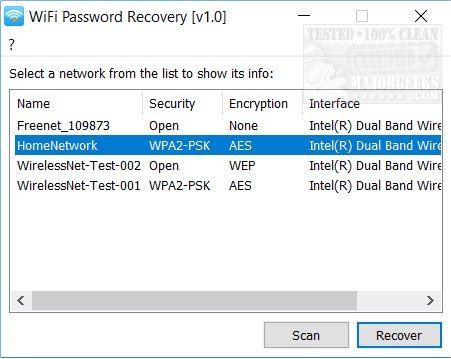
So you need to connect a new device to your home WiFi, but you’ve completely forgotten the password. Don’t worry—it happens to everyone. This guide walks you through every practical method to recover a WiFi password, whether you’re on Windows, Mac, Android, or can just grab it straight from the router. No tech degree required.
By the end of this tutorial, you’ll be able to pull up that lost password in under five minutes using tools you already have. You’ll learn the quick sticker trick, the built-in OS methods, the command-line ninja move, and the router admin panel approach. Let’s get your devices back online.
What You’ll Need
- A computer or phone that’s already connected to the WiFi network (or was connected in the past)
- Administrator access on Windows (to run CMD as admin)
- Physical access to your router (to read the sticker or log into the admin panel)
- Patience for one or two settings menus
Step 1: Check the Router Sticker
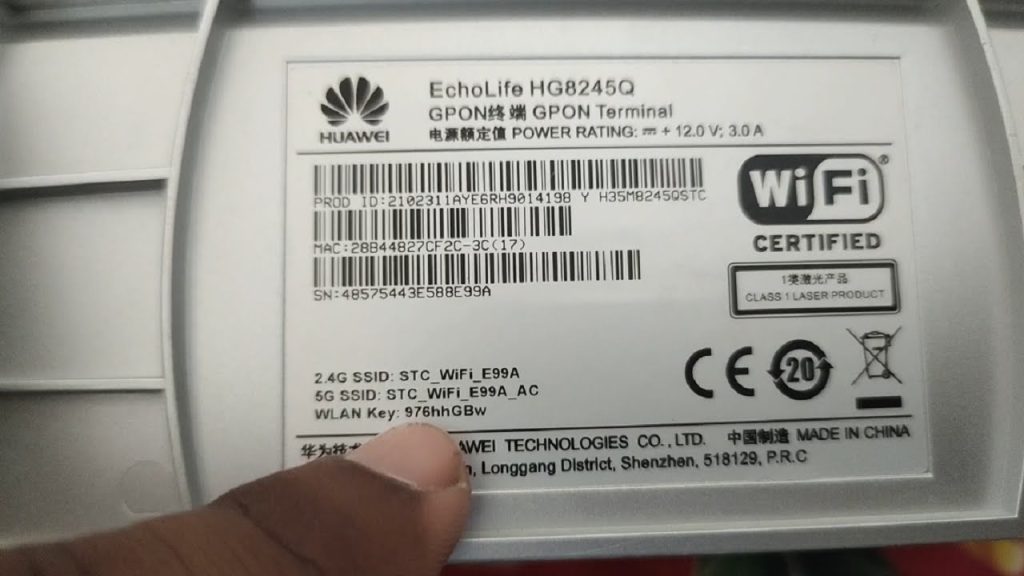
Before diving into software, look at your router itself. Most routers have a sticker on the bottom or back that shows the default SSID and password. If you never changed it, that’s your password. If you did change it, move to Step 2.
Step 2: Recover WiFi Password on Windows
Windows stores every WiFi password you’ve ever connected to. Here’s the easiest way to get it back. For a full visual walkthrough, check our dedicated wifi password recovery windows guide.
Go to Settings > Network & Internet > Status > Network and Sharing Center. Click on your WiFi network name (the blue link). In the pop-up, click Wireless Properties, then the Security tab. Check ‘Show characters’ and there’s your password.

Step 3: Recover WiFi Password via Command Prompt (CMD)
If you prefer the keyboard or need to recover multiple saved networks, use the command line. Open Command Prompt as Administrator, then type: netsh wlan show profile. Find the network name you want. Then type: netsh wlan show profile name="YOUR_NETWORK_NAME" key=clear. Look for ‘Key Content’—that’s the password. Our wifi password recovery via cmd tutorial has extra tips.
Step 4: Recover WiFi Password on Mac
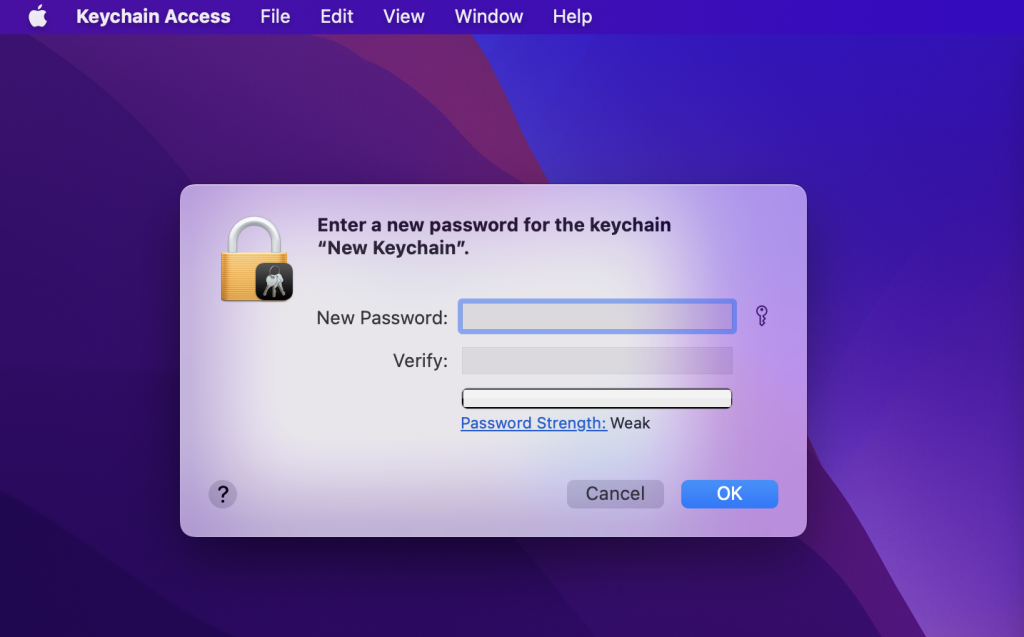
On a Mac, open Keychain Access (Applications > Utilities). Search for your WiFi network name. Double-click it, then check ‘Show password’. You’ll need your Mac login password to proceed. For more details, see our how to recover wifi password on mac article.
Step 5: Recover WiFi Password on Android
On recent Android versions (9+), go to Settings > Network & Internet > WiFi. Tap the gear icon next to your connected network. Tap ‘Share’ or the QR code icon. The password appears below the QR code. You can also scan the QR code with another device. For older or root methods, check our how to recover wifi password on android guide.

Step 6: Recover Password via Router Admin Panel
If you have no device already connected, you can log into your router’s admin panel. Open a browser and enter your router’s IP (often 192.168.1.1 or 192.168.0.1). Log in with admin credentials (check the sticker if you haven’t changed them). Look for Wireless or WiFi settings—the password is usually in a field labeled ‘Security Key’ or ‘Passphrase’. This method works for any network, especially mesh systems—see our mesh wifi password recovery for specific steps.

Common Pitfalls
- You don’t have admin rights on a work or school computer—CMD or Keychain won’t work. Use the router method instead.
- You changed your router’s admin password and forgot that too. In that case, you’ll need to factory reset the router (hold the reset button for 10 seconds). That’s a last resort—it wipes all custom settings.
- Third-party WiFi recovery apps often ask for unnecessary permissions or may be unsafe. Stick to the built-in methods above.
The safest way to recover a WiFi password is through your device’s native settings or the router itself—no extra software needed.
Where to Next?
Now that you’ve got your password back, consider keeping it handy. You can write it down, store it in a password manager, or even create a QR code to share with guests. For more specialized scenarios—like recovering passwords on corporate networks or restoring from cloud backups—browse our full library of wifi password recovery for home wifi and other guides.