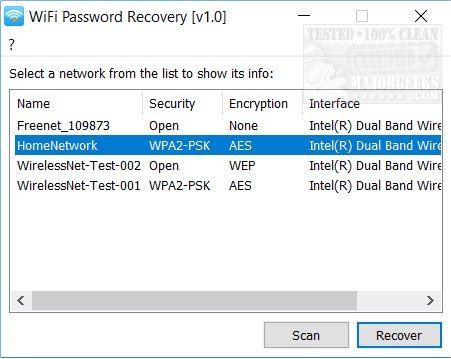
Ever been in that awkward spot where a friend asks for your WiFi password and you draw a blank? You typed it in months ago and Windows 11 kindly saved it, but now you have no clue what it is. Don’t worry — if you’re already connected to the network on your Windows 11 PC, retrieving that password is super easy. This guide is for anyone who needs to recover a forgotten WiFi password on their own machine. By the end, you’ll have the password in plain text, ready to share or use on another device.
We’ll cover three methods: the modern Settings app, the classic Control Panel, and a quick Command Prompt trick. Pick whichever feels most comfortable. No third-party software needed, and no tech wizardry required. Let’s dive in.
What You’ll Need
- A Windows 11 PC or laptop that is already connected to the WiFi network you want to recover the password for.
- Administrative access (you’re likely the admin if it’s your personal device).
- Patience — the whole process takes less than 2 minutes.
Step 1: Recover via Windows 11 Settings
This is the most straightforward method. Start by clicking the Start button (or pressing the Windows key) and then select Settings (the gear icon). Alternatively, press Win + I to open Settings directly.
In the left sidebar, click Network & internet, then select Wi-Fi on the right. Click on Manage known networks. You’ll see a list of every WiFi network your PC has ever connected to. Find the one you want the password for and click the Show password icon (it looks like an eye) next to the network name. A pop-up will display the password in plain text. Write it down or share it right away.

Step 2: Recover via Control Panel (Classic Method)
If you prefer the old-school way, the Control Panel still works. Open the Start menu, type Control Panel, and open it. Change the view to either Large icons or Small icons using the dropdown at the top right. Click on Network and Sharing Center.
In the Network and Sharing Center, look for your active network connection — it will say something like Connections: YourWiFiName. Click on the network name (a blue link). A new window called Wi-Fi Status will pop up. Click the Wireless Properties button. Go to the Security tab and check the box that says Show characters. The password will appear in the Network security key field.
Step 3: Recover via Command Prompt (Power User Method)
For those who love the keyboard, Command Prompt is lightning fast. Right-click the Start button and select Windows Terminal (Admin) or Command Prompt (Admin). Confirm the User Account Control prompt if it appears.
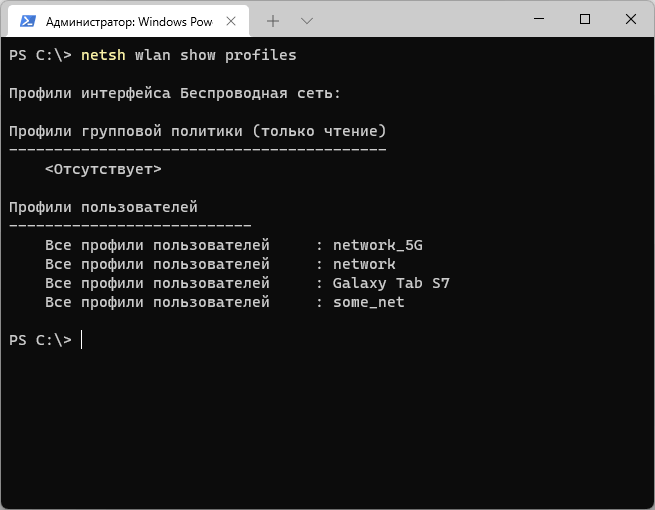
Type the following command and press Enter:netsh wlan show profile
This will list all saved WiFi profiles. Look for the exact name of your network (it’s case-sensitive). Once you have it, type:netsh wlan show profile name=YourWiFiName key=clear
Replace YourWiFiName with your actual network name. Scroll down to the section labeled Security settings. The password is displayed next to Key Content. Done.
Common Pitfalls
- Not running as administrator: The Command Prompt method requires admin rights. If you skip that, you’ll get an access denied error. Always right-click and select “Run as administrator”.
- Network name typo in CMD: If the profile name has spaces, enclose it in quotes. For example:
name="My Home Network". Otherwise, you’ll get an error that the profile was not found. - Network not saved or forgotten: If you previously selected “Forget” on the network, it won’t appear in the list. You’ll need to reconnect first, or use another device to recover the password.
Where to Next?
Now that you’ve got your password back, you might want to check out our full wifi password recovery guide for other platforms like macOS and Android. If you’re still on Windows 10, see our dedicated article on how to recover wifi password windows 10. For advanced users, the wifi password recovery via cmd method is a lifesaver. And if you ever lose access completely, our wifi password recovery for forgotten password guide covers recovery from the router itself. All these methods are part of our wifi password recovery free collection — no paid tools required.