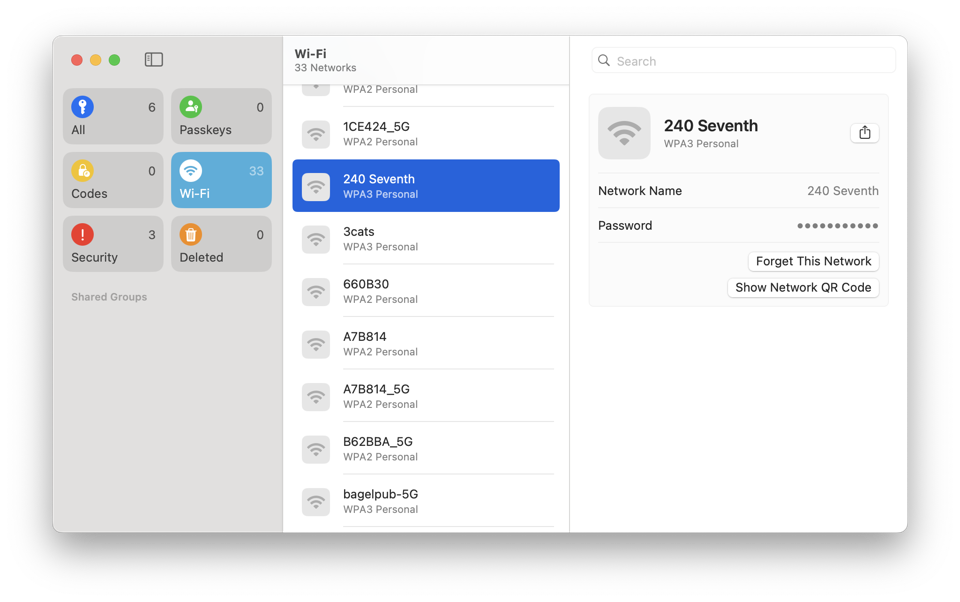
If you’re like me, you’ve connected to dozens of WiFi networks and never thought twice about saving the passwords. But when you get a new Mac or need to share a network with a friend, digging through your memory is a pain. This guide is for anyone who wants to securely backup their WiFi passwords on a Mac—whether you’re a casual user or a power user.
By the end of this tutorial, you’ll have either a plain text list or an encrypted backup file of all your saved WiFi passwords. You’ll be able to restore them on another Mac or simply have a cheat sheet for your home and office networks.
What You’ll Need
- A Mac running macOS (any recent version)
- Access to Keychain Access app (built-in)
- Terminal (optional)
- External drive or cloud storage for the backup file
Step 1: Open Keychain Access
Press Cmd+Space to open Spotlight, type “Keychain Access”, and press Enter. The app icon looks like a key.

Step 2: Find Your WiFi Networks
In Keychain Access, click on “System” in the left sidebar under Keychains. Then click the “Passwords” category at the top. Look for entries that start with “AirPort” — those are your WiFi network passwords.

Step 3: Export the Passwords
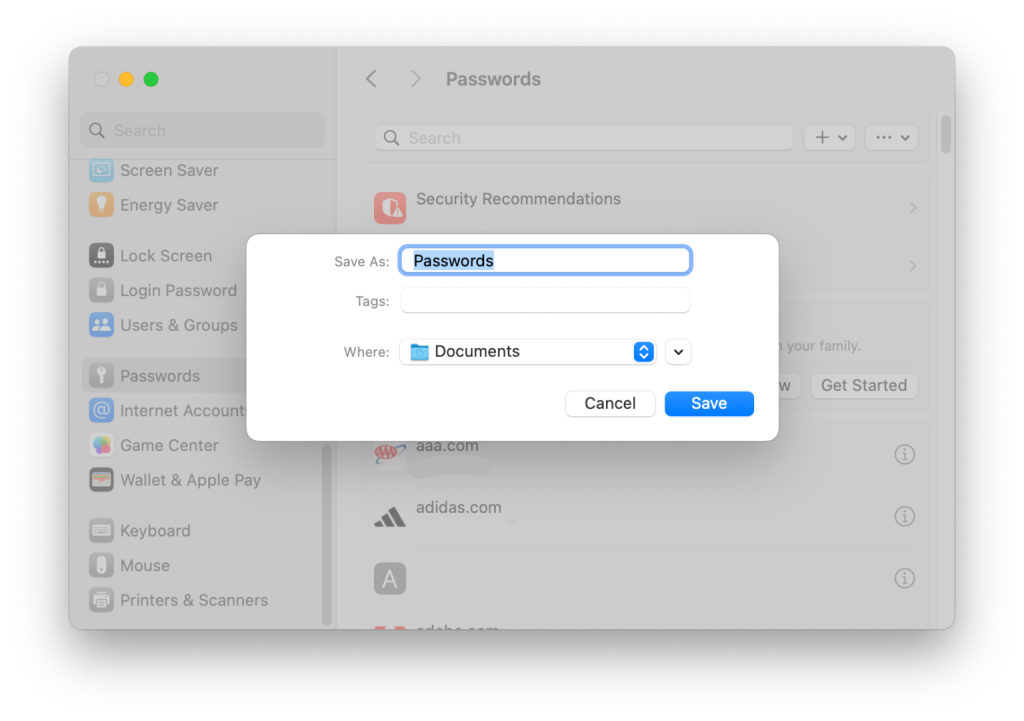
Select all the WiFi entries (Cmd+A), then go to File > Export Items. Choose a location and format. For easy reading, choose “Text” format. For security, choose “Keychain” format.

Step 4: Save Your Backup
Give the file a name like “WiFiPasswordsBackup.txt” or “.keychain”. Store it on an external drive or cloud service. Make sure you keep it safe—this file contains all your network credentials!
Alternative Method Using Terminal
If you prefer command line, open Terminal and run: security find-generic-password -wa “WiFi Network Name”. For bulk export, you can use a script to loop through all networks. This method gives you plain text output.

Common Pitfalls
- Forgetting to select the correct keychain (System vs iCloud) — make sure you’re in the System keychain.
- Exporting in a format that isn’t readable — if you want a plain list, choose Text, not Keychain.
- Permission errors: you need admin rights to export. If you get a lock icon, click it and enter your admin password.
Where to Next
Now that you have your WiFi passwords backed up, you might need to recover them on other devices. Check out our guides on wifi password recovery for windows 10 pc, wireless password recovery android, or wifi password recovery tutorial iphone. If you’re a student, school wifi password recovery could be handy. And if you’ve had a crash, see wifi password recovery after system crash for restoring from backup.



