
Ever been in that situation where a friend asks for your WiFi password and you completely blank? Or maybe you just set up a new device and need the key to your home network. You’re not alone—forgetting WiFi passwords is super common. This guide is for anyone using a Windows 10 PC who needs to dig up a saved WiFi password without downloading sketchy third‑party software. By the end, you’ll know exactly how to recover that password using nothing but the tools already built into Windows.
I’ll walk you through two dead‑simple methods: one through the graphical Network & Internet settings, and another using Command Prompt. Both are free, safe, and work on any Windows 10 machine. If you’re looking for a broader overview, check out our WiFi password recovery for beginners guide. Let’s get started!
What You’ll Need
- A Windows 10 PC that’s currently connected to the WiFi network (or has connected to it before).
- Administrator access on that PC (you’ll need it for the Command Prompt method).
- About 5 minutes of your time.
Step 1: Recover WiFi Password via Network Settings (GUI Method)
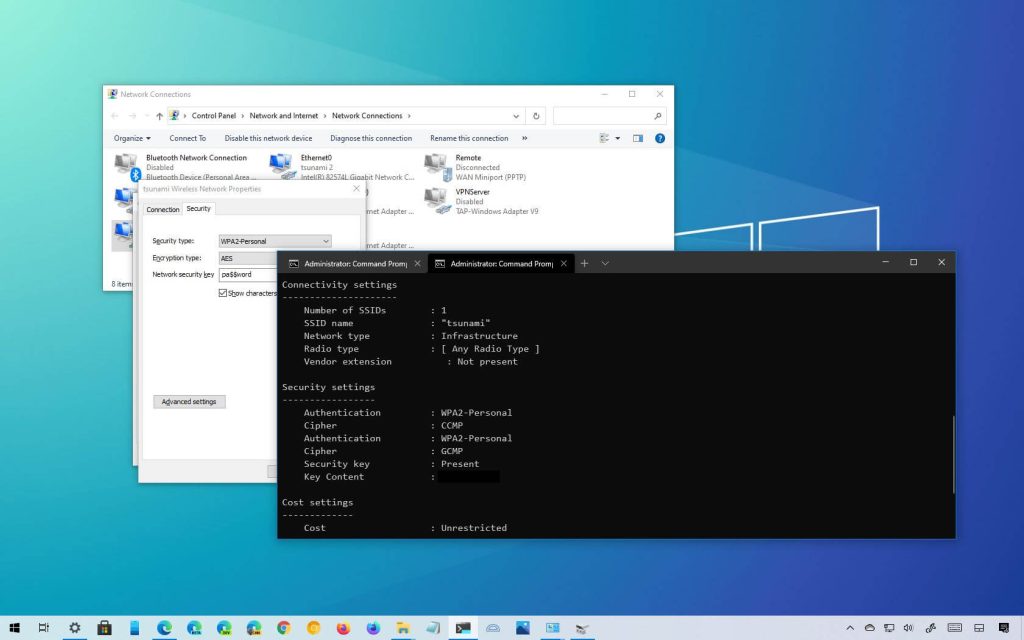
The easiest way is through the Settings app. Click the Start button, then the gear icon to open Settings. Go to Network & Internet > Status. Under “Advanced network settings,” click “Network and Sharing Center.” In the window that opens, find your active WiFi network next to “Connections” and click on its name. A WiFi Status window will pop up—click “Wireless Properties.” Head to the Security tab, check the box that says “Show characters,” and voilà! Your password appears in the “Network security key” field. This method is perfect for a quick peek and works great if you’re already connected. For a similar approach on other devices, see our Windows keychain article.

Step 2: Recover WiFi Password via Command Prompt (CMD Method)
If you’re comfortable with a bit of typing, CMD gives you more control. Right‑click the Start button and select “Command Prompt (Admin)” or “Windows PowerShell (Admin).” Type the following command and press Enter: netsh wlan show profiles. This lists every WiFi network your PC has ever connected to. Find the one you need (say, “MyHomeNetwork”) and then type: netsh wlan show profile name="MyHomeNetwork" key=clear. Look for the line that says “Key Content”—that’s your password. The key=clear part forces Windows to display the password in plain text. If you want to master this method, our guide to find saved WiFi password using CMD has extra tips. And if you prefer a step‑by‑step walkthrough, check out recover WiFi password using CMD.

Step 3: Back Up Your WiFi Passwords (Optional but Smart)
Now that you’ve recovered your password, take a minute to save it somewhere safe. You can write it down, store it in a password manager, or even export all your WiFi profiles using CMD. Run netsh wlan export profile folder=C:UsersYourNameDesktop key=clear — this saves XML files with passwords in plain text to your desktop. Move those files to an encrypted USB drive. Trust me, doing this now saves headaches later, especially after a system crash. For ongoing tips, read our WiFi password recovery maintenance guide.
Common Pitfalls
- **Forgetting to run CMD as Administrator.** Without admin rights, you’ll get an “Access denied” error when trying to view passwords. Always right‑click and select “Run as administrator.”
- **Mistyping the profile name in CMD.** The profile name is case‑sensitive. Use the exact name from the
netsh wlan show profileslist, or wrap it in quotes if it contains spaces. - **Assuming the password is still valid.** If the network’s password was changed after your last connection, the stored password will be outdated. You’ll need to ask the network owner for the new one.
Where to Next
You’ve successfully recovered your WiFi password! Now that you have it, consider making life easier for next time. Check out our guides on backing up passwords or recovering them after a system crash. If you’re helping others, share this tutorial with them—they’ll thank you later. Happy surfing!



