Ever been locked out of your own Wi-Fi because you forgot the password? It happens to the best of us. Maybe you just got a new device, or a guest wants to connect, and that sticky note with the key is long gone. If you’re using a Windows PC that’s already connected to the network (or was connected before), you’re in luck. Your computer stores the password, and you can pull it up in seconds using Command Prompt. No third-party tools, no admin wizardry—just a few commands.
By the end of this guide, you’ll know exactly how to view saved WiFi password using CMD. You’ll be able to recover any Wi-Fi profile your PC has ever connected to. Plus, I’ll show you how to save the output to a file for safekeeping. This method works on Windows 7, 8, 10, and 11.
What You’ll Need
- A Windows PC (desktop or laptop) that has connected to the Wi-Fi network before.
- Administrator privileges on that PC (you can run CMD as admin).
- No additional software—just the built-in Command Prompt.
Step 1: Open Command Prompt as Administrator
Press the Windows key on your keyboard, type “cmd” (or “Command Prompt”), and you’ll see the app appear in the search results. Right-click on “Command Prompt” and select “Run as administrator.” If a User Account Control prompt pops up, click “Yes.” You’ll now have a black CMD window with administrator privileges.

Step 2: List All Saved Wi-Fi Profiles
In the Command Prompt window, type the following command and press Enter: netsh wlan show profiles. This command lists every Wi-Fi network your PC has ever connected to. Look for the name (SSID) of the network whose password you want. Make a note of the exact name—it’s case-sensitive. If you have many profiles, you can scroll through the list. This is the same method used to view saved WiFi password using CMD, so pay attention to the profile name.

Step 3: Show the Password for a Specific Profile
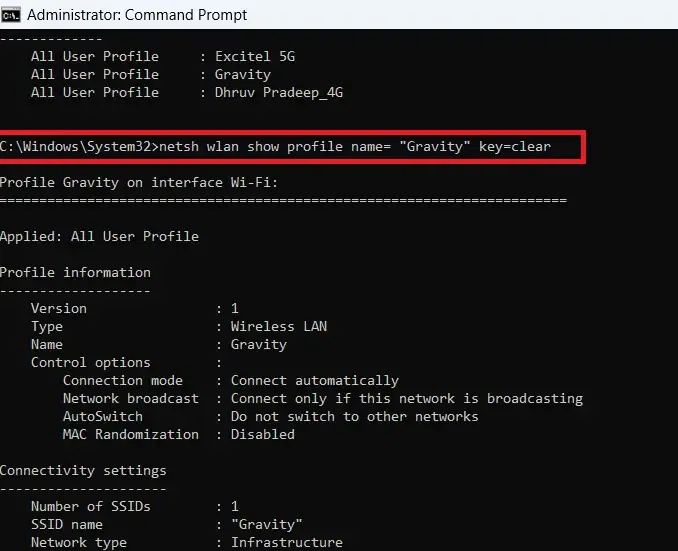
Now, type the following command, replacing ProfileName with the exact SSID from Step 2: netsh wlan show profile name="ProfileName" key=clear. For example, if your Wi-Fi is named “HomeNetwork”, you’d type: netsh wlan show profile name="HomeNetwork" key=clear. Press Enter. Scroll down until you see the line labeled “Key Content.” That’s your Wi-Fi password in plain text. Write it down or take a photo. If you have many networks to recover, you can also use WiFi password recovery with PowerShell to automate the process, but this CMD method is quick and reliable.

Common Pitfalls
Even though the CMD method is straightforward, a few things can trip you up. Here are three common issues and how to avoid them.
- **Profile name mismatch:** If you have spaces in your Wi-Fi name, make sure to enclose the whole name in double quotes. For example, “Home Network” instead of Home Network. Otherwise, CMD will throw an error.
- **Not running as administrator:** The
netsh wlan show profilescommand requires admin rights. If you get a message like “Access is denied,” close CMD and reopen it as administrator. - **Profile not listed:** This method only works for networks your PC has connected to in the past. If you’ve never connected to the Wi-Fi, or if someone manually deleted the profile, you won’t be able to recover it this way. In that case, you might need to recover forgotten WiFi password on desktop using other methods like logging into your router, or if you reset your router, you can recover WiFi password after a router reset by checking the default sticker.
Where to Next?
Now that you’ve got your Wi-Fi password back, consider keeping it safe for next time. You can write it down or use a dedicated password manager. For tips on organizing your saved keys, check out the WiFi password recovery maintenance guide. And if you’re ever traveling or using public hotspots, there are best WiFi password recovery apps that can help you stay connected. This CMD trick is just one tool in your networking toolbox—master it and you’ll rarely be locked out again.



