We’ve all been there: you need to connect a new device to your home WiFi, but you can’t remember the password. Or you reset your router and now you’re locked out of your own network. This guide is for anyone who wants to take control of their WiFi passwords—not just recover them once, but maintain them so you’re never stuck again. By the end, you’ll have a solid routine to find, back up, and manage your network keys across Windows, macOS, Android, and your router.
Think of it like changing your smoke alarm batteries: a little maintenance saves a lot of hassle. We’ll cover five simple steps you can do in under an hour, plus common mistakes to avoid. Let’s get your WiFi passwords organized for good.
What You’ll Need
- A Windows, macOS, or Android device that’s already connected to your WiFi network
- Access to your router’s admin panel (default gateway IP and admin credentials)
- A password manager (optional but recommended)
- A text editor or note-taking app for temporary storage
- 10–15 minutes of uninterrupted time
Step 1: Recover Saved Passwords on Windows
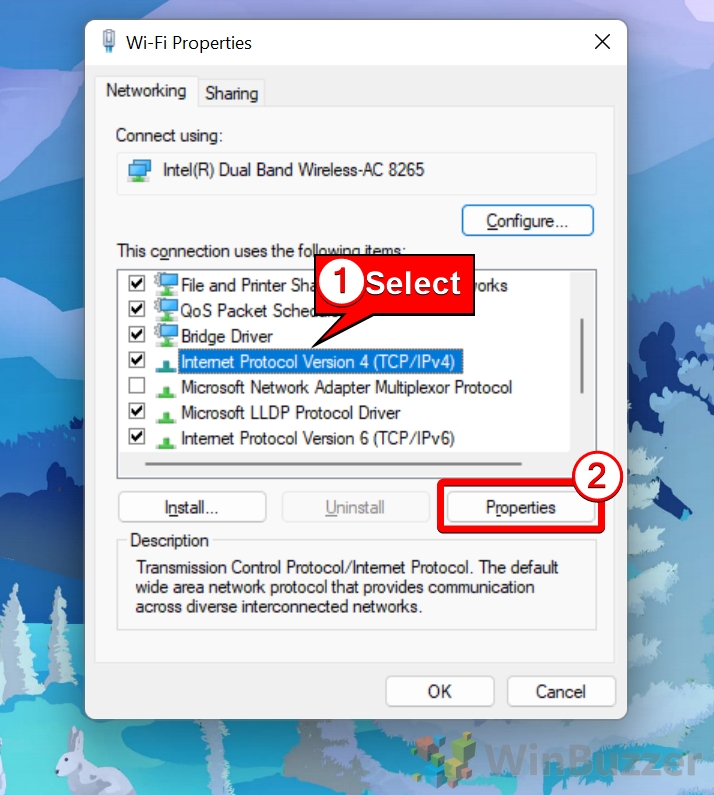
Windows stores every WiFi password you’ve ever connected to. To retrieve one, open Control Panel > Network and Sharing Center > click your WiFi network name > Wireless Properties > Security tab > check ‘Show characters’. That’s it. You can also use Command Prompt: type netsh wlan show profile name="YourNetworkName" key=clear. For a deeper dive, check out our guide to view saved WiFi password using CMD.
If you prefer a graphical tool, you can also recover forgotten WiFi password on desktop using third-party apps—but the built-in method is safest. For more advanced users, try our WiFi password recovery tutorial using PowerShell to export all passwords at once.
Step 2: Recover Saved Passwords on macOS
On a Mac, open Keychain Access from Utilities, search for your WiFi network name, double-click it, then check ‘Show password’. You’ll need your Mac’s admin password. This method works on all recent versions of macOS. For a dedicated walkthrough, see our WiFi password recovery for MacBook Pro guide.
Step 3: Recover Saved Passwords on Android
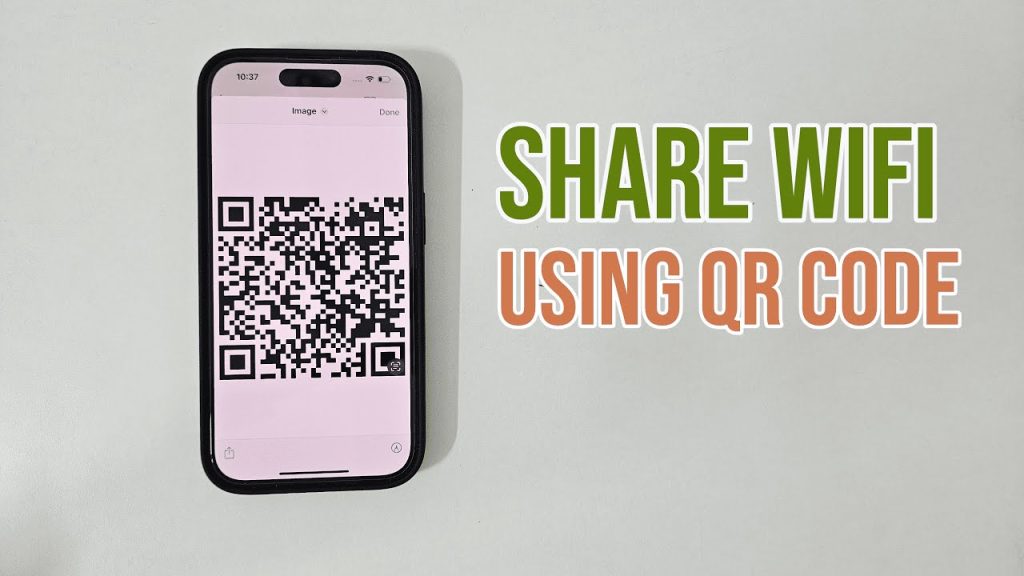
Android 10 and newer let you view or share the WiFi password directly. Go to Settings > Network & Internet > WiFi > tap the connected network > tap Share. You’ll see a QR code and the password below it. Take a screenshot or write it down. This is especially handy for WiFi password recovery for home users who need to share access with guests.
Step 4: Access Your Router’s Admin Panel
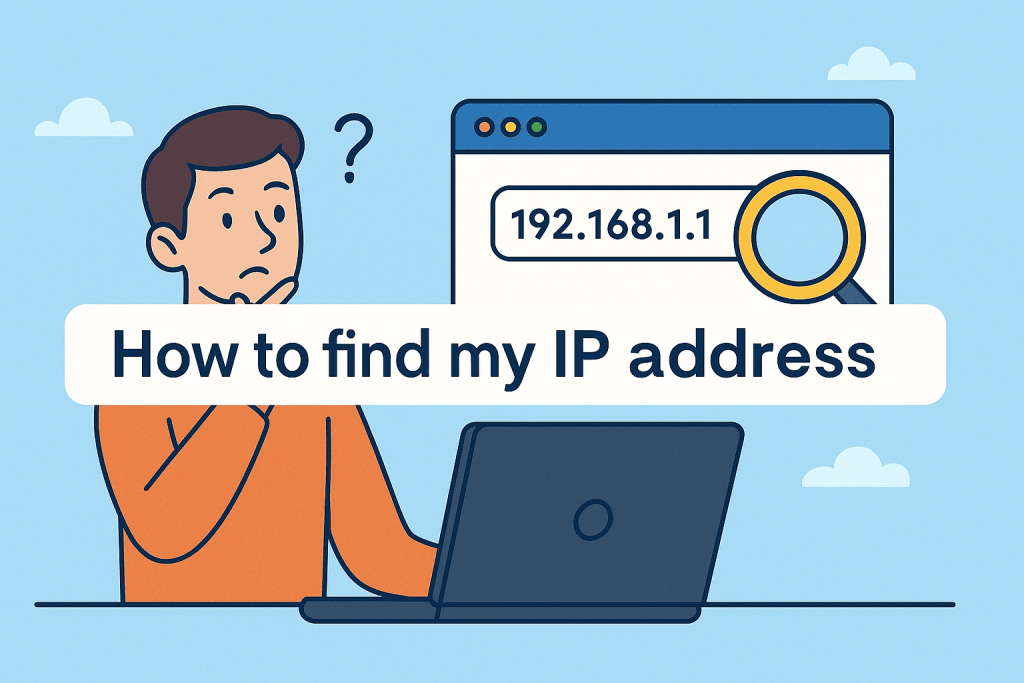
Sometimes the password isn’t saved on any device—or you want to change it. Log into your router by typing its IP (usually 192.168.1.1 or 192.168.0.1) into a browser. Use the admin credentials (often printed on the router). Once inside, look for Wireless or WiFi settings to view or change your network key. If you’ve lost the admin password, you’ll need to reset the router—but then you can WiFi password recovery with router login to set a new one.
Step 5: Create a Secure Backup
Now that you’ve recovered your passwords, don’t lose them again. Use a password manager (like Bitwarden, 1Password, or even Apple’s iCloud Keychain) to store all your WiFi credentials. You can also encrypt a text file or write them down and store in a safe place. Set a calendar reminder every six months to update your backups—especially if you change passwords. This simple maintenance step saves hours of frustration later.
Common Pitfalls
- Confusing router admin password with WiFi password: They are different! The admin password logs you into the router settings; the WiFi password lets devices connect. If you reset your router, you’ll lose both unless you’ve backed them up.
- Forgetting to update backups after a password change: If you change your WiFi password and don’t update your password manager or note, you’ll be locked out. Always update your records immediately.
- Trusting public or sketchy recovery tools: Many third-party apps claim to recover WiFi passwords but can be malware. Stick to built-in OS tools or reputable password managers. Our WiFi password recovery for home users guide uses only safe methods.
Where to Next
You’ve now got a complete WiFi password recovery maintenance system. Next, check out our detailed guides for specific scenarios: recover forgotten WiFi password on desktop, view saved WiFi password using CMD, and WiFi password recovery tutorial using PowerShell. For Mac users, our WiFi password recovery for MacBook Pro guide has extra tips. And if you ever need to start from scratch, the WiFi password recovery with router login method always works. Bookmark this page and revisit it whenever you set up a new network—your future self will thank you.



