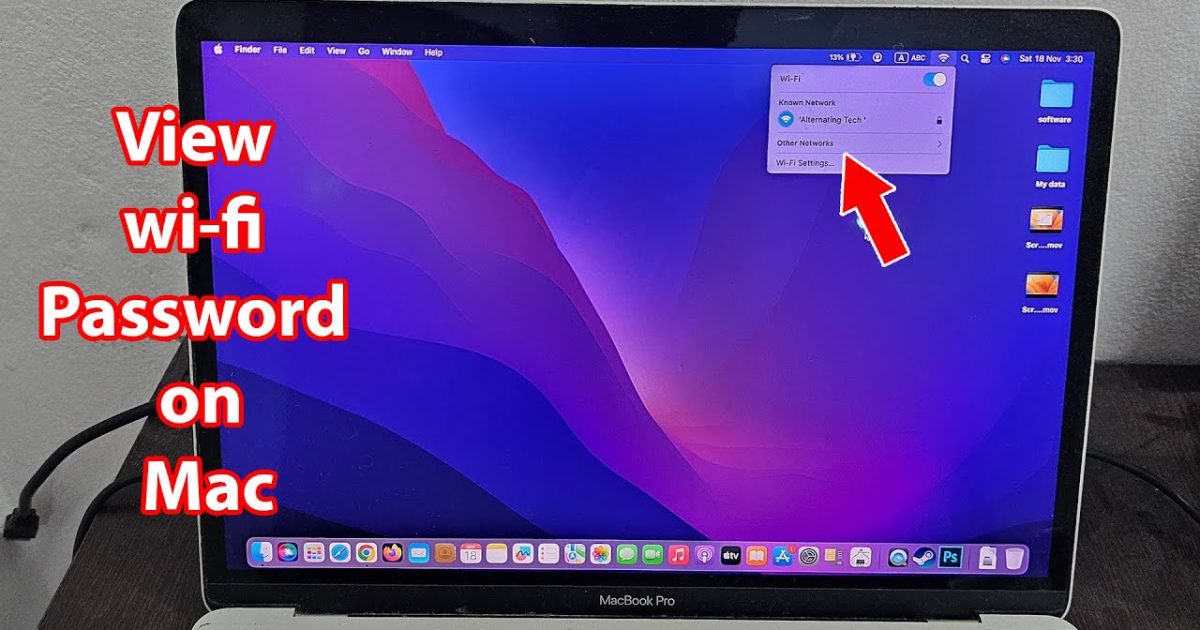
We’ve all been there: a friend asks for the WiFi password at your place, and you draw a blank. Or maybe you just got a new device and need to reconnect but can’t find that sticky note you wrote the password on. If you’re using a MacBook Pro, you’re in luck — your machine has been quietly saving every WiFi password you’ve ever used. In this guide, I’ll show you how to dig those passwords out using Keychain Access, the built-in password manager on macOS. By the end, you’ll be able to pull up any saved WiFi password in under a minute, no tech degree required.
This tutorial is perfect for anyone who uses a MacBook Pro running macOS Catalina or later (though the steps are similar on older versions). We’ll stick to the official tools — no sketchy third-party software. For a more general approach, check out our WiFi password recovery for home users guide, which covers multiple devices.
What You’ll Need
- A MacBook Pro (any model, macOS 10.12 or newer recommended)
- The name (SSID) of the WiFi network you want the password for
- Your Mac’s admin username and password (the one you use to log in)
- About 2 minutes of your time
That’s it. If you haven’t already, you might want to follow our setup guide for making sure your Mac’s keychain is properly configured. But honestly, macOS sets it up by default, so you’re probably good to go.
Step 1: Open Keychain Access
Keychain Access is like a digital safe where your Mac stores passwords, certificates, and other secrets. To open it, click the magnifying glass icon in the top-right corner of your screen (or press Command + Space) to open Spotlight Search. Type “Keychain Access” and hit Enter. The app will launch.

Alternatively, you can find Keychain Access in the Utilities folder inside Applications. Once it’s open, you’ll see a window with a list of keychains on the left and a bunch of entries on the right.
Step 2: Search for Your WiFi Network
In the top-right corner of the Keychain Access window, there’s a search bar. Type the name (SSID) of the WiFi network you’re looking for. For example, if your network is called “HomeSweetHome”, type that in. As you type, the list below will filter to show matching entries. Look for entries where the “Kind” column says “AirPort network password” — that’s your WiFi password.

If you see multiple entries, double-click the one that matches your network name exactly. A dialog box will pop up with details about that network.
Step 3: Reveal the Password
In the dialog box, you’ll see a checkbox labeled “Show password” near the bottom. Check it. A message will pop up asking for your Mac’s username and password — this is the same login you use to unlock your Mac. Enter those credentials and click “Allow” or “OK”.

Once authenticated, the password field will no longer be hidden. You can now see the WiFi password in plain text. Write it down, take a screenshot, or share it with your guests. If you need to copy it, you can select the text and copy it (Command + C).
That’s it! You now have your WiFi password. If you’re on a different OS, you can recover WiFi password on Windows using similar built-in tools, or check out our guide for that.
Common Pitfalls
- **Can’t find the network in Keychain Access:** Make sure you’ve actually connected to that network before. If you’ve never joined it on this Mac, it won’t be saved. Also, check that you spelled the SSID correctly — it’s case-sensitive.
- **”Show password” is grayed out:** This usually means you’re not an admin user on this Mac. Ask the admin to log in and follow these steps, or you’ll need admin rights to view passwords.
- **Password shows but doesn’t work:** Occasionally, the keychain might have an old password if the network password was changed after you last connected. Try using the router login method to verify the current password, or reconnect to the network and then repeat these steps.
If you’re having trouble, our WiFi password recovery setup guide covers troubleshooting common keychain issues.
Where to Next
Now that you’ve recovered your WiFi password, you might want to save it somewhere safe — try a password manager like the one built into macOS. For other devices, check out the best WiFi password recovery app if you need a third-party tool. And if you ever need to recover a password without internet access, we’ve got you covered with a guide for that too. Happy surfing!





