Ever been in that awkward spot where you’re trying to connect a new device to your home WiFi, but you’ve completely forgotten the password? It happens to the best of us. This guide is for anyone who wants to set up a simple, reliable system to recover their WiFi passwords on Windows, Mac, and Android. By the end, you’ll have a step-by-step method to retrieve any saved network key, back them up securely, and avoid future frustration. No advanced tech skills required—just a willingness to follow along.
We’ll start with the basics: checking what your computer already knows, then moving to backups and cross-device tips. Whether you’re a home user or a small office manager, these steps will make sure you’re never locked out of your own network. Let’s dive in and set up your personal wifi password recovery toolkit.
What you’ll need
- A Windows PC (preferably with administrator access)
- A Mac (with admin password for Keychain)
- An Android phone (with saved WiFi networks)
- A USB drive or cloud storage for backups
- Optional: a text editor like Notepad or TextEdit
Step 1: Recover WiFi passwords on Windows
Windows stores every WiFi profile you’ve ever connected to. To retrieve a password, open Command Prompt as Administrator (right-click Start > Command Prompt (Admin)). Then type: netsh wlan show profiles. That lists all saved networks. To get the key for a specific network, type: netsh wlan show profile name="YourNetworkName" key=clear. Look for “Key Content”—that’s your password. This works for all versions of Windows 7 through 11. If you prefer a graphical tool, check out our guide on WiFi password recovery without command line.

Step 2: Backup all WiFi profiles with PowerShell
Once you’ve verified you can recover one password, it’s smart to back up all profiles. PowerShell makes this easy. Open PowerShell as Administrator and run this script: netsh wlan export profile folder=C:WiFiBackup key=clear. This exports every saved network as an XML file with the password in plain text. Store these files in a secure folder on a USB drive or encrypted cloud. For more automation, read our article on how to export WiFi passwords with PowerShell.
Step 3: Find WiFi passwords on Mac
On a Mac, open Keychain Access (Applications > Utilities). In the search box, type your network name. Double-click the entry, then check “Show password.” You’ll need your Mac admin password. This reveals the WiFi key instantly. If you have multiple networks, you can also export them. For more details, see our guide on how to show wifi password on Mac.

Step 4: Retrieve passwords from Android
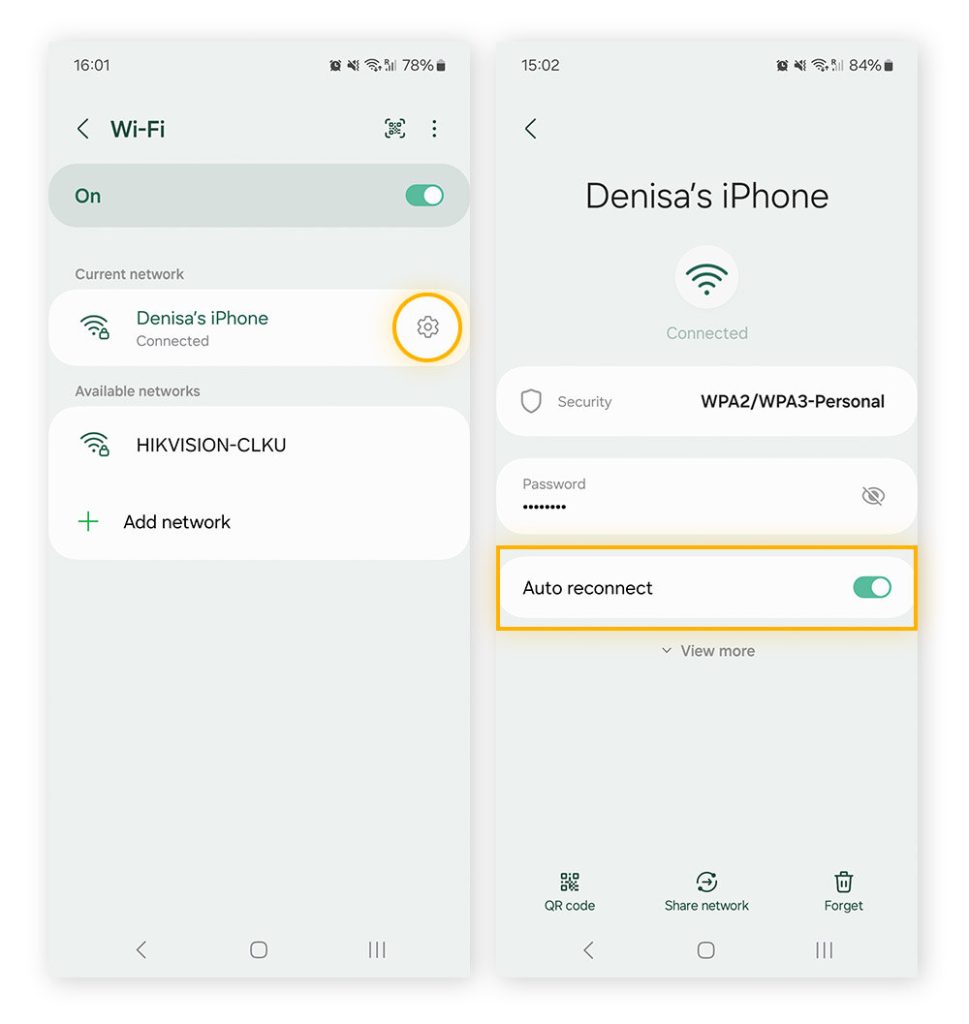
Android 10 and later let you view saved WiFi passwords directly. Go to Settings > Network & Internet > WiFi. Tap the gear icon next to your connected network, then tap “Share.” You’ll see a QR code and the password below it (sometimes hidden behind a fingerprint or PIN). For Android 9 or earlier, you may need to root the device or use a third-party app. For a non-root approach, check our article on wifi password recovery for home users.

Step 5: Create a secure backup
Now that you’ve gathered passwords from all devices, store them safely. Create an encrypted text file using a tool like 7-Zip or VeraCrypt. Write down each network name and password, then save the archive to a USB drive you keep in a drawer. Alternatively, use a password manager like Bitwarden. For a full strategy, see our WiFi password backup guide.

Step 6: Test your recovery setup
Before you need it urgently, test your setup. On a new device, try to connect using a password from your backup. Make sure your Windows command works, your Mac Keychain shows the password, and your Android shares the QR code. If something fails, troubleshoot now. Practice makes perfect, and this small step saves headaches later. For more advanced scenarios, like after a hard drive replacement, explore our dedicated guides.
Common pitfalls
- Forgotten administrator password: On Windows, you need admin rights to run netsh. If you don’t have them, you’re stuck. Ensure you have admin access before attempting recovery.
- Network profile not saved: If you never connected or selected “forget this network,” the password won’t be stored. Always connect at least once.
- Encryption or security software: Some corporate or encrypted networks hide the password field. In that case, you may need to ask your network admin or use a specialized tool.
Where to next
You’ve now set up your own WiFi password recovery system. To dive deeper, check out these resources: recover wifi password on windows, export WiFi passwords with PowerShell, show wifi password on Mac, WiFi password recovery without command line, and the overall wifi password recovery for home users. Bookmark them for quick access. Happy surfing!



