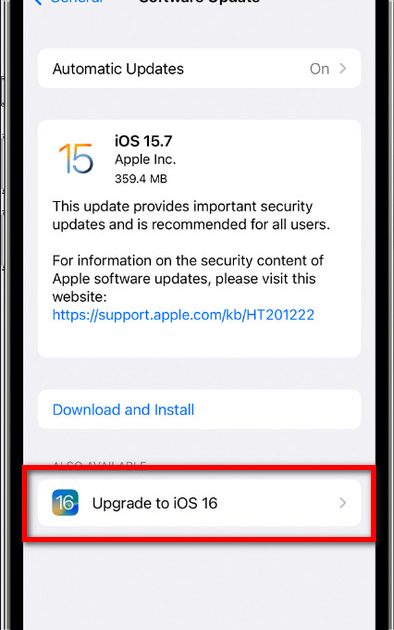
So you updated your iPhone or iPad to the latest iOS and suddenly your WiFi passwords are gone? You’re not alone – it’s a known frustration. Maybe you got a new device, or the update reset some network settings, and now you’re staring at the login screen for your home network with no clue what the password is. Don’t worry: this guide is for you. By the end, you’ll have your WiFi passwords back in hand, whether you use a Mac, iCloud Keychain, or just a quick look at your router.
What You’ll Need
- Your iPhone or iPad (the one that lost passwords)
- A Mac computer (optional, but easiest for viewing passwords)
- Your Apple ID and password (for iCloud Keychain)
- Access to your router’s admin page (admin username/password, usually on the sticker)
- A third-party app (optional, but handy – we’ll mention one)
Step 1: Check iCloud Keychain Syncing
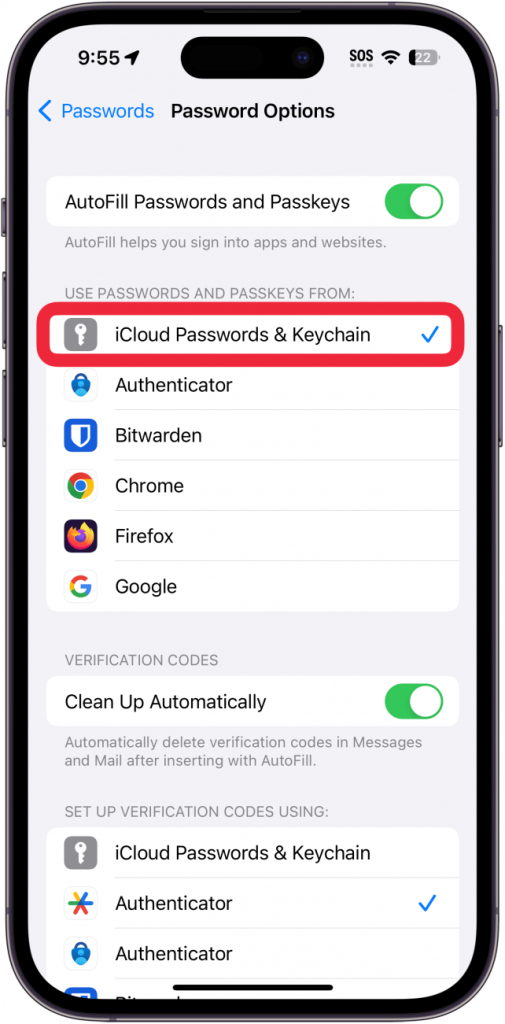
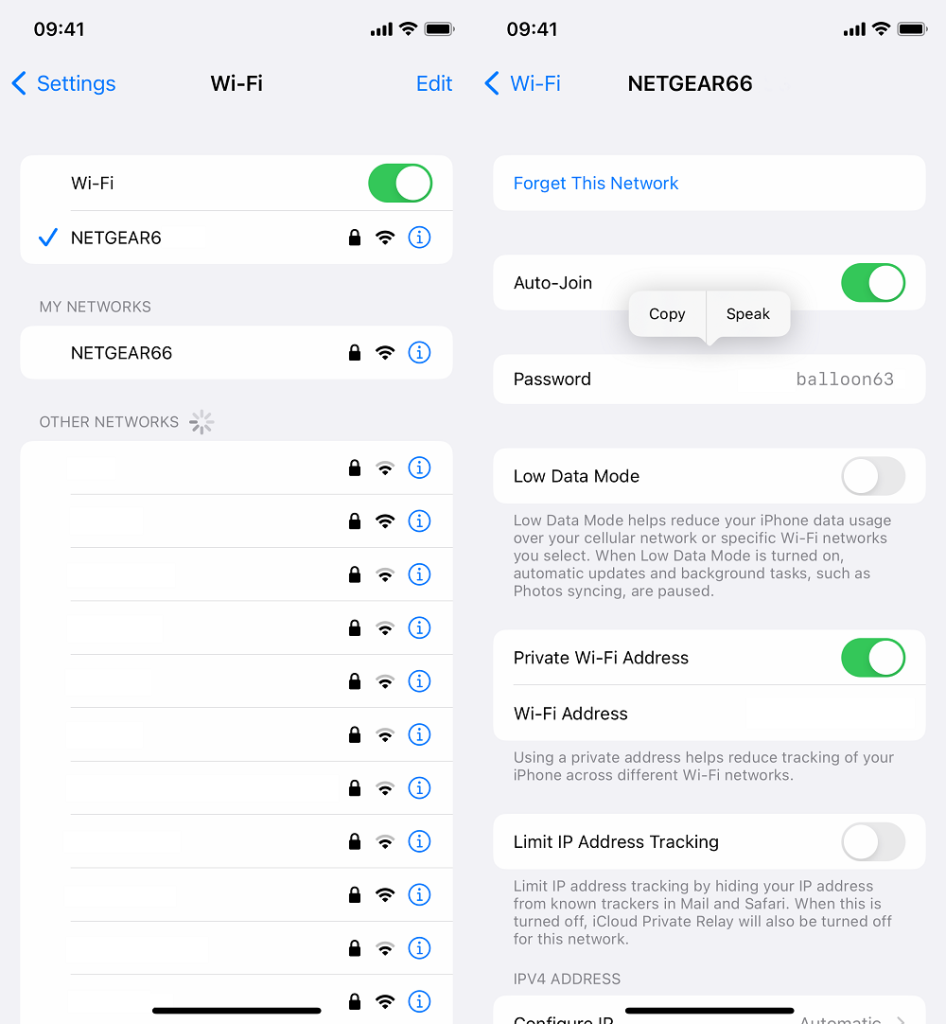
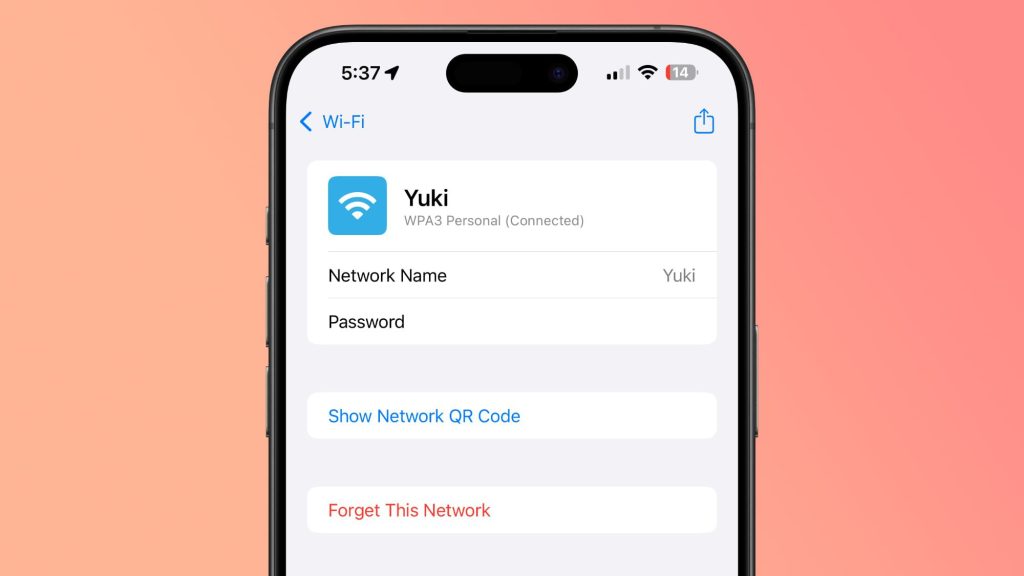
First, make sure iCloud Keychain is turned on and synced. If you didn’t back up your passwords to iCloud, this method won’t work – but it’s worth checking. Go to Settings > [Your Name] > iCloud > Passwords & Keychain. Toggle on “Sync this iPhone” if it’s off. Wait a few minutes for it to sync. Then, on your iPhone, go to Settings > Passwords (use Face ID/Touch ID). You should see your saved WiFi passwords listed. Tap one to view the password. If you don’t see any, proceed to Step 2.
Step 2: Recover from a Mac Using Keychain Access
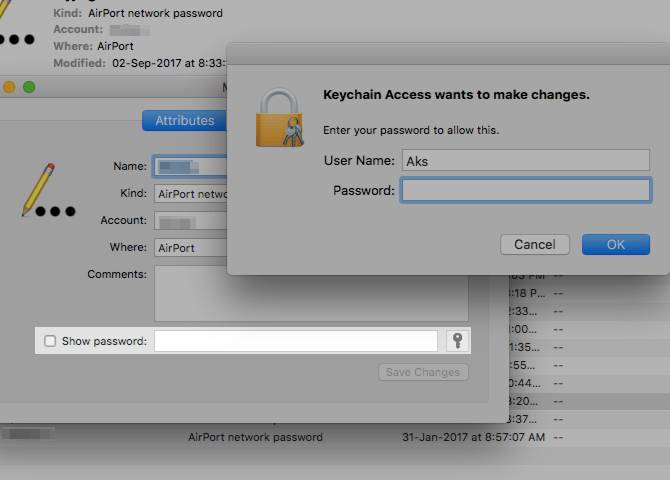
If you have a Mac that also connects to the same WiFi networks, you can show wifi password mac using the built-in Keychain Access app. Open Keychain Access from Applications > Utilities (or search with Spotlight). In the top-left corner, select “System” under Keychains and “Passwords” under Category. Find the network name (SSID) you need, double-click it, and check “Show password.” Enter your Mac admin username and password. The WiFi password appears in plain text. If you don’t have a Mac, you can still use your iPhone – but Apple makes it tricky to view passwords directly on iOS without a Mac. That’s where the next step comes in.
Step 3: Use iCloud Keychain from Another Device
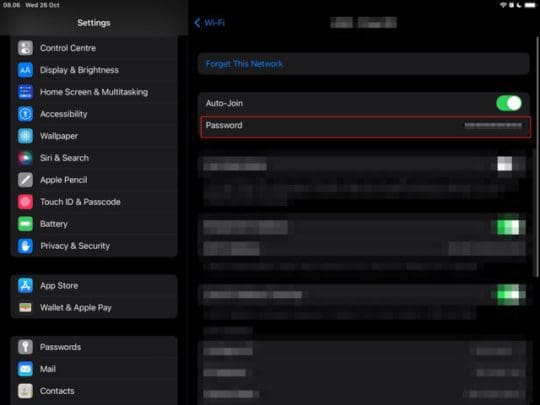
If your passwords are synced via iCloud Keychain, you can also view them on another Apple device – like an iPad or another iPhone that’s already logged in. On that device, go to Settings > Passwords and tap the network. You’ll see the password. If you don’t have another Apple device, you can try wifi password recovery without jailbreak ios via a free tool like “iMazing” or “Decipher Keys” (see Step 5 for a tool recommendation). But the easiest is to use a Mac.
Step 4: Alternative – Log Into Your Router
No Apple device around? No problem. You can always find the password by logging into your router’s admin panel. This works for any device – even your iPhone. Open Safari and type your router’s IP address (usually 192.168.0.1 or 192.168.1.1). Enter the admin username and password (check the sticker on your router). Once logged in, look for “Wireless” or “WiFi” settings. The password (security key) is there. This is a universal method that works even after an iOS update. For a broader overview, see our wifi password recovery for home users guide.
Step 5: Try a Third-Party Password Recovery Tool
If the above methods fail – maybe you don’t have a Mac and iCloud didn’t sync – a third-party app can help. For Mac, the best wifi password recovery tool for mac is “WiFi Password Recovery” (free, no ads). It scans your Keychain and shows all saved passwords. For Windows users, check out how to recover wifi password on windows – that guide covers similar tools for PC. On iOS itself, options are limited, but you can use a computer-based tool like “iMazing” to extract passwords from an iPhone backup.
Common Pitfalls
- iCloud Keychain not synced: If you didn’t have iCloud Keychain enabled before the update, your passwords are not stored. You’ll need to use the router method or a backup.
- Passwords changed: If you recently changed your router password and didn’t update it on your devices, the old password won’t work. Always check the router first.
- No Mac or second device: Without a Mac or another Apple device, you can’t view passwords directly via iCloud Keychain on iPhone. Use the router method or a third-party tool on PC.
Where to Next
Now that you’ve recovered your WiFi passwords, avoid this headache next time. Follow our wifi password recovery backup guide to export all your passwords and keep them safe. And if you ever need to share a network password with a guest, you can generate a QR code or use the built-in iOS share feature. Stay connected!



