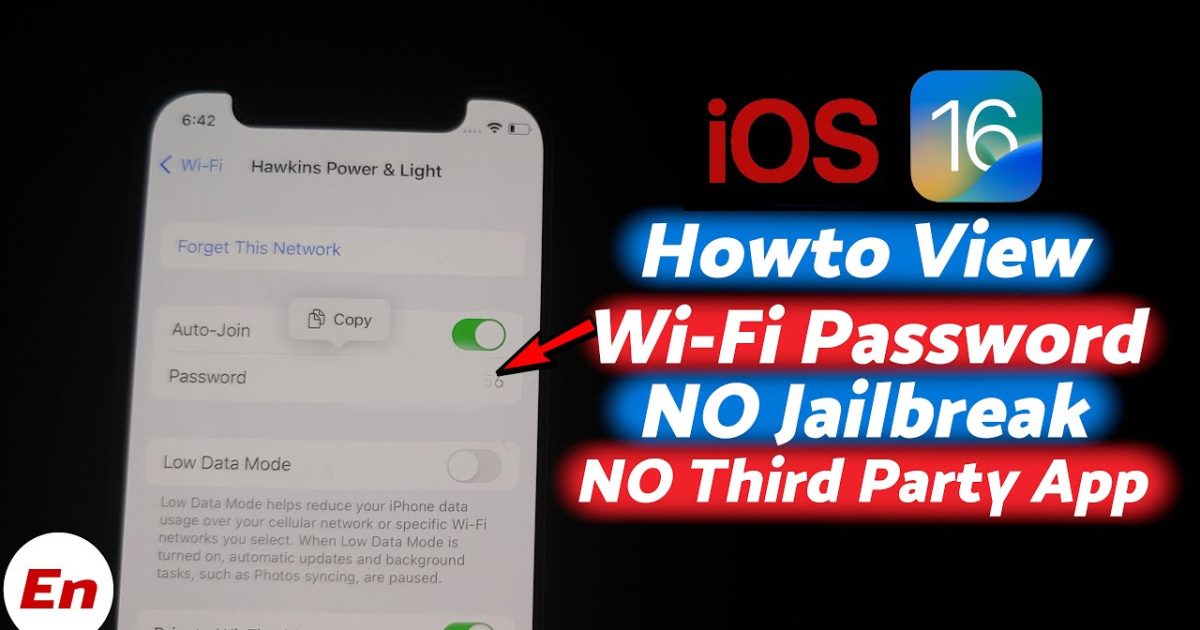
If you’ve ever been stuck trying to connect a new device to your WiFi network but can’t remember the password, you’re not alone. On an iPhone or iPad, Apple doesn’t let you easily view saved WiFi passwords without a jailbreak—or does it? In this guide, I’ll show you several methods to recover your WiFi password using only built-in iOS features, your Mac, or your router’s admin page. No jailbreak required. Whether you need to recover a password for your home network or a guest network, these steps work on any iPhone or iPad running a recent version of iOS.
By the end of this tutorial, you’ll have your WiFi password in hand, whether you’re on your iPhone, iPad, or using a computer. You’ll also learn how to keep your passwords backed up so you never get locked out again. If you’re specifically looking to recover WiFi password on iPad, the process is identical to iPhone. Let’s dive in.
What You’ll Need
- Your iPhone or iPad (with the saved WiFi network you want to recover)
- A Mac with the same Apple ID and iCloud Keychain enabled (for the Keychain Access method)
- Access to your router’s admin panel (IP address, username, and password)
- Optional: A third-party tool if you prefer a one-click solution (we’ll cover that too)
Step 1: Enable iCloud Keychain on Your iPhone or iPad
iCloud Keychain syncs your saved WiFi passwords across all your Apple devices. To use this method, first make sure iCloud Keychain is turned on. Go to Settings > [Your Name] > iCloud > Passwords & Keychain, and toggle on ‘Sync this iPhone/iPad’. If you’re using an iPad, the steps are identical. This will upload your saved WiFi passwords to iCloud, making them available on your Mac.
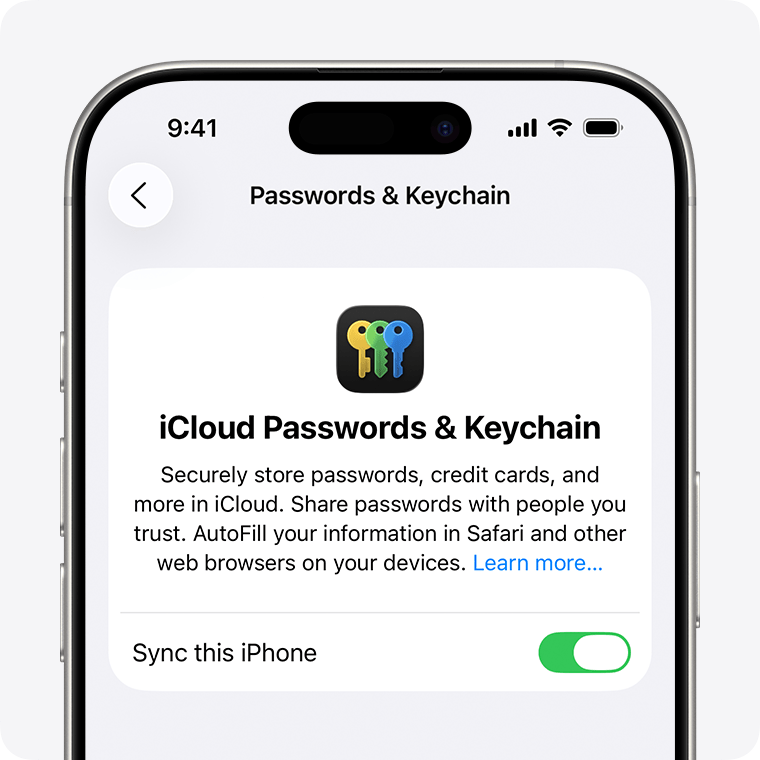
Once syncing is enabled, give it a few minutes to upload. You can verify by checking the same settings on your other devices. This step is crucial for the next method to work.
Step 2: View the WiFi Password on a Mac Using Keychain Access
On your Mac, open the ‘Keychain Access’ app (you can find it via Spotlight search). In the search bar, type the name of the WiFi network you want to recover. Double-click the network entry in the list. A window will pop up; check the box ‘Show password’. You’ll be prompted to enter your Mac’s admin username and password. After that, the WiFi password will be displayed in plain text. If you don’t have a Mac, you can skip to Step 3 or use the best WiFi password recovery tool for Mac to automate this process.
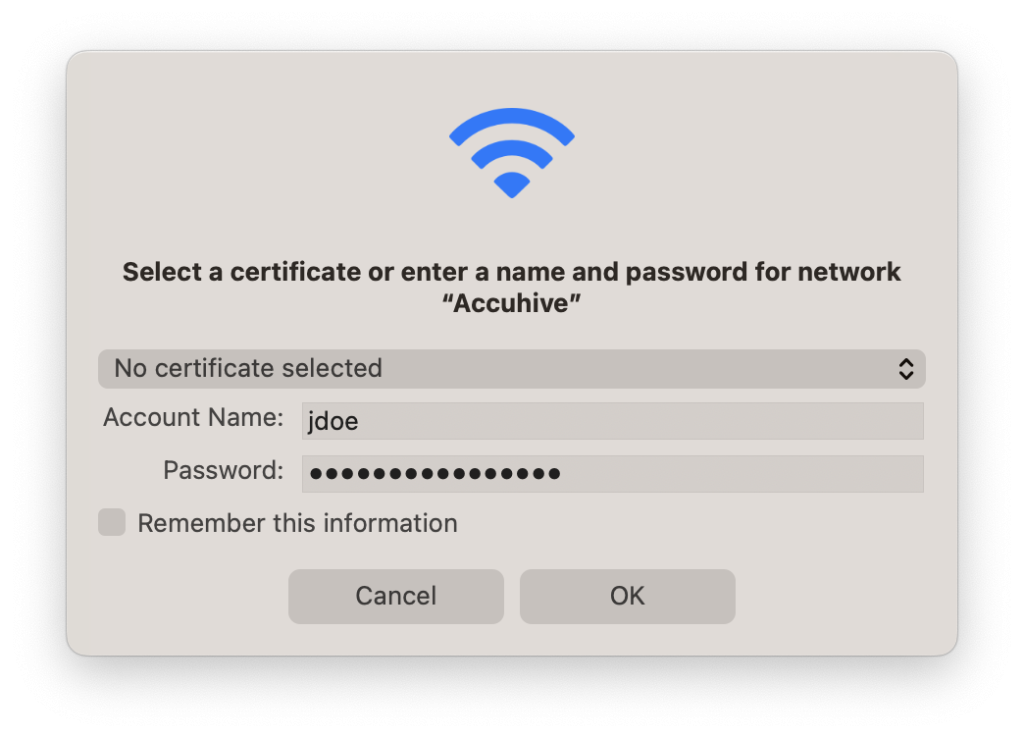
This method works for any WiFi network saved on your iPhone that has synced via iCloud Keychain. If you see multiple entries, pick the one with the correct network name (usually the SSID).
Step 3: Recover WiFi Password Directly from Your Router
If you don’t have a Mac or iCloud Keychain isn’t working, you can always get the password from your router’s admin panel. Open Safari on your iPhone or any browser on a computer and enter your router’s IP address (common ones are 192.168.1.1 or 192.168.0.1). Log in with the admin credentials (often printed on the router sticker). Navigate to the wireless settings section, and you’ll see the WiFi password (sometimes labeled as ‘Pre-Shared Key’ or ‘Passphrase’). This is a reliable WiFi password recovery tutorial via router.
If you’ve changed the router login and forgotten it, you may need to reset the router to factory settings (press the reset button with a paperclip for 10 seconds). After reset, use the default credentials from the sticker.
Step 4: Use a Third-Party Tool (Without Jailbreak)
While this guide focuses on non-jailbreak methods, there are desktop applications that can help you view WiFi passwords stored in your iCloud Keychain. For example, you can use a tool like iMazing or a dedicated utility that reads Keychain data. If you want a quick, no-fuss solution, consider free WiFi password recovery without ads that runs on your Mac or PC. These tools extract passwords from your iCloud backup or Keychain without needing to jailbreak your iOS device.
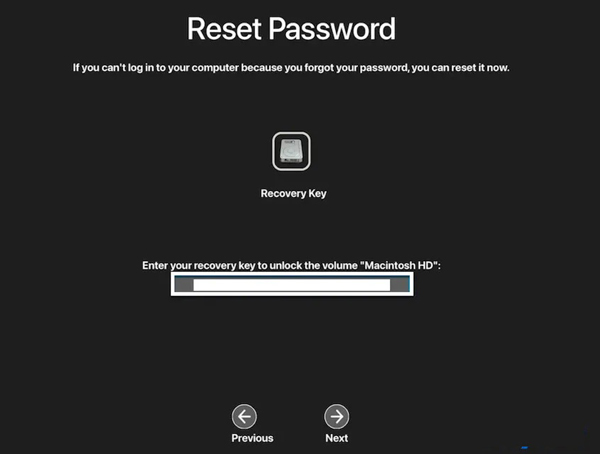
Remember to only download tools from reputable sources to avoid malware. Many options exist, including the best WiFi password recovery tool for Mac if you’re on macOS.
Step 5: Back Up Your WiFi Passwords for Future Access
Once you’ve recovered your password, it’s smart to back it up so you never need to hunt for it again. You can write it down, save it in a password manager, or use iCloud Keychain’s built-in sync. For a more systematic approach, follow the WiFi password backup guide to export all your saved networks. This is especially useful if you manage multiple devices or guest networks. If you prefer to keep everything local and avoid third-party software, check out our guide on WiFi password recovery without third-party software for alternative methods.
Common Pitfalls
- iCloud Keychain not syncing: Make sure you’re signed into the same Apple ID on both devices and that Keychain is enabled in iCloud settings. Also check that two-factor authentication is set up; sometimes it can delay syncing.
- Forgot router admin password: If you can’t log into your router, you’ll need to reset it. Use a paperclip to press and hold the reset button for about 10 seconds until the lights blink. Then use the default credentials from the sticker.
- Network name not found in Keychain: This can happen if the network was saved on a device that never synced with iCloud Keychain. Try connecting to the network again on your iPhone to force a sync, or use the router method.
Where to Next
Now that you’ve recovered your WiFi password, take a moment to secure and organize your network. Consider updating your router’s firmware, changing the default admin password, and setting up a guest network for visitors. If you want to learn more about managing WiFi passwords across different devices, explore our other tutorials—from recovering passwords on Windows to using PowerShell scripts. Stay connected without the hassle!





