Let’s be real: most free WiFi password recovery tools are stuffed with ads, pop-ups, and borderline malware. You don’t need that. Whether you’re trying to connect a new device or just forgot the password you typed months ago, there’s a clean, ad-free way to get it back. I’ll show you how to recover saved WiFi passwords on Windows, macOS, Android (no root), Linux, and even from your router — all without installing a single shady app.
By the end of this guide, you’ll have the plain-text password for any network your device has ever connected to. No ads. No surveys. Just a few commands or clicks. Let’s dive in.
What You’ll Need
- A computer (Windows, macOS, or Linux) that has connected to the WiFi network before
- Administrator access on Windows or sudo on Linux
- Your router’s login credentials (usually printed on the router sticker) for the router method
- An Android phone with Android 10 or later for the QR code method (older versions need root)
If you don’t have admin access on your Windows machine, check out our guide on WiFi password recovery no third-party software for alternative methods.
Step 1: Recover WiFi Password on Windows via Command Prompt
Windows stores every WiFi password you’ve ever connected to. To pull them up:
- Press Win + R, type
cmd, then press Ctrl+Shift+Enter to run as Administrator. - Type
netsh wlan show profilesand hit Enter. You’ll see a list of saved networks. - Find the network you need, then type
netsh wlan show profile name="YOUR_NETWORK_NAME" key=clear. - Look for the line “Key Content” — that’s your password in plain text.

That’s it. No third-party tool needed. If you prefer a script-based approach, see our free WiFi password recovery for Windows guide.
Step 2: Recover WiFi Password on macOS Using Keychain
macOS keeps WiFi passwords in its Keychain app. Here’s how to view them:
- Open Keychain Access (Spotlight search for it).
- In the search bar, type the WiFi network name.
- Double-click the entry for your network.
- Check the box “Show password” and enter your Mac’s admin password.
- The password will appear in the field.
On some macOS versions, you can also use the Terminal: security find-generic-password -wa "WIFI_SSID". For iPad users, check out our separate post on how to recover WiFi password on iPad.
Step 3: Recover WiFi Password on Android (QR Code Method)
Android 10 and later let you share WiFi credentials via a QR code that includes the password.
- Open Settings > Network & Internet > Internet (or WiFi).
- Tap the gear icon next to your connected network.
- Tap the “Share” icon (or “QR code” on some phones).
- Authenticate with your PIN or biometrics.
- The QR code appears, and below it you’ll see the password in plain text (on some skins like One UI). If not, scan the QR code with another phone or a QR reader — the text format is
WIFI:S:SSID;T:WPA;P:PASSWORD;;.

This method works on most stock Android phones. For Samsung devices, our WiFi password recovery app for Android guide has additional tips.
Step 4: Recover WiFi Password on Linux via Terminal
Linux stores WiFi passwords in /etc/NetworkManager/system-connections/ (for NetworkManager).
- Open a terminal (Ctrl+Alt+T).
- List saved connections:
ls /etc/NetworkManager/system-connections/ - View the password for a specific network:
sudo cat /etc/NetworkManager/system-connections/SSID_NAME(replace SSID_NAME). - Look for the line starting with
psk=— that’s your password.
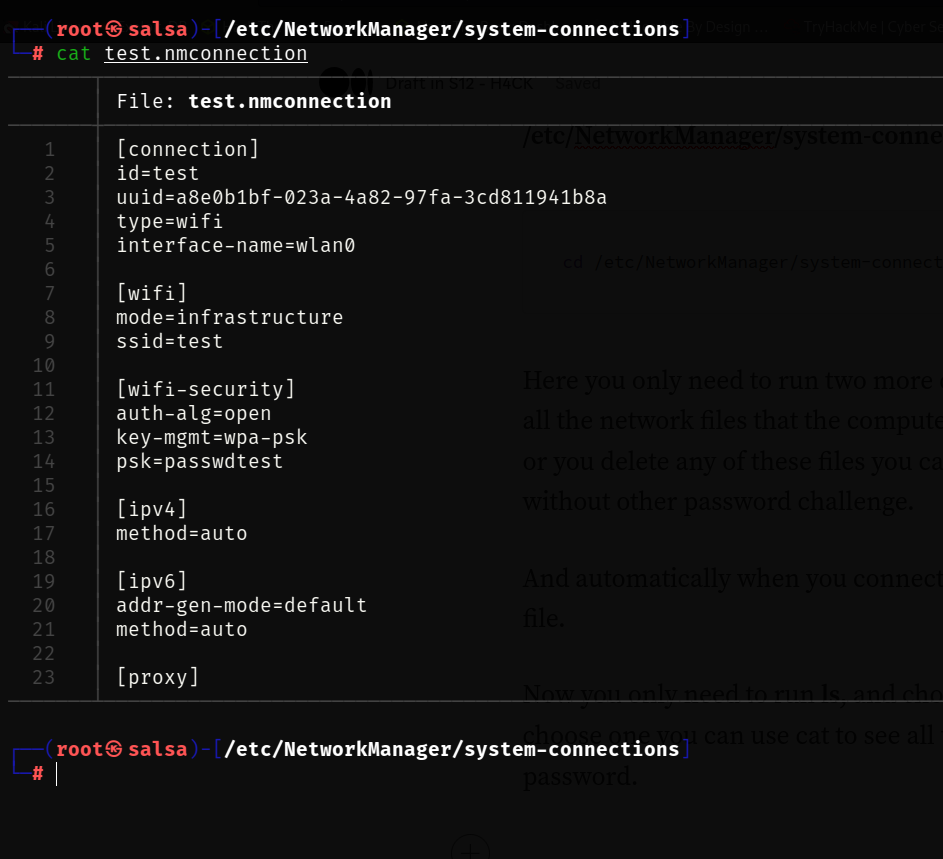
Alternatively, use sudo grep -r 'psk=' /etc/NetworkManager/system-connections/ to see all at once. For more methods, see our saved WiFi password recovery on Linux guide.
Step 5: Recover WiFi Password Directly from Your Router
If you have physical access to the router, you can log into its admin panel.
- Connect your computer to the router via Ethernet or WiFi.
- Open a browser and enter the router’s IP (commonly 192.168.1.1 or 192.168.0.1).
- Log in with the admin credentials (check the sticker on the router).
- Navigate to Wireless Settings or Security.
- Your WiFi password will be displayed in the “Passphrase” or “Pre-Shared Key” field.
If the default credentials don’t work, you can reset the router (but that will temporarily kick everyone off). For ZTE routers specifically, check our WiFi password recovery from ZTE router guide.
Common Pitfalls
- Not running Command Prompt as Administrator on Windows — this is a must, otherwise the
key=clearwon’t show the password. - Android version is too old — if you have Android 9 or earlier, the QR code method isn’t built-in. You’ll need root access or a file explorer to read the
wpa_supplicant.conffile. Alternatively, use a dedicated recovery app that avoids ads — we recommend WiFi password recovery without deleting profiles. - Router login fails — the default credentials may have been changed. Check the router’s sticker, try common combos (admin/admin, admin/password), or reset the router with a paperclip.
If you run into any of these, don’t give up. There are always workarounds.
Where to Next?
You now know how to recover WiFi passwords without any ad-filled software. For related topics, check out our guides on show WiFi password on iPhone, or if you need to export all your saved passwords for backup, see our post on export WiFi passwords with script. Happy surfing!



