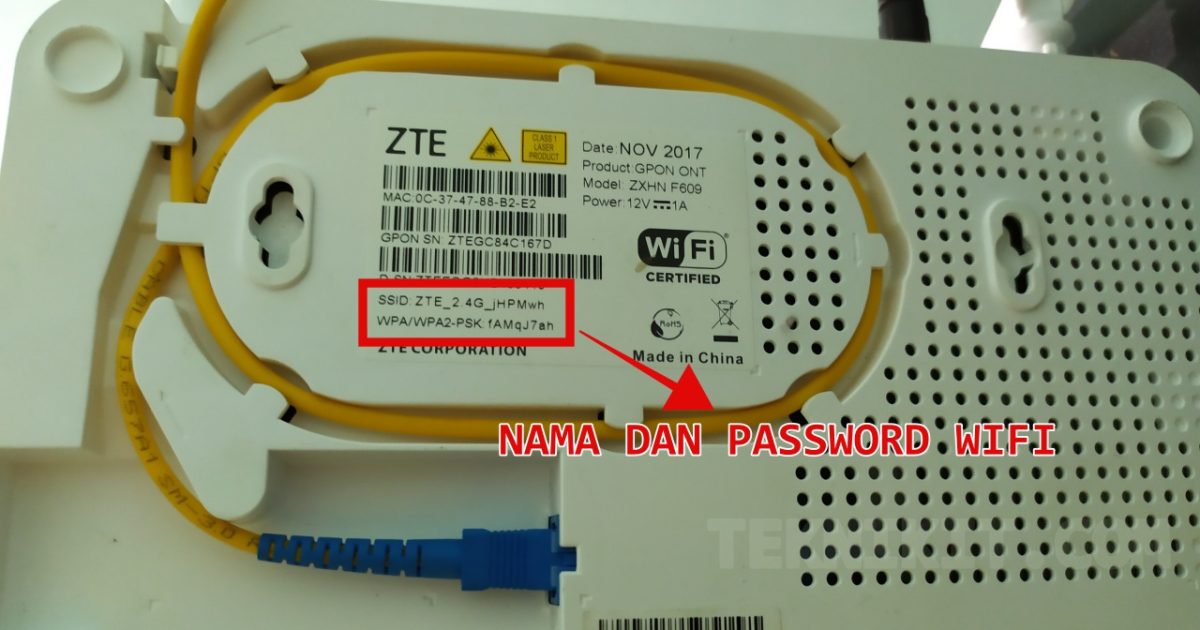
Maybe you’re setting up a new phone, or a guest asks for the Wi‑Fi. And then it hits you — you haven’t the slightest clue what your ZTE router’s password is. Don’t worry, it happens to all of us. The good news is, the password is right there inside your router’s settings. You just need to know where to look. No third‑party software required, just a few minutes and a device connected to your network.
By the end of this guide you’ll have your Wi‑Fi password recovered and written down. We’ll walk through logging into your ZTE router’s admin panel and finding the security key. Along the way I’ll point out common hiccups so you don’t get stuck. Ready? Let’s dive in.
What You’ll Need
- A computer or phone that is currently connected to your ZTE router’s Wi‑Fi (or an Ethernet cable).
- Your router’s admin username and password. If you never changed them, they’re usually printed on a sticker on the router itself (look for ‘admin’ and a default password).
- The router’s IP address. Most ZTE routers use 192.168.1.1 or 192.168.0.1.
Step 1: Find Your Router’s IP Address
If you already know the IP (try 192.168.1.1 first), skip to step 2. Otherwise, on a Windows PC: open Command Prompt, type ipconfig and look for ‘Default Gateway’ under your active connection. That’s your router’s IP. On a Mac: go to System Preferences > Network > Advanced > TCP/IP, the ‘Router’ entry is the IP. On Android: tap your connected network in Wi‑Fi settings, the gateway address is listed under ‘Advanced’.

Step 2: Log Into Your Router’s Admin Panel
Open your favorite web browser and type the router’s IP address into the address bar (e.g., http://192.168.1.1). Press Enter. You should see a login page. Enter the admin username and password. If you haven’t changed them, try admin for the username and admin or password for the password (check the sticker on the router for exact defaults). Once logged in, you’ll see the router’s dashboard.

Step 3: Navigate to Wireless Settings
The exact menu names vary by ZTE model, but look for a tab like ‘Wireless’, ‘WLAN’, ‘Wi‑Fi’, or ‘Network’. Click it. Then find ‘Security’ or ‘Wireless Security’ sub‑menu. In some models, the password is shown right under ‘SSID’ on the main Wireless page. If you see a page showing ‘Network Name (SSID)’ and ‘Pre‑Shared Key’ or ‘WPA Pre‑Shared Key’, you’re in the right spot.
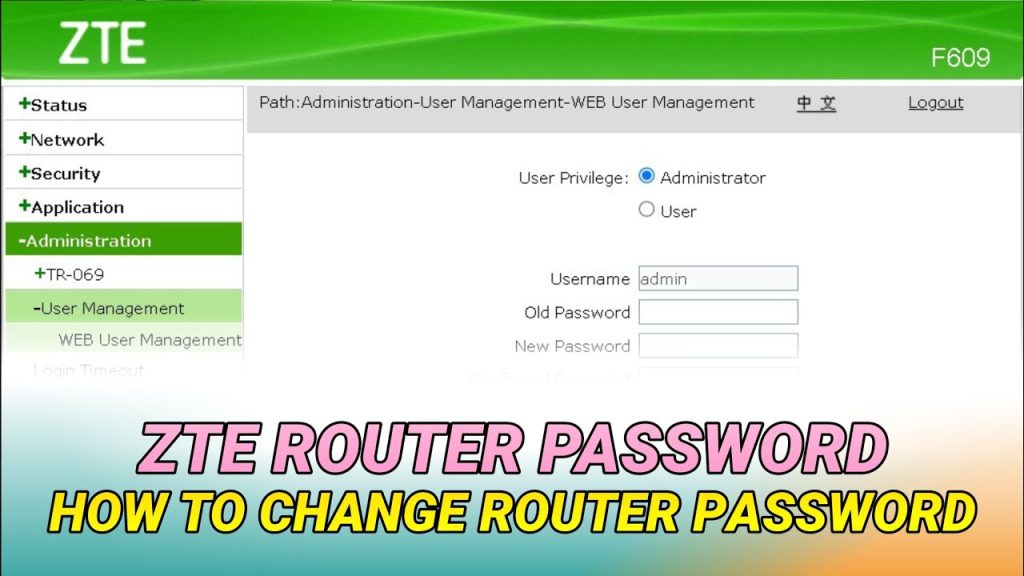
Step 4: Reveal the Password
The password is usually hidden behind dots. Look for an eye icon, a ‘Show’ checkbox, or a small button next to the password field. Click it to reveal the plain‑text password. If there’s no reveal option, the password might be displayed directly in the ‘Key’ or ‘Passphrase’ field. Write it down exactly — it’s case‑sensitive. I also recommend taking a screenshot (without sharing it) in case you forget again.

Common Pitfalls
- Forgotten admin password: If the default admin password doesn’t work and you changed it, you’ll need to reset the router to factory defaults (hold the reset button for 10 seconds). This will wipe all custom settings, so it’s a last resort.
- Can’t find the IP: Make sure you’re connected to the router. If you get a ‘page not found’ error, double‑check the IP (try both 192.168.1.1 and 192.168.0.1). You can also look up your specific model online.
- Password field remains masked and no reveal option: Some ZTE firmware hides the password permanently. In that case, you can change the password to a new one (just remember to write it down), or you can use a computer that already has the password saved to view it. Check out our guide on how to recover wifi password from router using your PC.
Where to Next
Now that you’ve got your Wi‑Fi password back, you might want to check other recovery methods for different devices. For instance, if you’re on Windows, our guide on view saved wifi password windows shows another way. If you need recovery without admin access, try the wifi password recovery no admin windows method. For more advanced scenarios, the wifi password recovery process for professionals covers deeper techniques. And if you ever need a refresher on the whole process, our wifi password recovery tutorial router is a great starting point.



