Ever walked into a server room only to realize the WiFi password scribbled on the sticky note from 2016 is long gone? Or maybe you’re onboarding a new employee and need to hand them the network credentials, but the admin who set it up left last year. This guide is for IT professionals, system administrators, and power users who need to recover WiFi passwords quickly using only built-in OS tools, router interfaces, and lightweight scripts — no shady third-party bloatware. By the end, you’ll be able to pull saved passwords from Windows, macOS, Linux, router config pages, and even Android devices, plus know how to build a portable recovery toolkit.
Unlike consumer-focused ‘password recovery’ apps that often bundle adware or require unnecessary permissions, professional recovery relies on command-line utilities and hardware you already have. I’ll walk you through five reliable methods, each suited for different scenarios — from remote recovery via SSH to offline extraction from a dead laptop’s hard drive. You’ll also learn common pitfalls that trip up even seasoned admins. Let’s get your network back under control.
What You’ll Need
- A machine that has previously connected to the target WiFi network (or router admin credentials).
- Administrator / root access on that machine (or physical access to the router).
- Basic comfort with the command line (Windows CMD/PowerShell, macOS Terminal, Linux bash).
- (Optional) A USB drive with a portable toolkit if you plan on building a portable USB toolkit ahead of time.
- Patience — especially if you’re digging through router firmware menus.
Step 1: Recover from Windows Using Command Line
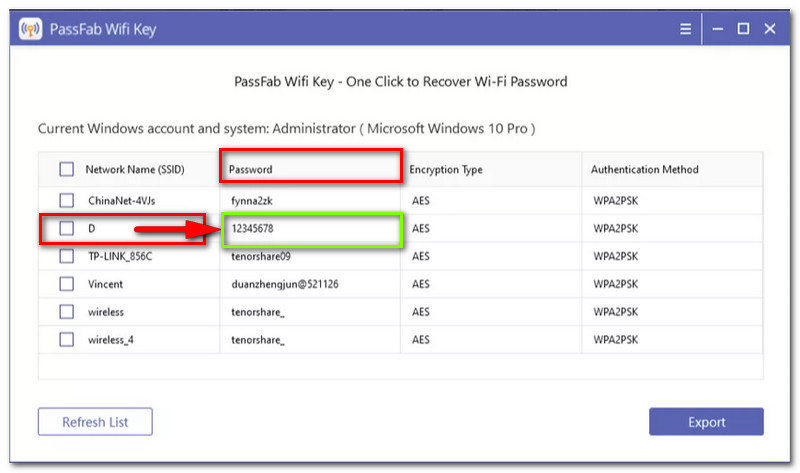
Windows stores every saved WiFi profile in plaintext (encrypted but accessible to admins). Open Command Prompt as Administrator and run netsh wlan show profiles to list all saved networks. To reveal the password for a specific network, type netsh wlan show profile name="YourNetworkName" key=clear. Look for the ‘Key Content’ field. This works on all modern versions, including Windows 10 and 11. If you need to recover without admin rights, check out our guide on recovering passwords without admin rights — it uses a different approach with PowerShell registry reads. For bulk extraction, consider view saved WiFi passwords on Windows for a full list, or use the scripting method described in the next section.
Step 2: Recover from macOS via Keychain
On macOS, WiFi passwords are stored in the system Keychain. Open Terminal and run security find-generic-password -wa "YourNetworkName". You’ll be prompted for your admin password — enter it, and the WiFi key appears in plaintext. If you get an error, make sure you’re searching the correct keychain (System vs. login). For a list of all saved networks, use security find-generic-password -l "Wi-Fi" and grep as needed.

Step 3: Recover from Linux (Ubuntu/Debian)
Linux stores WiFi credentials in plaintext configuration files (usually readable by root). For NetworkManager, check /etc/NetworkManager/system-connections/ — each file corresponds to a network. Run sudo cat /etc/NetworkManager/system-connections/YourNetworkName and look for the psk= line. Alternatively, use nmcli -t -f name connection show to list connections, then nmcli -s connection show "YourNetworkName" | grep 802-11-wireless-security.psk. These commands work on most distros. For a deeper dive, see our dedicated guide on recovering saved WiFi passwords on Linux.

Step 4: Recover Directly from Your Router
If you have physical or SSH access to the router, log into its admin interface (usually 192.168.1.1 or 192.168.0.1). Look under Wireless, Security, or WLAN settings. The password is often displayed in plaintext, but sometimes masked with asterisks. Most browsers can reveal masked passwords — right-click the password field, select Inspect, and change type="password" to type="text". If the router doesn’t show the password, you may need to reset it (but that disconnects all devices). For a step-by-step on router recovery, check our wireless password recovery software guide (though we recommend avoiding third-party tools).

Step 5: Recover from Android (QR Code Hack)
On Android 10+, you can generate a QR code for any saved network. Go to Settings > Network & Internet > WiFi, tap the gear icon next to the network, then select ‘Share’ or ‘QR Code’. Scan this code with another phone or use a QR reader to extract the password in the format WIFI:S:networkname;T:WPA;P:password;;. For a full export of all saved networks, consider using a script from our post on exporting all WiFi passwords with a simple script — that script also works on rooted devices. Additionally, you can use the QR code method to quickly grant access without revealing the password.

Common Pitfalls
- **No Administrator Access**: On a corporate or locked-down machine, you won’t be able to run netsh or security commands. In that case, try recovering passwords without admin rights using a portable toolkit or physical router access. Also consider using a live Linux USB to boot the machine and read the Windows registry directly.
- **Router Password Unknown**: If you don’t have the router admin password, physical reset is the only option — but that nukes all settings. Always document router credentials in a password manager. For legacy routers, default credentials are often printed on the sticker, but change them after recovery.
- **Encryption / Enterprise Networks**: Some networks use WPA2-Enterprise (802.1X) or captive portals. The methods above only recover the pre-shared key for WPA2-Personal. For enterprise networks, you need the RADIUS server credentials, which are stored in the OS’s certificate store — a more complex process. Also, older Windows 8 systems may require special handling — see our guide on WiFi password recovery on Windows 8.
Where to Next
Once you’ve recovered the passwords, don’t lose them again. Consider exporting them to an encrypted text file or a password manager. For Windows, you can run a consolidated script that dumps all profiles — check out our guide on viewing saved WiFi passwords on Windows for a batch file approach. If you’re constantly doing remote recoveries, building a portable USB toolkit with these scripts is a lifesaver. And if you ever need to recover passwords from a dead drive, the same command-line methods work if you mount the disk externally. Stay organized, stay secure, and stop relying on sticky notes.





