
Did you just get a new phone or have a friend over who wants to hop on your WiFi, but you can’t remember the password? It happens to the best of us. If you’re running Windows 8 and your PC is already connected to that network, you’re in luck: the password is saved somewhere in the system settings. This guide is for anyone who has a Windows 8 computer that’s currently connected (or has connected in the past) to a wireless network and wants to dig up the password without resetting the router or calling your ISP.
By the end of this tutorial, you’ll have your WiFi password in plain text. We’ll cover two methods: the graphical Control Panel way (easiest for beginners) and the Command Prompt method (faster if you’re comfortable typing). No extra software, no hacking — just built‑in Windows tools. Let’s get your devices back online.
What You’ll Need
- A Windows 8 PC or laptop that is currently connected to the WiFi network (or was connected and saved the profile).
- Administrator access to that computer (you’re probably the only user, but if it’s a work PC you may need permission).
- A few minutes of patience — the steps are simple.
Step 1: Open the Control Panel
First, open the Control Panel. You can do this by swiping from the right edge of the screen (or pressing Windows key + C) to open the Charms bar, then click “Search.” Type “Control Panel” and click the result. Alternatively, right‑click the Start button (lower‑left corner) and select “Control Panel” from the menu.

Step 2: Go to Network and Sharing Center
In the Control Panel, make sure you’re viewing by “Category” (look in the top right). Then click “View network status and tasks” under “Network and Internet.” This opens the Network and Sharing Center.
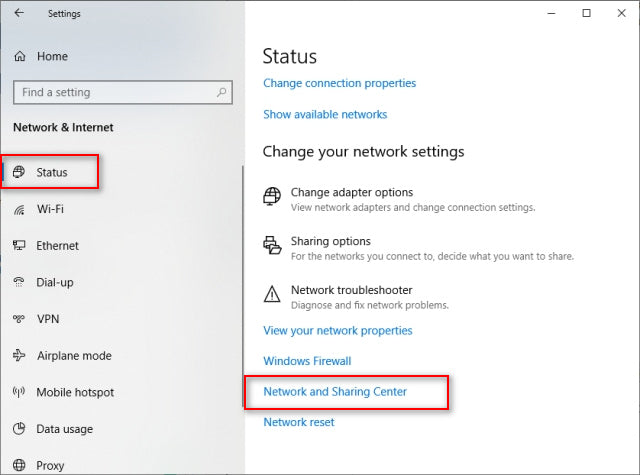
Step 3: Click on Your WiFi Network Name
In the Network and Sharing Center, you’ll see a section labeled “View your active networks.” Next to “Connections,” you’ll see your WiFi network name (e.g., “HomeWiFi”). Click on that blue link.

Step 4: Open Wireless Properties
A new window called “Wi‑Fi Status” will pop up. Click the “Wireless Properties” button.

Step 5: Show the Password
In the Wireless Network Properties window, go to the “Security” tab. You’ll see a field called “Network security key” filled with dots. Check the box that says “Show characters.” The dots will turn into your actual WiFi password.

That’s it! Write it down or type it into your other device. If you prefer a faster method using the command line, continue to the alternative steps below.
Alternative Method: Using Command Prompt (Netsh)
If you like working with commands, this is even quicker. First, open Command Prompt as Administrator: right‑click the Start button and choose “Command Prompt (Admin).” Then type the following command and hit Enter:
netsh wlan show profiles
Command to list all saved WiFi networks
You’ll see a list of every WiFi network your PC has ever connected to. Find the name of the network you need the password for, then type:
netsh wlan show profile name=”YourNetworkName” key=clear
Command to show password for a specific network
Replace “YourNetworkName” with the actual name. Look for the line that says “Key Content” — that’s your password. For more command‑line tricks, check out our guide on show wifi password command prompt.
Common Pitfalls
- You don’t have Administrator rights – If your PC is locked down by IT or another user, you won’t be able to see the password. Ask the admin for help or use a router login method (like recover wifi password from linksys router).
- The network isn’t saved on your PC – Windows only stores profiles for networks it has connected to before. If you’ve never connected, you’ll need to check the router itself. Try our wifi password recovery step by step guide for other options.
- You’re looking at the wrong network – If multiple networks appear, double‑check the name. It’s case‑sensitive. If you still can’t find it, use the netsh command to list every profile – you might have forgotten it was named something else.
Where to Next?
Now that you’ve got your WiFi password back, consider backing it up for future upgrades. Check out our guide on backup wifi passwords before upgrade to avoid this headache again. If you need to recover passwords on other devices, our wifi password recovery without root guide covers Mac, Linux, and Android. Happy surfing!





