
Ever been in that awkward spot where you need to connect a new device to your WiFi but can’t remember the password? Maybe you scribbled it on a sticky note that’s long gone, or you just never bothered to memorize that jumble of letters and numbers. Good news: Windows keeps a copy of every WiFi password you’ve ever connected to. Whether you’re a casual user or a tech newbie, this guide will walk you through the simplest ways to find your saved WiFi password in Windows—no extra software required.
By the end of this tutorial, you’ll know how to retrieve your WiFi password using Command Prompt (the quickest method) and through Network Settings (the GUI way). We’ll also cover what to do if things go sideways. So grab your laptop, and let’s dig into your saved WiFi secrets.
What You’ll Need
- A Windows PC (Windows 7, 8, 10, or 11) that has previously connected to the WiFi network.
- Administrator access (you’ll need to be able to run Command Prompt as admin).
- The exact name (SSID) of the WiFi network you want the password for.
Step 1: Open Command Prompt as Administrator
First, you need to launch Command Prompt with admin rights. Click the Start button, type “cmd” or “Command Prompt”, then right-click the result and select “Run as administrator”. If a User Account Control prompt pops up, click “Yes”. This gives us the power to view the password.
Step 2: List All Saved WiFi Profiles
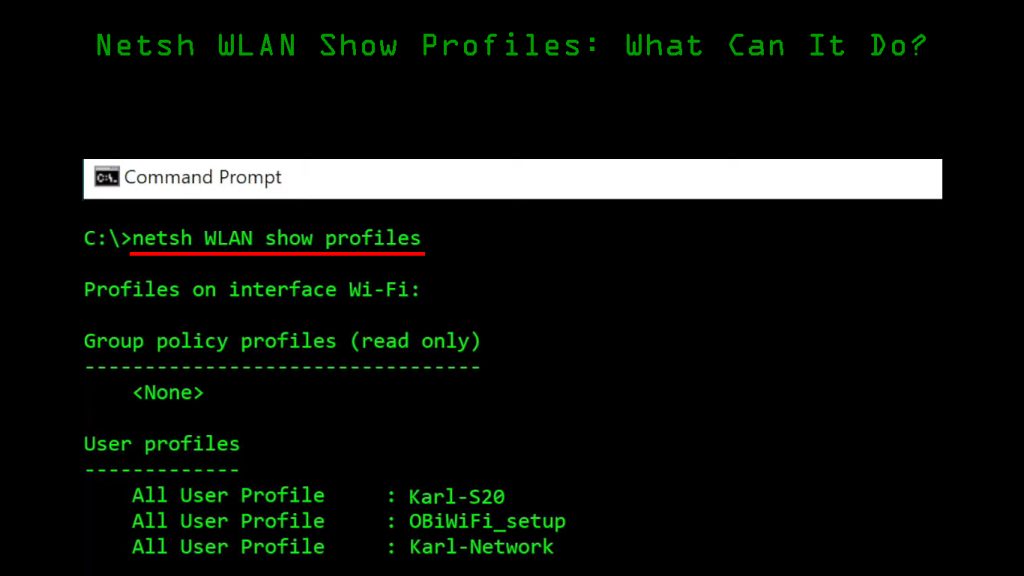
In the black Command Prompt window, type the following command and press Enter: netsh wlan show profiles. This will display a list of every WiFi network your PC has ever connected to. Look for the network name you need the password for—note it down exactly, including spaces and capitalization.
Step 3: View the Password for a Specific Profile
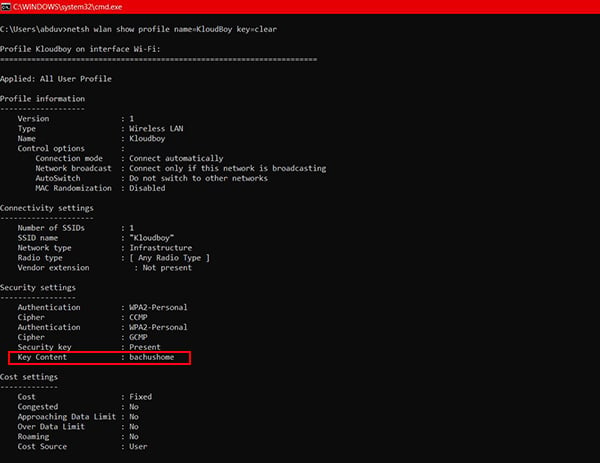
Now run this command, replacing “YourWiFiName” with the exact name from the list: netsh wlan show profile name="YourWiFiName" key=clear. The key=clear part tells Windows to show the password in plain text. Scroll down the output until you see the “Key Content” field. That’s your WiFi password, right there.
Step 4: (Alternative) Find Password via Network Settings
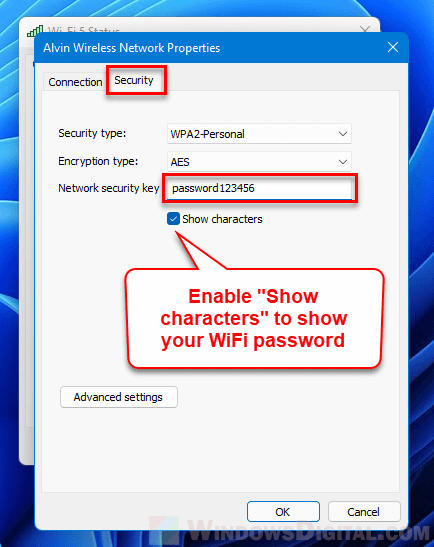
If you prefer a graphical interface, go to Settings > Network & Internet > Status > Network and Sharing Center. Click on your WiFi network name (the blue link next to “Connections”). In the pop-up, click “Wireless Properties”, then the “Security” tab. Check the box “Show characters” to reveal the password. This method works on Windows 10 and 11.
Common Pitfalls
- You didn’t run Command Prompt as administrator. Without admin rights, the
netsh wlan show profile name="..." key=clearcommand will not show the password—it’ll just give an error. Always right-click and choose “Run as administrator”. - The profile name has spaces or special characters. If your WiFi SSID includes spaces (like “Home Network”), you must enclose it in double quotes in the command. Otherwise, the command will fail.
- No saved profiles appear. If the
netsh wlan show profileslist is empty, that means your PC has never connected to a WiFi network, or the profiles have been deleted. In that case, you’ll need to get the password from your router or someone else.
Where to Next
Now you know how to dig up your saved WiFi password on Windows. If you’re still having trouble, check out our detailed guides on wifi password recovery via control panel or wifi password recovery from pc for more methods. For those who prefer command-line tools, our show wifi password command prompt guide has extra tips. And if you need to recover passwords on other devices, explore wifi password recovery for windows users or wifi password recovery process for beginners. Happy surfing!
Pro tip: Once you retrieve your password, jot it down in a secure password manager so you never have to do this again.



