
Ever needed to reconnect a device to your home WiFi but couldn’t remember the password? Or maybe you’re setting up a new Linux machine and want to transfer all your saved networks. This guide is for you. By the end, you’ll know exactly how to restore WiFi passwords on Linux using built-in tools and a few terminal commands. We’ll cover both NetworkManager and wpa_supplicant methods, so you’re covered no matter which distro or configuration you use.
If you’re looking for a broader approach that also covers Windows, Mac, and Android, check out our wifi password recovery without root guide. But for pure Linux, you’re in the right place. We’ll assume you have basic terminal skills and a little patience.
What You’ll Need
- A Linux computer with saved WiFi networks (most distros work).
- Terminal access (Ctrl+Alt+T or similar).
- Sudo privileges (for reading config files).
- Optional: a USB drive to back up passwords.
Step 1: Find Your Saved WiFi Configurations
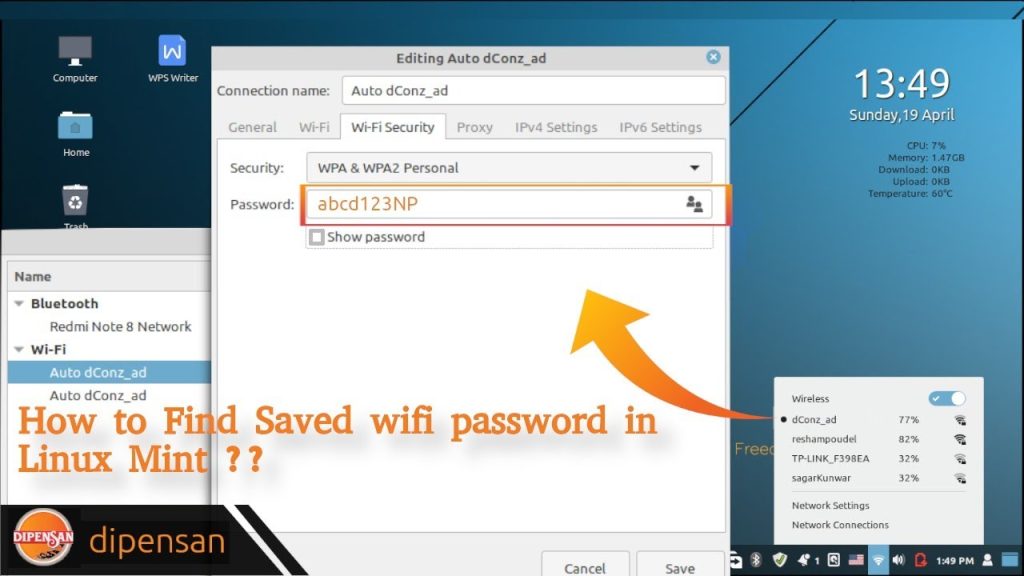
Most modern Linux distros use NetworkManager to manage WiFi connections. Your saved network credentials are stored in plain-text files under /etc/NetworkManager/system-connections/. Let’s take a look.
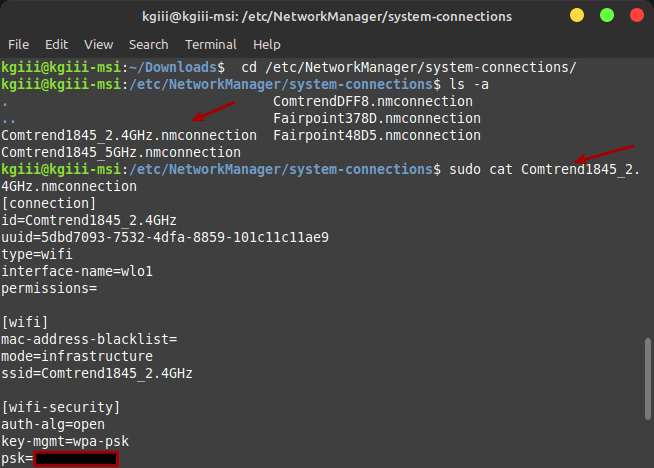
Open your terminal and run: sudo ls /etc/NetworkManager/system-connections/. You’ll see a list of files, each named after a WiFi network you’ve connected to. For example, MyHomeWiFi.nmconnection. These contain the password (PSK) in plain text.
If you’re using a different network manager like wpa_supplicant, check /etc/wpa_supplicant/wpa_supplicant.conf instead. We’ll cover that in Step 4.
Step 2: Read the Password from a Connection File
Once you know the file name, you can view its contents with sudo cat /etc/NetworkManager/system-connections/YourNetworkName.nmconnection. Look for the line that begins with psk=. That’s your WiFi password.
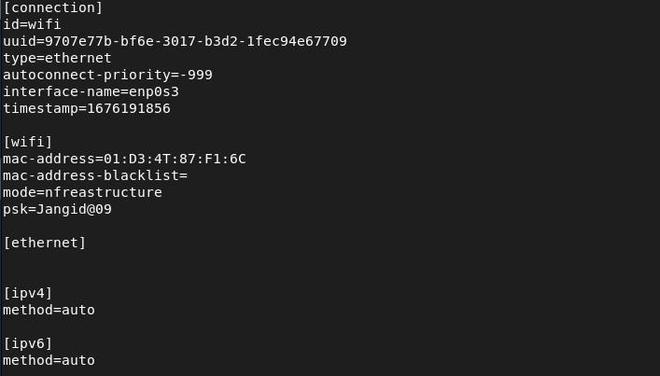
For a more targeted approach, use grep: sudo grep psk /etc/NetworkManager/system-connections/*.nmconnection. This will print all passwords for all saved networks in one go. Note that the password is the value after psk=. If you see psk-flags=1, the password is stored in a keyring — but that’s rare on desktop Linux.
This method works perfectly for restoring passwords after a reinstall or sharing with a friend. If you need a broader tutorial on viewing saved passwords, see our view saved wifi password linux guide.
Step 3: Use nmcli (No Sudo Needed for Listing)
NetworkManager also provides a command-line tool called nmcli. You can list all saved connections without sudo: nmcli connection show. But to see the actual password, you need to use the --show-secrets flag with sudo.
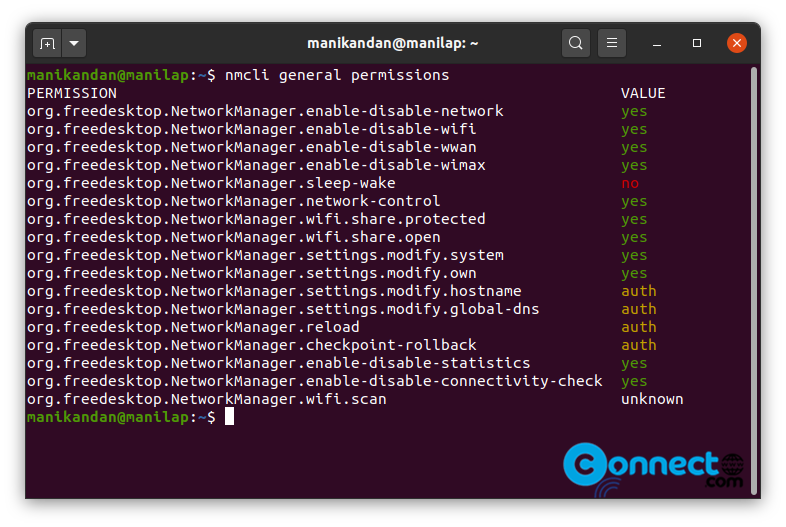
Run: sudo nmcli -s connection show MyNetworkName (replace MyNetworkName with the actual SSID). Look for 802-11-wireless-security.psk. The value next to it is your password. This is a clean way to extract a single password without digging through files.
Step 4: Alternative — wpa_supplicant Config
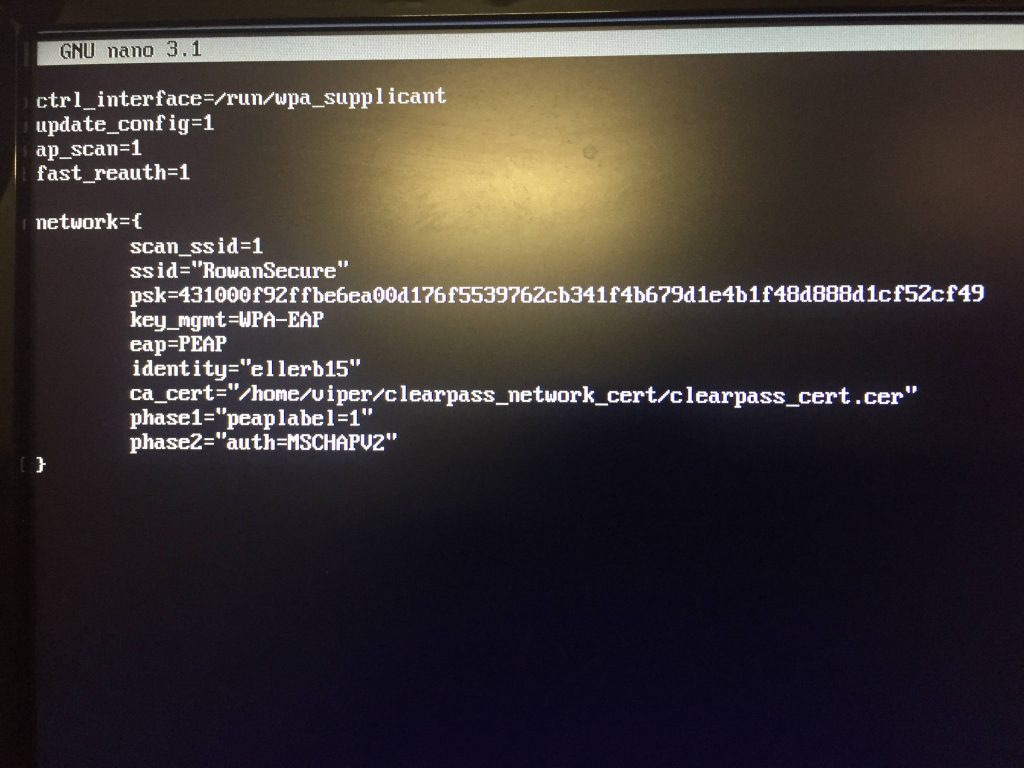
Some older or minimalist distros use wpa_supplicant directly. Passwords are stored in /etc/wpa_supplicant/wpa_supplicant.conf. View it with: sudo cat /etc/wpa_supplicant/wpa_supplicant.conf. Look for psk="yourpassword" or psk=hash (hex). If it’s a hash, you can’t recover the plain text, but you can copy the hash for later use.
For more on terminal-based recovery, check our view saved wifi password using terminal article.
Step 5: Back Up All Passwords (Optional)
Once you’ve recovered your passwords, it’s smart to back them up before a system upgrade. Create a simple text file with all your passwords: sudo grep -r 'psk=' /etc/NetworkManager/system-connections/ > ~/wifi-backup.txt. Then copy that file to a USB drive or cloud storage. We have a full guide on backup wifi passwords before upgrade if you want more details.
Common Pitfalls
- Permission denied: Forgot sudo? The config files are owned by root. Always use
sudowhen reading from/etc/. - Password is a hash, not plain text: Some networks use WPA2-Enterprise or EAP, where the password is stored as a hash. You can’t recover the original password easily. Use the nmcli method or re-enter it manually.
- No saved networks: If you’ve never connected to a WiFi network on this Linux machine, there won’t be any saved passwords. Try another device or router admin panel.
WiFi passwords are stored in plain text in NetworkManager config files — always secure your backups.
Linux documentation
Where to Next
Now you know how to restore WiFi passwords on Linux. Next, you might want to learn how to share those passwords with other devices, or how to automate WiFi setup on new machines. If you ever need to recover passwords on other platforms, our wifi password recovery without root guide covers Windows, Mac, and Android as well. Happy networking!





