So you’re about to do a major upgrade—new OS, fresh install, or even just a firmware update on your router. The last thing you want is to be locked out of your own WiFi network because you forgot the password. We’ve all been there: scrambling to find that sticky note or digging through old emails. But if you take a few minutes to backup your WiFi passwords first, you’ll save yourself a headache. This guide walks you through backing up saved WiFi passwords on Windows, macOS, Linux, and Android, so you can breeze through any upgrade without losing your connection.
By the end, you’ll have either a text file or a config backup containing all your saved WiFi network names (SSIDs) and their passwords. You can then restore them seamlessly or at least have them handy when you reconnect. Let’s get started.
What You’ll Need
- A computer (Windows, macOS, or Linux) or an Android phone
- Administrator/root access (for most methods)
- A USB drive or cloud storage to save the backup file
- Optional: a text editor to view the backup
Step 1: Export WiFi Profiles on Windows Using Command Prompt
Windows stores all saved WiFi profiles in the system. You can export them using the netsh command. Note: The exported file contains the passwords in plain text (encrypted by your account, but still sensitive—keep it safe).
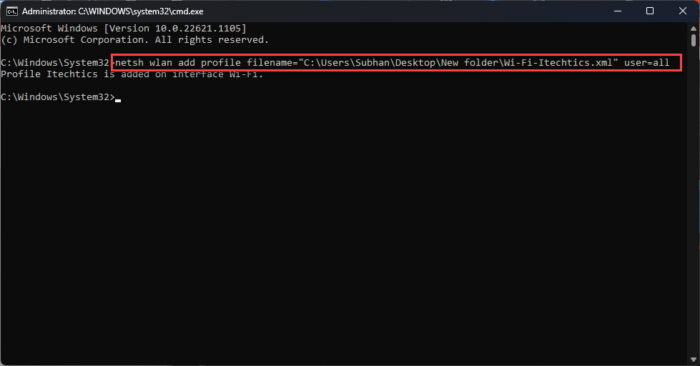
Open Command Prompt as Administrator (right-click Start > Command Prompt (Admin) or Windows Terminal (Admin)). Then run this command to export all profiles to your desktop:
netsh wlan export profile folder=C:UsersYourUsernameDesktop key=clear
Windows netsh command
Replace YourUsername with your actual username. This creates XML files for each profile. The password is in the keyMaterial tag. Save these files somewhere safe (e.g., cloud or USB). You can later import them with netsh wlan add profile filename="...". For more details, check out our guide on using the export WiFi profiles command.
Step 2: Backup WiFi Passwords on macOS with Keychain Access
macOS stores WiFi passwords in the Keychain. You can view and export them using the Keychain Access app or Terminal. Here’s the GUI method.
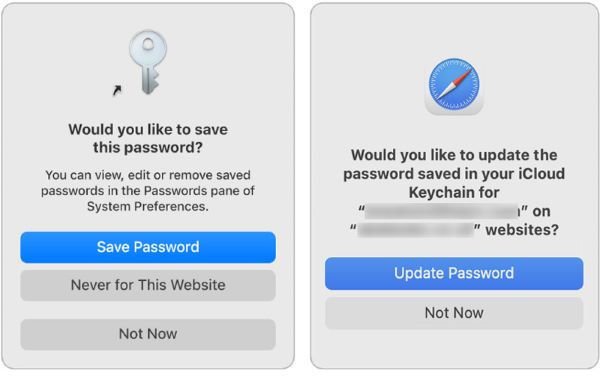
Open Keychain Access (Applications > Utilities). In the search bar, type the name of your WiFi network. Double-click the entry. Check “Show password” and enter your Mac admin password. The password appears in the text field. Write it down or screenshot. For multiple networks, repeat. For a command-line approach, you can use security find-generic-password -wa "SSID" in Terminal. If you need to restore after upgrade, see our post on how to restore WiFi passwords after upgrade.
Step 3: Dump WiFi Passwords on Linux Using Command Line
Linux stores WiFi configs in /etc/NetworkManager/system-connections/ (for NetworkManager) or /etc/wpa_supplicant/wpa_supplicant.conf. You’ll need root privileges.
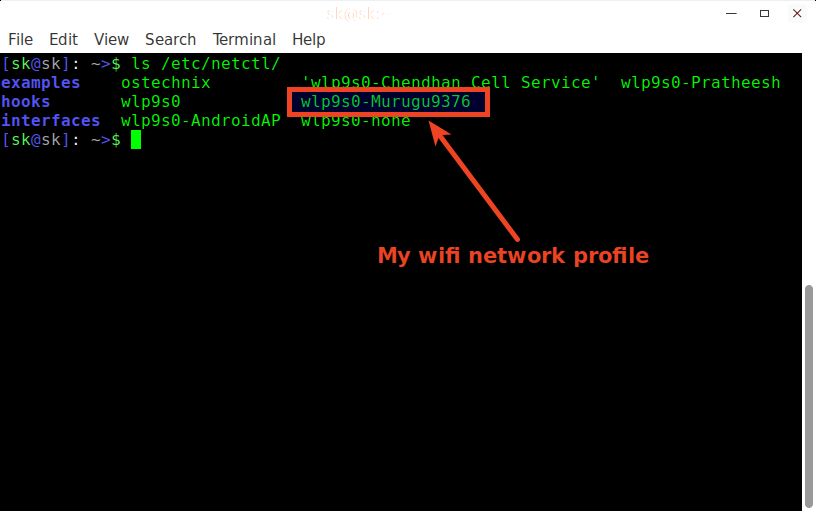
Open a terminal and run:
sudo cat /etc/NetworkManager/system-connections/*
Linux command
This prints all configs. Look for psk= in the [wifi-security] section. Save the output to a file: sudo cat /etc/NetworkManager/system-connections/* > wifi-backup.txt. For older systems using wpa_supplicant, check /etc/wpa_supplicant/wpa_supplicant.conf. Each entry has psk="password". You can also view saved WiFi passwords using terminal on any OS.
Step 4: Back Up WiFi Passwords on Android (Root or QR Code)
Android doesn’t offer a built‑in way to export passwords without root. But if your phone is running Android 10+, you can share WiFi credentials as a QR code. Or if you’re rooted, you can copy the wpa_supplicant.conf file.
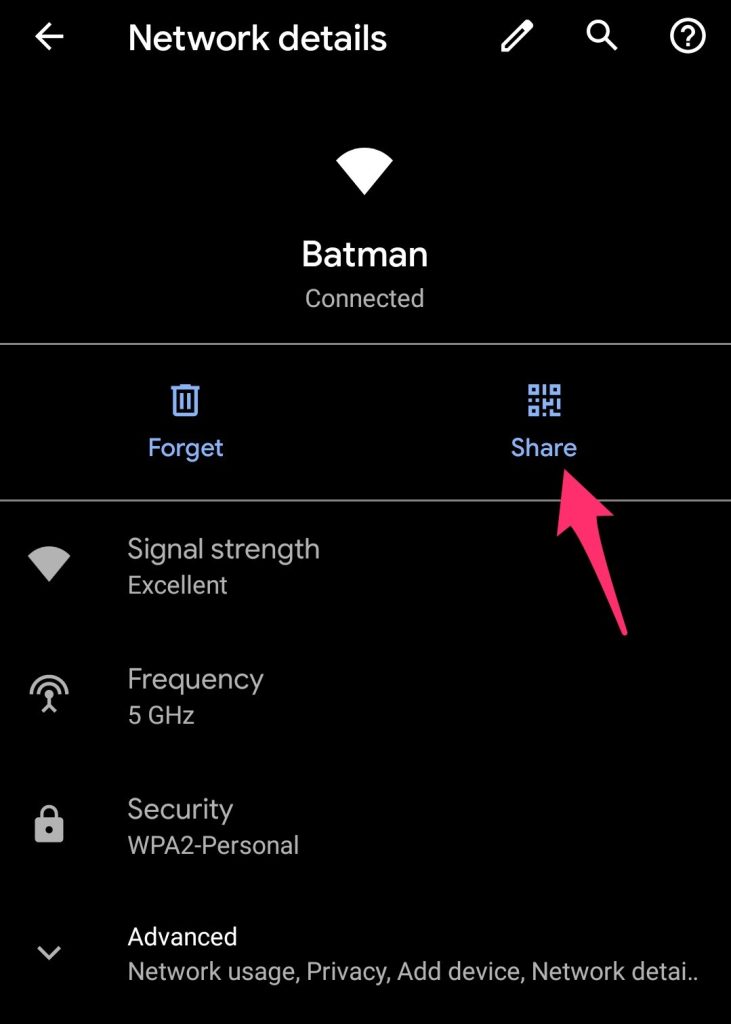
To use the QR method: go to Settings > WiFi, tap the network name, then tap Share (or QR code icon). Authenticate with your PIN/pattern, then screenshot the QR code. The password is embedded in the QR’s text. Save the screenshot or copy the text. For rooted devices, use a file manager with root access to copy /data/misc/wifi/wpa_supplicant.conf or /data/misc/wifi/WifiConfigStore.xml. If you lose the backup, check our guide to recover your WiFi password after upgrade.
Common Pitfalls
- Forgetting to export from all devices: Your phone might have different networks than your laptop. Make sure to back up every device that connects to WiFi—especially the ones that auto-join.
- Losing the backup file: If you save the exported file on the same drive you’re upgrading, it might get wiped. Always store the backup on an external USB, cloud drive, or another partition.
- Encrypted passwords on Windows: Using key=clear exports passwords in plain text, which is convenient but a security risk if the file falls into the wrong hands. Delete it after restoring or keep it in an encrypted vault.
Where to Next
Now that you’ve got your WiFi passwords backed up, you can upgrade with confidence. If you need to restore them later, follow the reverse steps on each platform. For a deeper dive into password recovery techniques—including recover your WiFi password from a backup or various system crashes—check out our WiFi password recovery ultimate guide. Happy upgrading!



