So you’ve forgotten the WiFi password for your D-Link router. It happens to all of us. Maybe you had it written on a sticky note that’s long gone, or maybe you just never bothered to change the default password. Either way, you’re not locked out forever. By the end of this guide, you’ll have your WiFi password in hand, recovered directly from the router’s admin interface. No extra software, no tech support calls. Just you, your browser, and a few clicks.
This guide is for anyone who has physical or network access to their D-Link router. Whether you’re using Windows, Mac, or even a phone, the steps are the same. If you want a broader overview of all recovery methods, check out our wifi password recovery expert guide first. Otherwise, let’s dive in.
What You’ll Need
- A computer or device connected to your D-Link router (WiFi or Ethernet)
- A web browser (Chrome, Firefox, Edge, Safari – any works)
- Your router’s IP address (usually 192.168.0.1 or 192.168.1.1)
- Your router’s admin username and password (if you never changed it, try admin / admin or admin / password)
Step 1: Connect to Your D-Link Router
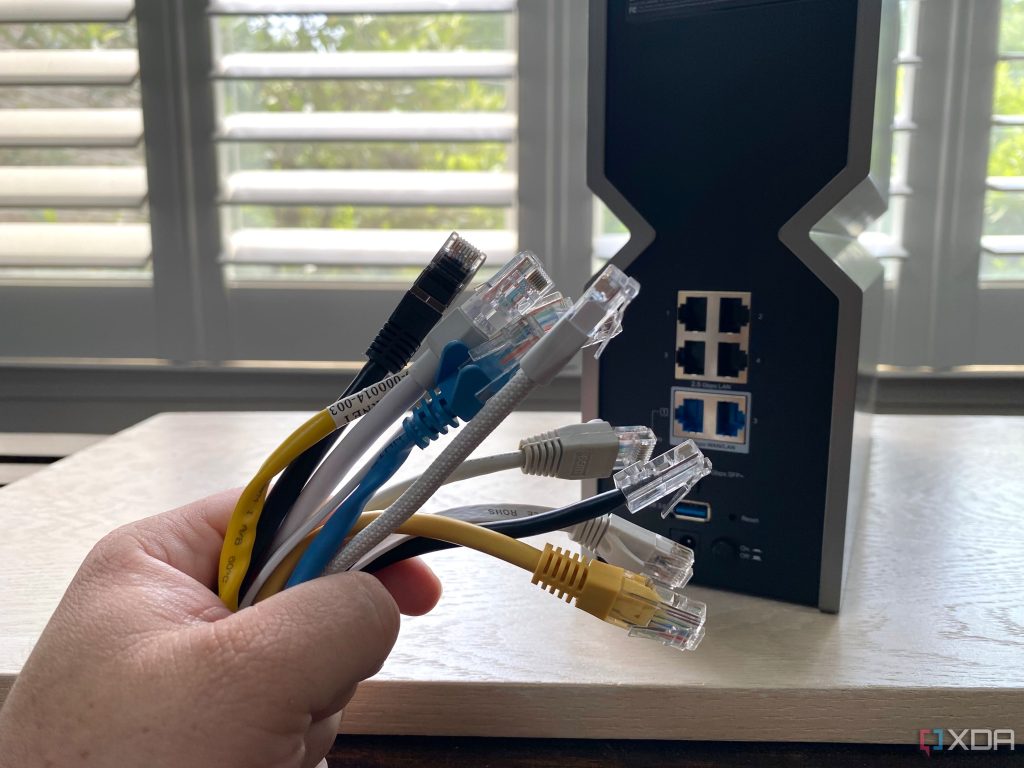
Make sure your device is connected to the D-Link network. If you’re still connected via WiFi (even without the password, if you saved it earlier), that’s fine. If not, use an Ethernet cable to plug directly into one of the LAN ports on the router. This ensures you can access the router’s admin panel without any interruptions.
Step 2: Open the Router’s Admin Page
Open your web browser and type your router’s IP address into the address bar. For most D-Link routers, it’s 192.168.0.1 or 192.168.1.1. Hit Enter. You should see a login page. If the page doesn’t load, check your connection or try the other IP.
Step 3: Log In to the Admin Panel
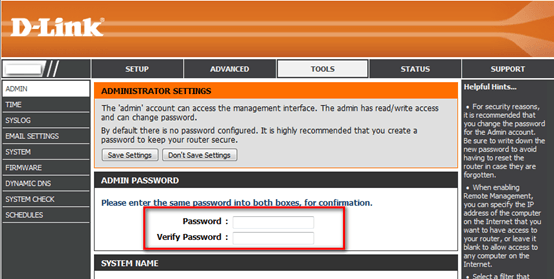
Enter the router’s admin username and password. If you never changed them, the default credentials are usually admin for the username and admin or password for the password. Check the sticker on your router if those don’t work. Once you’re in, you’ll see the router’s dashboard.
Step 4: Go to Wireless Settings
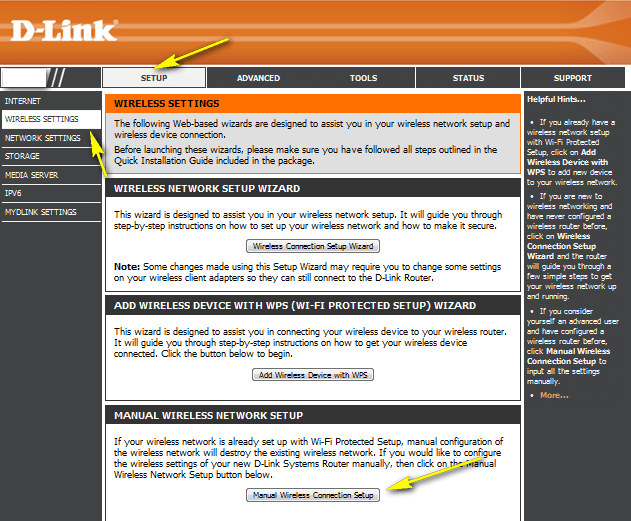
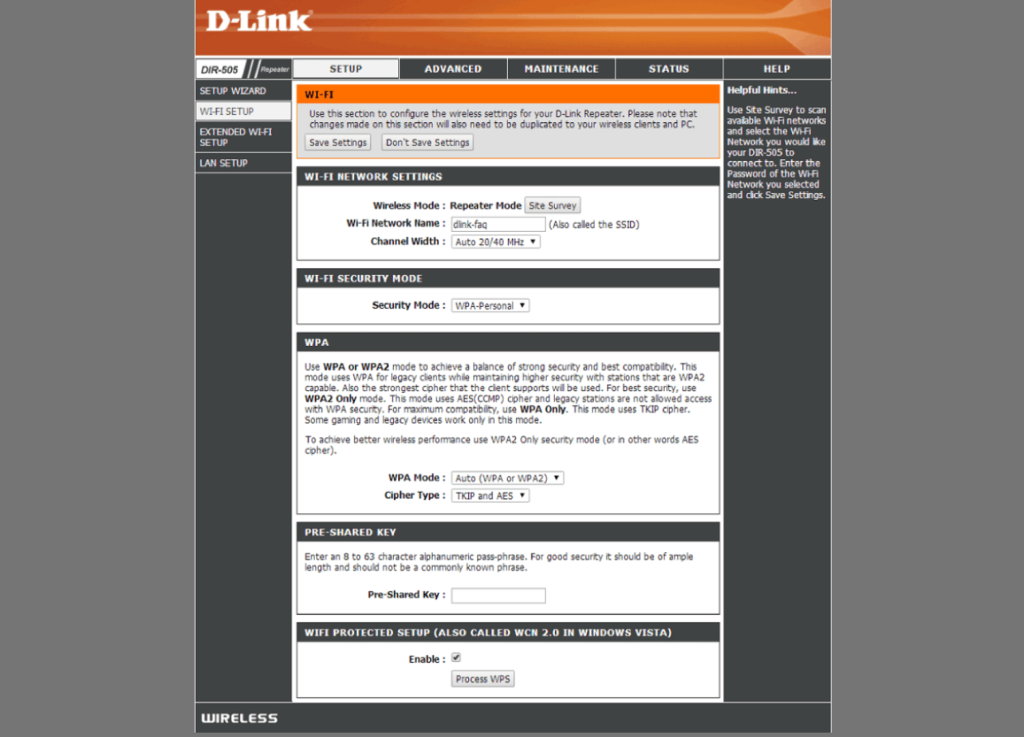
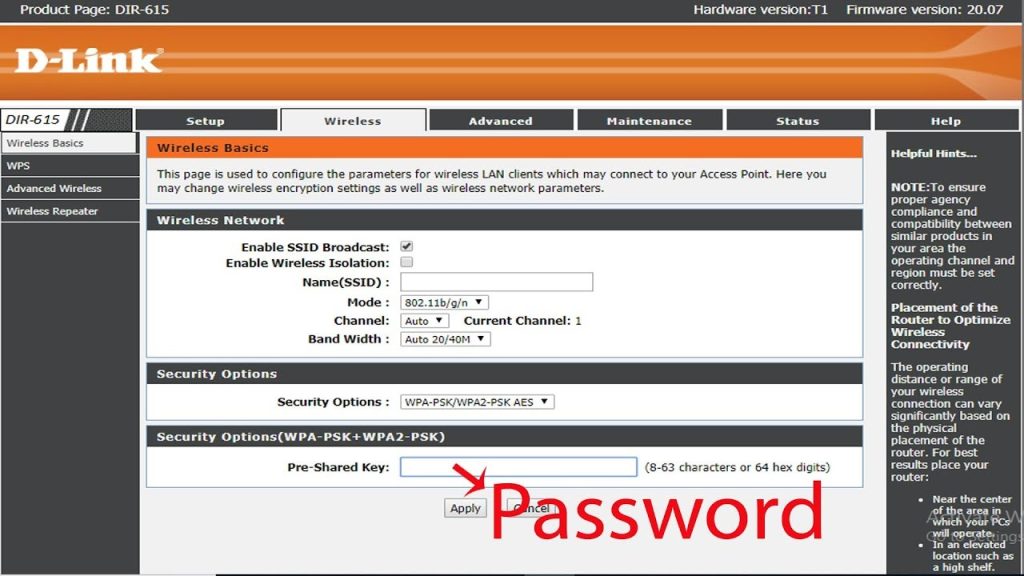
Look for a section called “Wireless,” “WiFi,” or “Setup.” The exact name depends on your D-Link model. In many models, it’s under “Setup” then “Wireless Settings.” Click on it. You should see your network name (SSID) and security options.

Step 5: Find the Password
Look for a field labeled “Pre-Shared Key,” “Passphrase,” “Network Key,” or simply “Password.” It might be underneath the security mode (e.g., WPA2-PSK). The password is displayed in plain text, sometimes hidden behind asterisks – but on D-Link routers it’s usually visible. Write it down or take a screenshot. This is your WiFi password.
Step 6: Save or Remember It
Now that you have the password, store it somewhere safe. You can use a password manager or a note on your phone. If you ever lose this password again, you can always recover wifi password from router admin using the same steps, or use our how to recover wifi password from backup method if you have a router config backup file.
Common Pitfalls
- Forgot your admin password too? If you can’t log in, you’ll need to reset the router to factory defaults by pressing the reset button on the back for 10 seconds. This will erase all settings, so use it as a last resort.
- Wrong IP address? If neither 192.168.0.1 nor 192.168.1.1 works, check your computer’s default gateway. On Windows, open Command Prompt and type ipconfig; on Mac, go to System Preferences > Network and find the router’s IP under the connection.
- Password field is blank? Some D-Link models show the password as dots. You can click a show/hide icon if available, or use your browser’s developer tools to change the input type from password to text. Alternatively, check the router’s sticker if you haven’t changed the password.
Where to Next
You’ve successfully recovered your D-Link WiFi password. If you want to explore more recovery methods for different scenarios, check out our wifi password recovery ultimate guide. It covers everything from command-line tricks to Android apps. Also, consider backing up your router’s configuration so you never have to hunt for the password again.





