If you’ve ever stared at a blank password field while a friend asks, “What’s your WiFi password?”, you know the panic. Maybe you wrote it on a sticky note that fell behind the fridge, or your router sticker faded away. Don’t worry—most devices actually save the passwords for networks you’ve connected to. With the right utility, you can pull them out in seconds.
This guide covers the best wifi password recovery utility for each major platform. For Windows, we’ll use the lightweight, portable WirelessKeyView. For macOS, you’ll use the built-in Keychain Access. Linux users can rely on the nmcli command, and Android owners can scan a QR code. By the end, you’ll have your password back without resetting anything.
What You’ll Need
- A Windows, macOS, Linux, or Android device that has connected to the target WiFi network
- Administrator or root access on your computer (for Windows and Linux)
- For Windows: a USB drive or download folder to save WirelessKeyView (portable app, no install needed)
- For Android: a device running Android 10 or later (QR code feature is built-in)
Step 1: Download and Run WirelessKeyView (Windows)
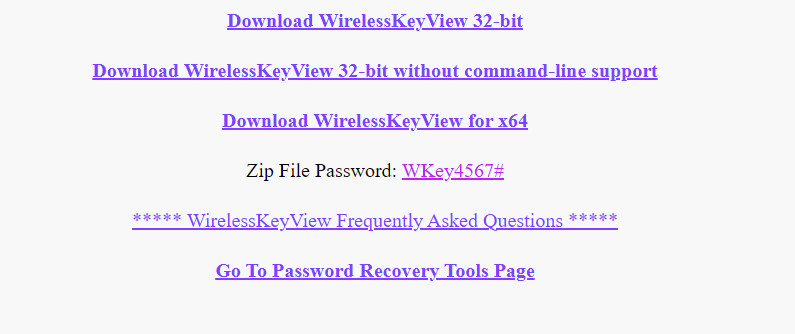
WirelessKeyView is a tiny, free utility from NirSoft that recovers all WiFi passwords stored by Windows. Because it’s portable, you can run it from a USB stick—no installation required. Head to the official NirSoft site and download the ZIP file. Extract it, then right-click the executable and choose “Run as administrator.” The program instantly displays a table of all saved WiFi networks, their SSIDs, and the passwords in plain text.
You can also export the list as a text file or HTML report. This is hands-down the best free wifi password recovery software for Windows. If you prefer a command-line approach, check out the wifi password recovery command export profiles method.
Step 2: Use Keychain Access (macOS)
On a Mac, your WiFi passwords are stored in the Keychain. Open Keychain Access (from Applications > Utilities > Keychain Access). In the search bar, type the name of your WiFi network. Double-click the entry for that network, then check the box that says “Show password.” You’ll be prompted for your Mac’s admin username and password. Once entered, the WiFi password appears in the field.
This built-in tool is simple and secure. For a deeper dive, see our wifi password recovery expert guide. And if you ever need to recover passwords from a backup, the article on how to recover wifi password from backup has you covered.
Step 3: Recover via Terminal (Linux)
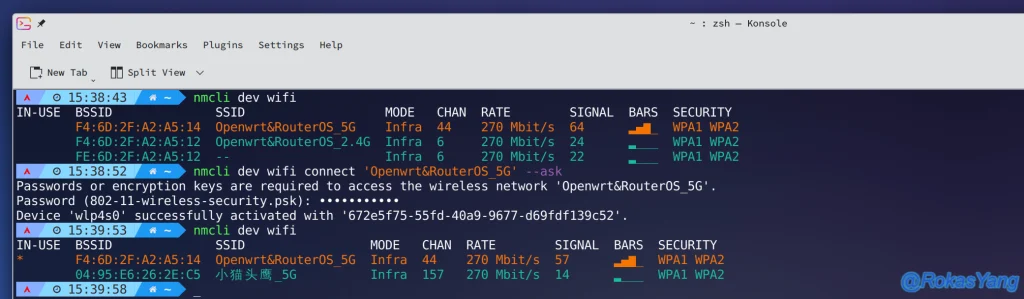
Linux stores connection details in /etc/NetworkManager/system-connections/. But the easiest way is using nmcli. Open a terminal and run: nmcli -s connection show to list saved connections. Then get the password for a specific network with nmcli connection show "YourSSID" | grep 802-11-wireless-security.psk. If you need to see it without escaping, use nmcli connection show "YourSSID" --show-secrets.
Alternatively, you can read the config file directly with sudo. For a complete tutorial, cover our guide on wireless password recovery linux. And if you prefer a GUI tool, some distros include a network manager applet that reveals saved passwords.
Step 4: Android — QR Code or Saved Networks
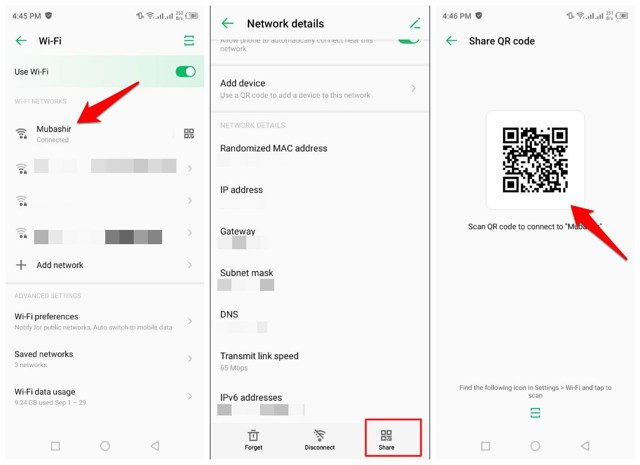
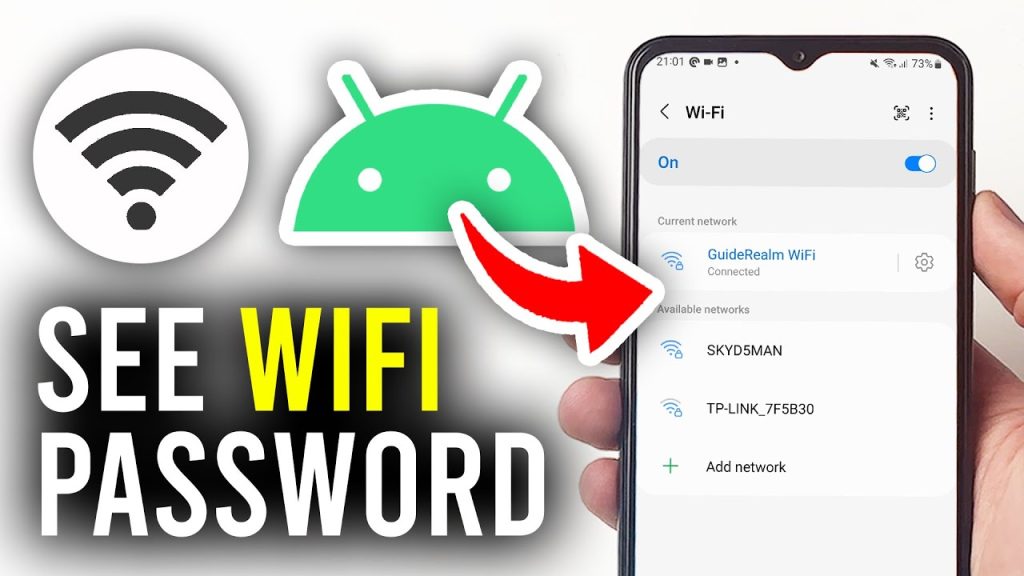
On Android 10 and later, go to Settings > Network & Internet > WiFi. Tap the gear icon next to your connected network, then tap “Share” or the QR code icon. Your phone displays a QR code that others can scan to join, but the password is also shown in plain text underneath the code. You can also screenshot it for later.
If you’re on an older Android version, you might need a forgotten wifi password recovery app. Most such apps require root access, so the QR method is safer and easier. For Huawei devices, we have a specific guide on wifi password recovery for huawei.
Common Pitfalls
- Running WirelessKeyView without admin rights: The utility won’t display any passwords unless you right-click and select “Run as administrator.” Always do that first.
- Keychain shows password as hidden: On macOS, many users forget to check the “Show password” checkbox. Also, ensure you’re clicking the correct network entry (sometimes there are duplicates).
- Linux nmcli shows empty psk: If the connection uses a different security type (e.g., WPA2-Enterprise), the password might not be stored in plain text. In that case, you may need to use the graphical network manager or check the config file manually with sudo.
Where to Next
Now that you’ve recovered your password, consider backing them up so you never lose them again. Our guide on backup wifi passwords before upgrade walks you through exporting your saved networks across all platforms. If you need to restore after a reinstall, check restore wifi passwords after upgrade. And if you ever forget your router admin password, the tutorial on recover wifi password from router admin can help you reset it without a factory reset. Finally, for a deep dive into all methods, explore our wifi password recovery expert guide.





