Ever needed to connect a new device to your WiFi but completely blanked on the password? You’re not alone. This guide is for anyone who’s ever saved a WiFi network and then promptly forgot the password. By the end, you’ll have multiple proven methods to recover that password from Windows, macOS, Linux, Android, and even directly from your router. No shady software required.
Whether you’re a tech newbie or a seasoned pro, these steps are straightforward and tested. If you just need a quick command, check out our guide on view saved wifi password using terminal. For a broader overview, see our wifi password recovery ultimate guide. Ready? Let’s dive in.
What You’ll Need
- A computer already connected to the WiFi network (for OS-level recovery)
- Admin access to your computer (or a password for the admin account)
- If using router method: router admin credentials (often on a sticker)
- For Android: the device that’s currently connected to the network
- Patience and a coffee.
Step 1: Recover WiFi Password on Windows
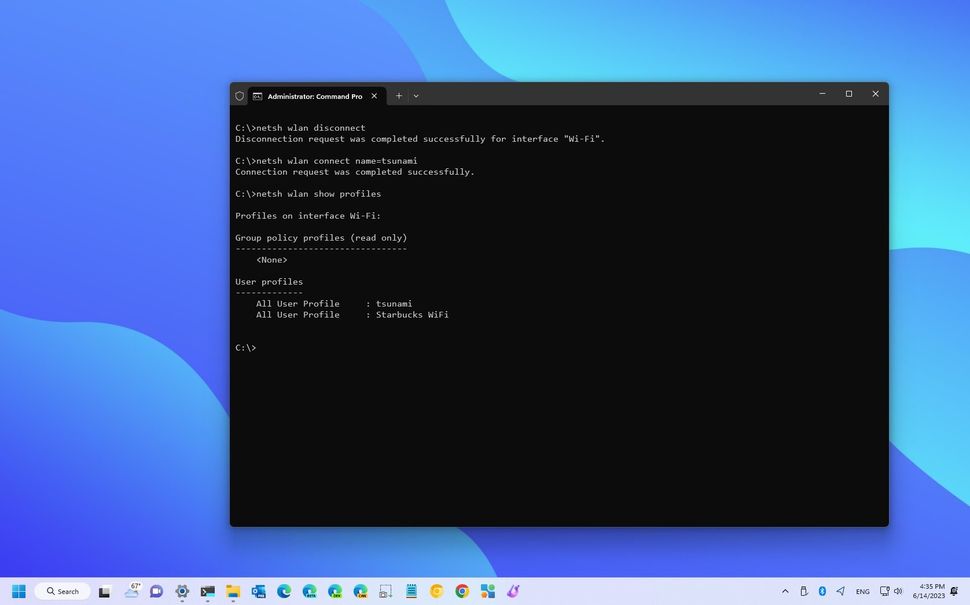
Open Command Prompt as Administrator (search cmd, right-click, Run as administrator). Type netsh wlan show profiles to list all saved networks. Then type netsh wlan show profile name="YOUR_SSID" key=clear (replace YOUR_SSID with your network name). Look for the Key Content line under Security Settings. That’s your password. If you recently updated Windows, see our wifi password recovery after windows update guide for any quirks.
Step 2: Recover WiFi Password on macOS
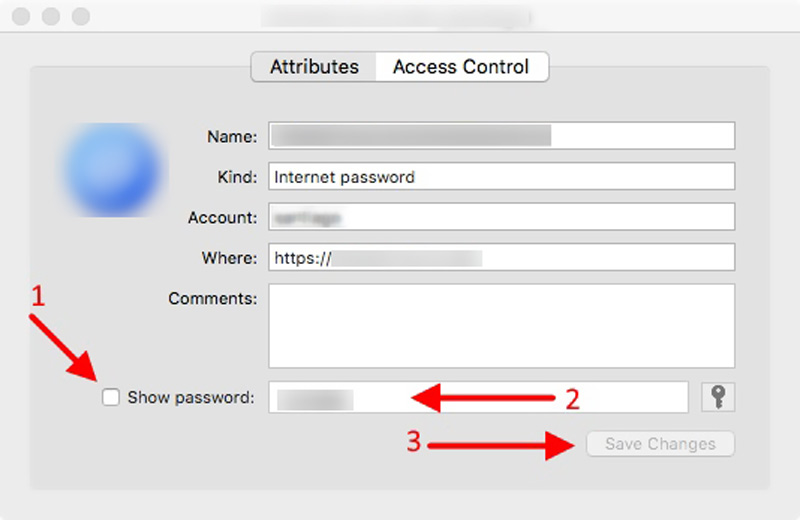
Open Keychain Access from Applications > Utilities. Search for your WiFi network name (SSID). Double-click it, then check the box Show password. Enter your Mac admin password when prompted. The WiFi password will appear in plain text. For a dedicated walkthrough, check out our article on personal wifi password recovery.
Step 3: Recover WiFi Password on Linux
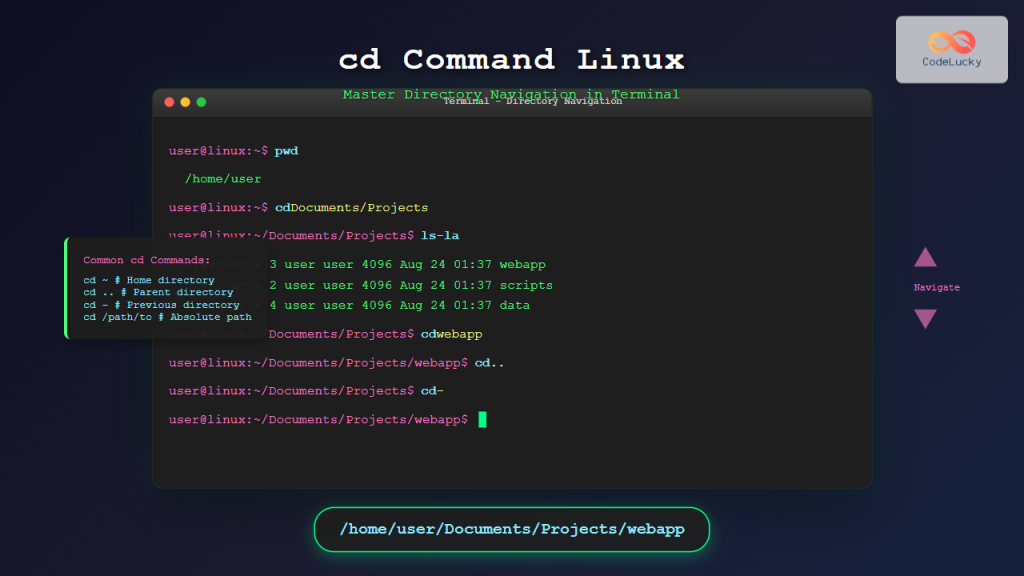
Open a terminal and run sudo cat /etc/NetworkManager/system-connections/SSID (replace SSID with your network name). Look for the psk= line under the [wifi-security] section. That’s your password. If NetworkManager isn’t used, check the wpa_supplicant configuration file. For more Linux-specific tips, see our forgotten wifi password recovery command guide.
Step 4: Recover WiFi Password on Android (No Root)
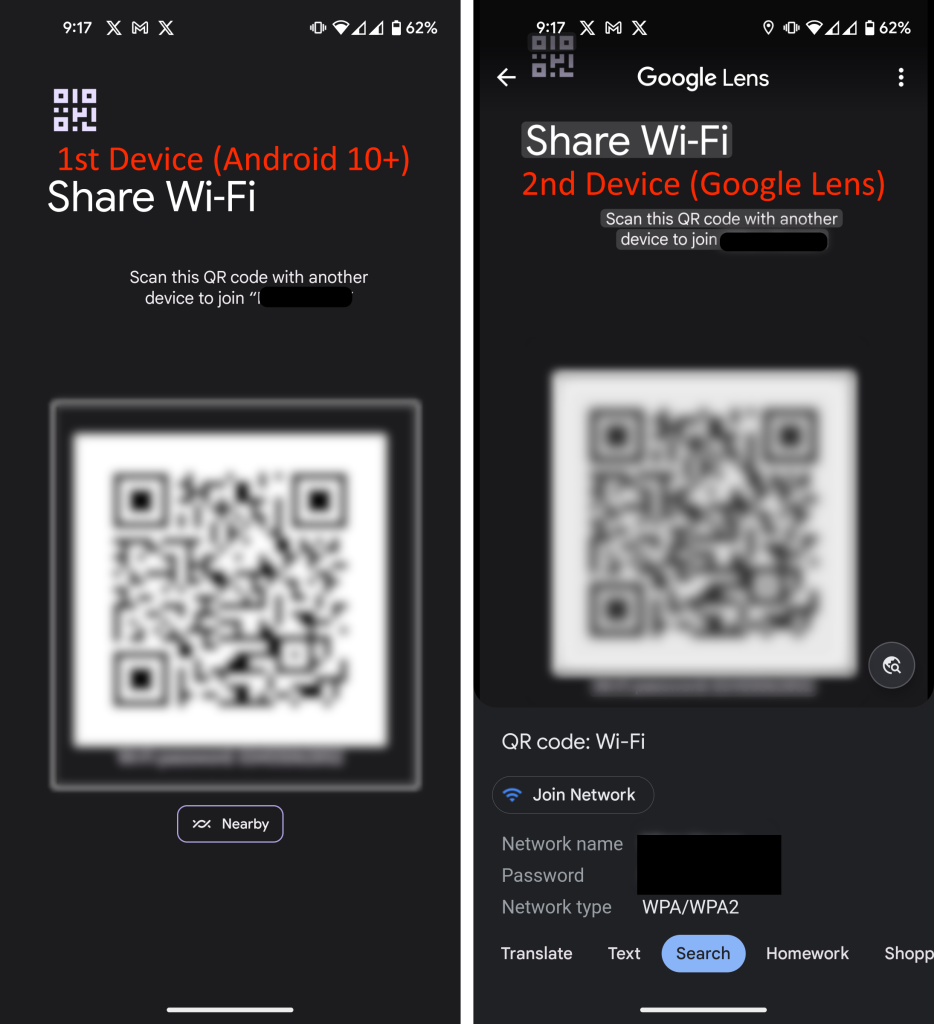
On Android 10 and later, go to Settings > Network & Internet > WiFi. Tap the gear icon next to your connected network. Tap Share (or QR code). You may need to authenticate with a fingerprint or PIN. The password will appear below the QR code. For Samsung Galaxy devices, we have a dedicated guide: wifi password recovery for samsung galaxy.
Step 5: Recover WiFi Password from Router Admin
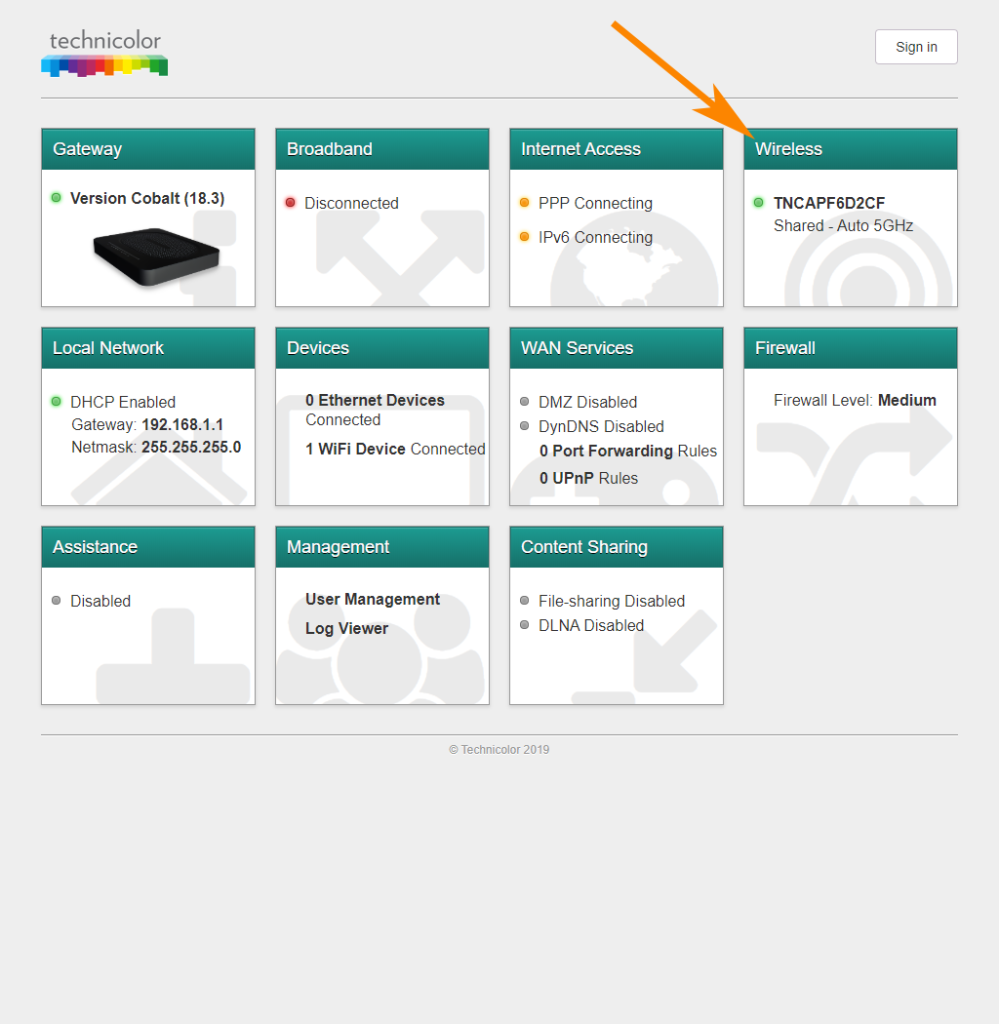
Open a web browser and enter your router’s IP address (usually 192.168.1.1 or 192.168.0.1). Log in with admin credentials (often on a sticker). Navigate to Wireless or WiFi settings. The password is usually in a field labeled Pre-Shared Key or Passphrase. For step-by-step details, see how to recover wifi password from router admin.
Common Pitfalls
- You don’t have admin rights on the computer – you’ll need to ask someone who does, or use the router method.
- Router admin password forgotten – try default credentials from the router manual or a sticker; otherwise, you’ll need to factory reset the router (which erases settings).
- Android method doesn’t work on older versions (pre-Android 10) – those often require root access or a dedicated app.
Where to Next
Now that you’ve recovered your WiFi password, consider writing it down or using a password manager. If you have a mesh system, recovery can be slightly different – check out our guide on recover wifi password from router backup for backup methods. Stay connected, and never get locked out again!



