We’ve all been there: a friend asks for the WiFi password, and you draw a blank. Maybe it’s written on the back of the router, but it’s faded. Or you changed it months ago and never wrote it down. This guide is for anyone who’s ever needed to recover a saved WiFi password on their own devices – no resetting the router, no calling your ISP. By the end, you’ll know how to pull that password from Windows, Mac, Android, and even the router’s own admin panel.
I’ll show you the quickest, most reliable methods for each platform, plus a few tricks you probably haven’t tried. Most of these steps take less than two minutes. Let’s get your WiFi password back where it belongs – in your hands.
What You’ll Need
- A computer or phone already connected to the WiFi network whose password you want to recover
- Administrator access to your computer (if using Windows or Mac)
- Optional: Router admin credentials (often printed on the router label)
- A QR code scanner app (if recovering from Android)
Step 1: Recover WiFi Password on Windows
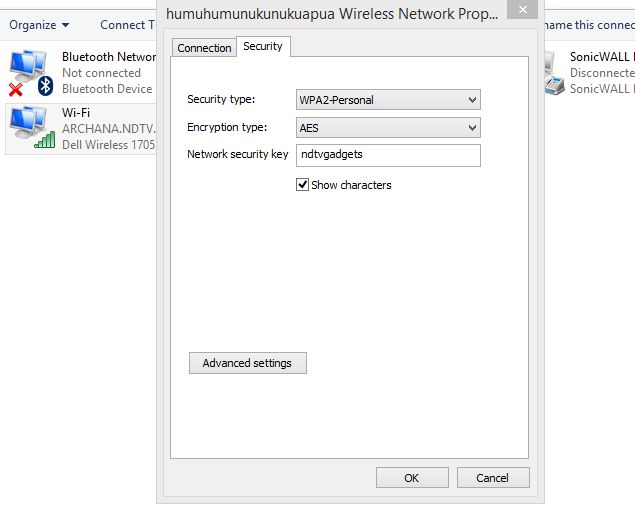
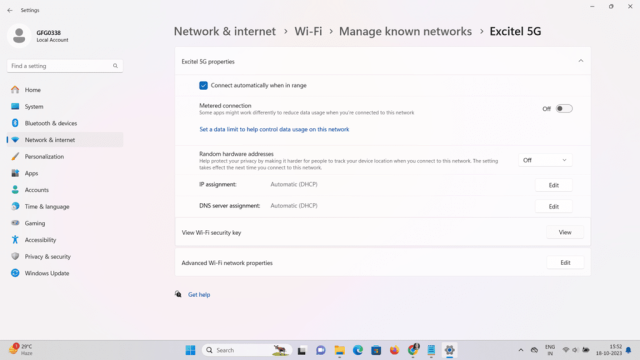
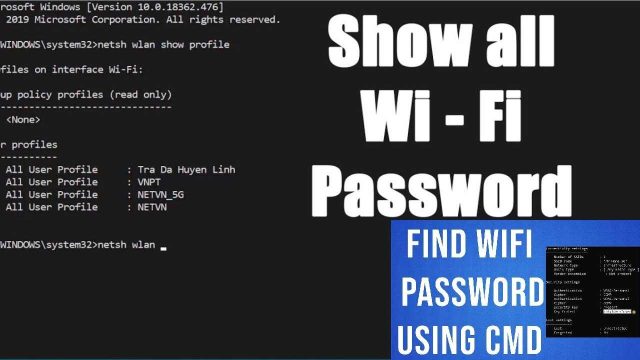
Windows keeps a record of every WiFi network you’ve connected to. To see the password for your current network, right-click the WiFi icon in the system tray, select ‘Open Network & Internet settings’, then click ‘Network and Sharing Center’. Click the name of your WiFi network (the blue link) in the ‘Connections’ field. In the pop-up, click ‘Wireless Properties’, then go to the ‘Security’ tab and check ‘Show characters’. There’s your password. For a quicker method, you can use Command Prompt: open it as administrator and run ‘netsh wlan show profile name=yournetworkname key=clear’. Look for the ‘Key Content’ line.
Step 2: Recover WiFi Password on Mac
On a Mac, all saved passwords live in the Keychain Access app. Open it from Applications > Utilities (or Spotlight search). In the top-right search bar, type your WiFi network name. Double-click the matching entry. A dialog will appear – check the ‘Show password’ box. You’ll need to enter your Mac’s admin username and password to reveal the WiFi password. That’s it. If you prefer a no-GUI method, you can use the terminal command ‘security find-generic-password -wa “YourNetworkName”‘. For a full guide on Mac recovery without reinstall, check out our dedicated post on Mac recovery without reinstall.
Step 3: Recover WiFi Password on Android (QR Code)
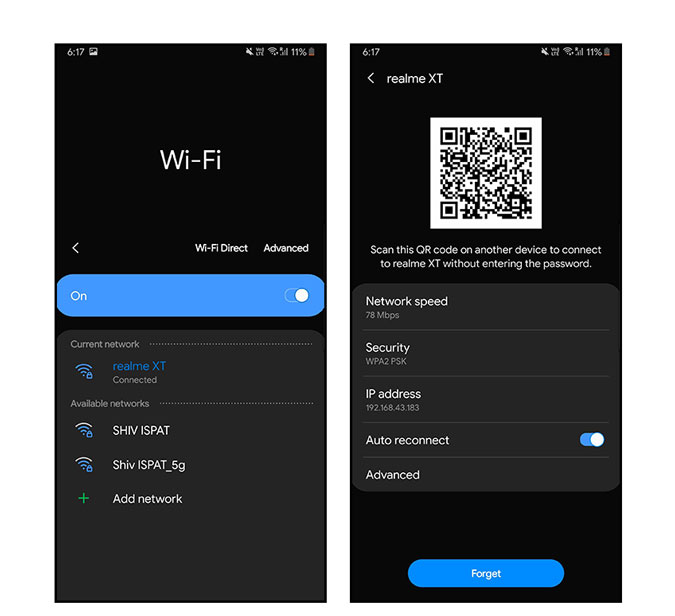
On Android 10 and later, you can share the WiFi password as a QR code. Go to Settings > Network & Internet > WiFi, tap the gear icon next to your connected network, then tap ‘Share’ (or the QR icon). You’ll see a QR code. Have a friend scan it with their phone camera, or use a QR scanner app to decode the text (it will include the password in the format ‘WIFI:S:password;’). If your Android version is older or you want to view saved passwords, see our guide on view saved WiFi passwords on Android.
Step 4: Recover from the Router Admin Panel
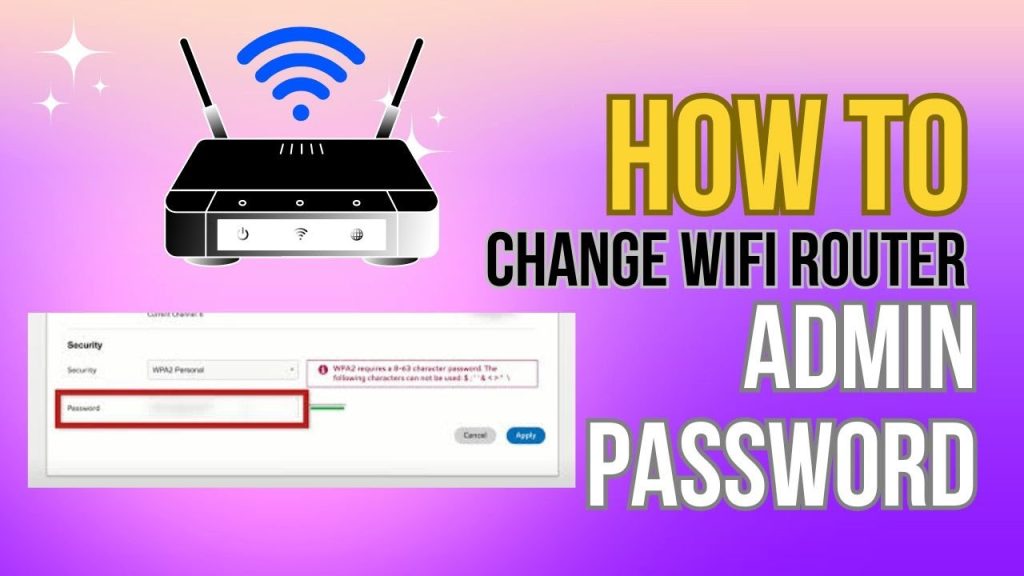
If you can’t access a connected device, or if you want to see the original password, log into your router’s admin panel. Open a browser and type your router’s IP (often 192.168.0.1 or 192.168.1.1). Enter the admin username and password (check the router sticker if you haven’t changed it). Look for a ‘Wireless’ or ‘WiFi’ section – there you’ll see the current WiFi password. This method works even if you’re not connected to the network. Just be careful not to change any settings unless you know what you’re doing.
Common Pitfalls
- You don’t have admin rights on the computer: If you’re on a work or school device, you may not be able to see passwords. Try the router method instead.
- The router admin password has been changed: Many routers have a ‘Reset’ button – press and hold for 10 seconds to factory reset, but this will erase all custom settings.
- QR code won’t scan on older Android: Some older phones don’t support sharing via QR. Use an app like ‘WiFi Password Recovery’ (no root needed) or view saved WiFi passwords directly.
Where to Next
Once you’ve recovered your password, consider backing it up so you never lose it again. You can export WiFi passwords with PowerShell to save all networks at once, or set up cloud sync for WiFi passwords to have them available on all your devices. For Samsung Galaxy owners, we have a specific guide. And if you prefer a no-install recovery for Windows and Mac, that method works great too. Don’t let a forgotten password slow you down again.