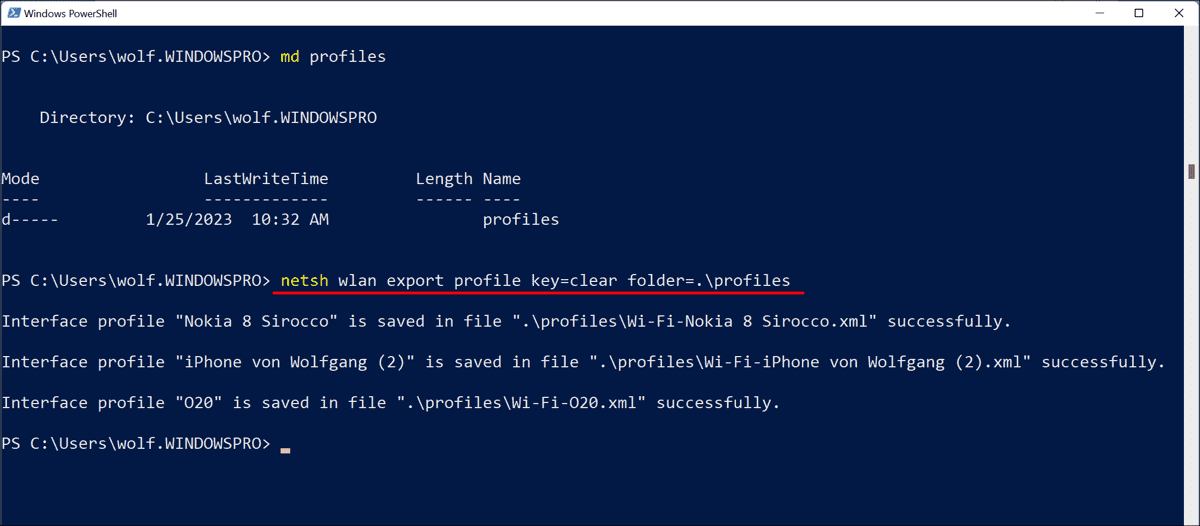
Have you ever needed to connect a new device to your WiFi but realized you forgot the password? Or maybe you’re setting up a new laptop and want to avoid typing in every network key manually. If you’re running Windows and have connected to WiFi networks before, PowerShell can retrieve every saved password in seconds. This guide will walk you through exporting all your WiFi credentials into a simple text file — no third-party software required. By the end, you’ll have a portable list of all your network names (SSIDs) and their passwords, perfect for transferring to other devices or just keeping as a backup.
This method works on Windows 10 and 11, and it only takes a few commands. It’s a lifesaver if you manage multiple networks or frequently reinstall your OS (check out this guide on wifi password recovery after os reinstall for more). But even if you’re just trying to view saved wifi password without admin privileges, note that this particular PowerShell trick does require administrative rights. So let’s jump in and get those passwords out!
What You’ll Need
- A Windows PC (Windows 10 or 11) – the steps are identical on both.
- Administrator access – you must be able to run PowerShell as an admin.
- A text editor (like Notepad) – to view the exported file.
- Basic familiarity with copy-pasting commands – no scripting experience needed.
That’s it. No extra downloads, no hardware hacking. Just a few lines of PowerShell magic.
Step 1: Open PowerShell as Administrator
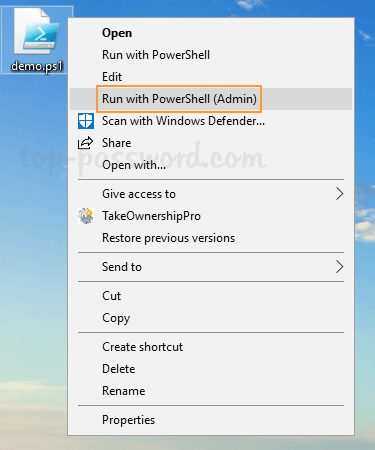
Click the Start button, type PowerShell, right-click on Windows PowerShell in the results, and select Run as administrator. If you see a User Account Control prompt, click Yes. This is crucial — without admin rights, the next commands will fail.
Step 2: List All Saved WiFi Profiles
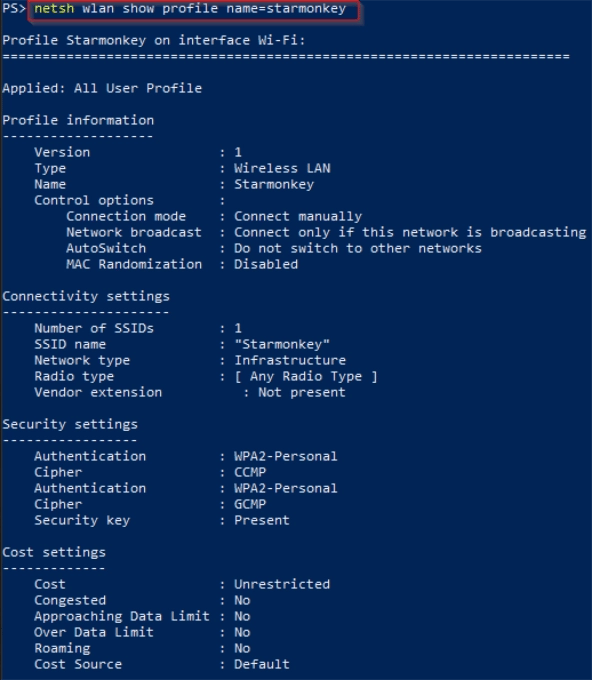
In the PowerShell window, type or paste the following command and press Enter:
This will display every WiFi network your PC has ever connected to. Take note of the exact SSID names (including spaces or special characters) — you’ll need them in the next step.
Step 3: Extract the Password for a Single Profile (Test)
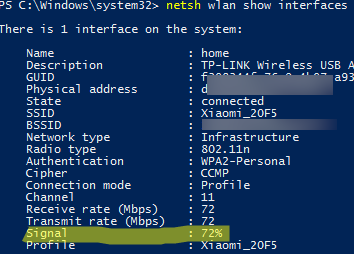
Before exporting everything, test with one profile. Replace YourWiFiName with an actual SSID from the list:
Look for the line that says Key Content — that’s your WiFi password. If you see it, you’re good to go. If you get an error, double-check the profile name (use quotes if it contains spaces).
Step 4: Export All WiFi Passwords to a Text File
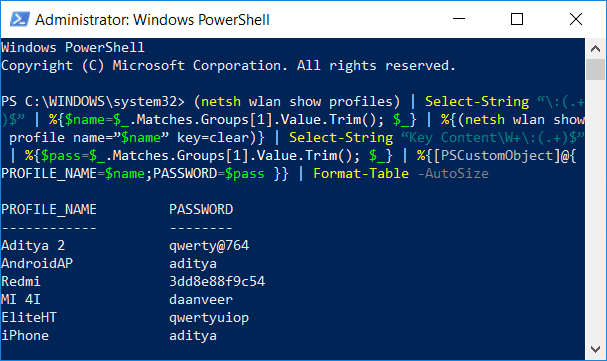
Now for the magic. This command loops through every profile, extracts the password, and saves it all to a file called WiFiPasswords.txt on your Desktop. Copy and paste the entire block below into PowerShell and press Enter:
Wait a few seconds — PowerShell will process each profile. When it’s done, check your Desktop for WiFiPasswords.txt. Open it with Notepad to see your SSIDs and passwords neatly listed. Tip: If you prefer a simpler format, replace Export-Csv with Out-File — but CSV is easier to import into other tools.
If you need to recover individual networks later, you can also use the Command Prompt method — see the guide on export wifi passwords with cmd for an alternative approach.
Common Pitfalls
- Running without admin rights: If you skip the "Run as administrator" step, PowerShell will show "An error occurred" or "Access is denied." Always launch PowerShell as admin — otherwise you cannot access the stored passwords.
- Profile names with spaces or special characters: If your SSID contains spaces (e.g., "Home WiFi 5G"), the command may fail unless you wrap the name in double quotes. The script above handles this, but if you manually test, always use quotes.
- Encoding issues in the exported file: The default encoding of Out-File is often UTF-16, which may not display correctly in all text editors. The script uses UTF8 explicitly. If you still see garbled characters, open the file in Notepad++ or a similar editor and change the encoding.
Also, keep in mind that this method only works for networks saved on your Windows PC. If you’re using a different OS, check out the saved wifi password recovery tutorial for cross-platform solutions. And if you’ve changed your router password recently but your PC still has the old one, you’ll need to wifi password recovery using network settings to update it manually.
Where to Next
Now that you have all your WiFi passwords in a handy file, consider creating a backup wifi passwords before reset routine — especially if you plan to format your drive. You can also use this export to quickly set up multiple devices or share credentials with family (securely, of course). For more advanced recovery scenarios — like recovering passwords from a router or a school network — browse the other tutorials on this site. Happy connecting!



