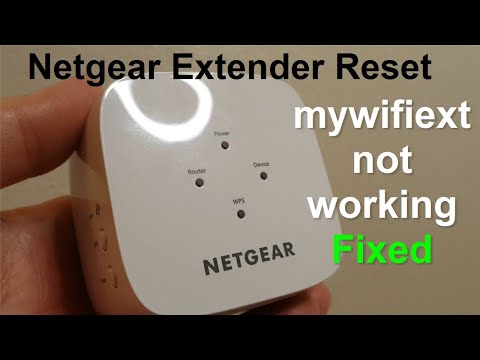
If you’ve ever set up a WiFi extender and then promptly forgotten the password—or you bought a used extender and need to get onto it—you’re in the right place. This guide is for anyone who needs to recover the WiFi password from a range extender, whether it’s a TP-Link, Netgear, Linksys, or any other brand. By the end, you’ll have your extender’s password in hand, or you’ll know how to reset it and set a new one.
We’ll cover the simple web interface method that works on most extenders, plus a few backup options like using the WPS button or a factory reset. No special software needed—just a device with a browser and a few minutes. Let’s get your network back under control.
What You’ll Need
- Your WiFi extender (plugged in and powered on)
- A computer or smartphone with a web browser
- An Ethernet cable (or a temporary WiFi connection to the extender’s default network)
- The default IP address of your extender (often 192.168.0.1, 192.168.1.1, or 192.168.10.1 — check the label)
- The default admin username and password (usually admin/admin or admin/password — also on the label)
Step 1: Connect to the Extender
First, you need to be on the same network as the extender. The easiest way is to plug an Ethernet cable from your computer into one of the extender’s LAN ports. If that’s not practical, you can connect via WiFi to the extender’s default network (often named something like “TP-Link_Extender” or “NETGEAR_EXT”). The default WiFi password is usually printed on the extender’s sticker as well.

Step 2: Access the Extender’s Web Interface
Open your web browser and type the extender’s IP address into the address bar. Common ones are 192.168.0.1, 192.168.1.1, or 192.168.10.1. If you’re not sure, check the sticker on the bottom or back of the extender. Hit Enter and you should see a login page.

Step 3: Log In
Enter the default admin username and password. They are often both “admin” or “admin”/”password”. If the previous owner changed them and you don’t know them, you’ll need to reset the extender (see Step 6). Once logged in, you’re inside the extender’s dashboard.

Step 4: Find the Wireless Settings
Look for a section named “Wireless,” “WiFi Settings,” or “Network Settings.” In many extenders, the password is displayed under “Security” or “Wireless Security.” Some models show it only as dots; look for a “Show” or “Eye” icon to reveal the characters.

Step 5: View or Change the Password
If you can see the password field, you can either copy it down or change it to something you’ll remember. If the field is empty or shows only dots, there’s often a checkbox or button like “Show Password” — click that. If you change the password, make sure to save the settings. The extender might reboot, after which you’ll need to reconnect your devices using the new password.

Step 6: If All Else Fails — Reset the Extender
If you can’t log in or the password is nowhere to be found, a factory reset will restore everything to default. Locate the reset hole on the extender (often on the side or bottom). Use a paperclip or pin to press and hold the reset button for about 10 seconds until the lights flash. Then you can log in with the default credentials and set up the extender fresh. Just remember to back up wifi passwords before reset if you have other saved networks you might need later.
Common Pitfalls
- Wrong IP address: Double-check the sticker on your extender. The IP might be different from typical home router addresses.
- Forgotten admin password: If the default credentials don’t work and you never changed them, the extender might have been used before. A factory reset is your only option.
- Browser caching: If the login page looks weird or fields don’t work, try a private/incognito window or clear your browser cache.
Where to Next?
Now that you’ve recovered your extender’s password, you might want to check out other guides. For example, if you need to recover wifi password from saved network on your computer, or want to recover wifi password after OS reinstall, we’ve got you covered. And for those dealing with school or university networks, our tutorials on wifi password recovery on school network and recover wifi password for secured network can help. Happy browsing.



