Ever needed to check your WiFi password but your account doesn’t have admin privileges? Maybe you’re at a friend’s house, using a work laptop, or just locked out of the router settings. Good news: you can still view the password without being an admin on Windows or macOS, as long as you’re already connected to the network. This guide will walk you through the simple steps to reveal that saved password—no admin required.
By the end, you’ll have the password in plain text, ready to share or type into another device. We’ll cover both Windows (using Command Prompt) and macOS (using Keychain Access). Both methods use built-in tools that don’t need extra software or elevated permissions. Let’s jump in.
What You’ll Need
- A Windows or Mac computer already connected to the WiFi network whose password you want
- The exact name (SSID) of the network – it’s case-sensitive
- A few minutes of patience
Step 1: Find the WiFi Password on Windows (No Admin)
On Windows, the command `netsh wlan show profile name=”SSID” key=clear` will display the password under “Key Content” – and it works without admin rights as long as your user account saved the network. Open Command Prompt by typing “cmd” in the Start menu search, then right-click and choose “Run as user” (not as admin). If you can’t run as admin, just open a regular Command Prompt. The command still works because you’re querying your own user’s saved profiles.
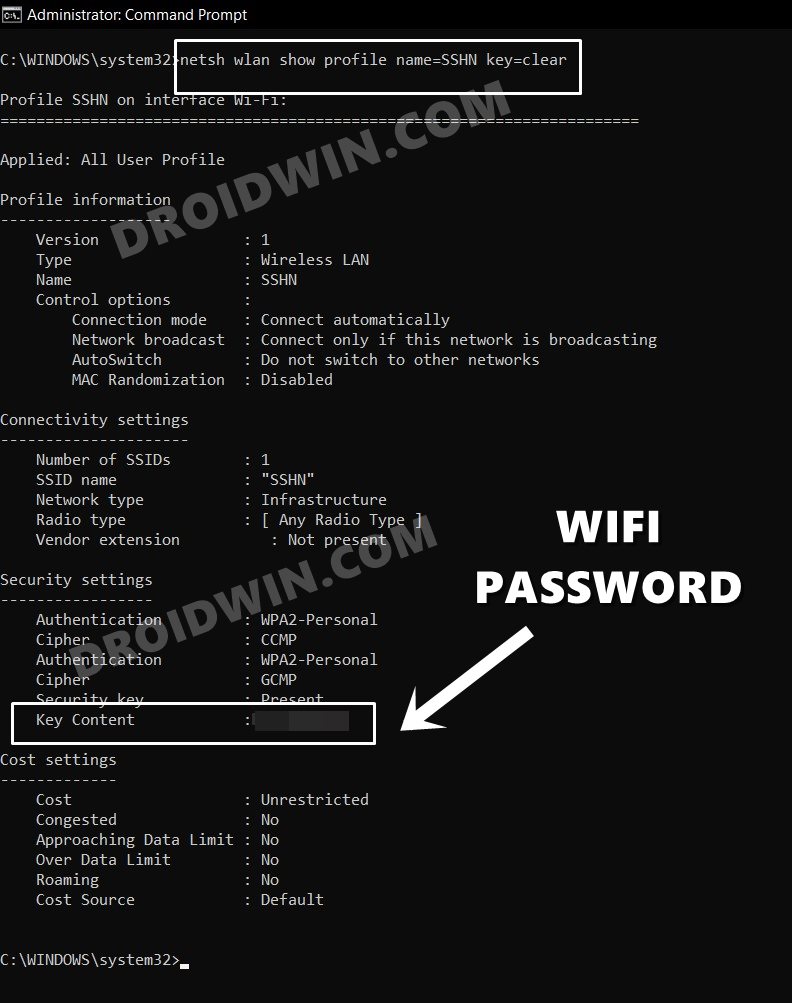
Replace “SSID” with your network’s actual name (including quotes if it has spaces). For example: `netsh wlan show profile name=”HomeNetwork” key=clear`. Look for the line that says “Key Content” – that’s your WiFi password. If you want to recover multiple passwords at once, check out our guide on how to export WiFi passwords with cmd.
Note: This method only shows passwords for networks you’ve previously connected to and saved. If you’ve never connected, you’ll need a different approach, like the WiFi password recovery command without admin for situations where you have the router.
Step 2: Find the WiFi Password on macOS (No Admin)
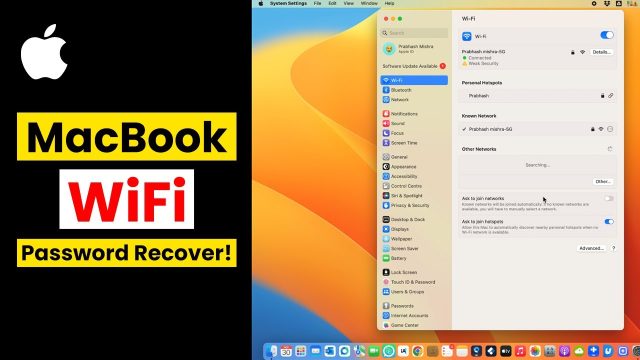
On a Mac, the Keychain Access app stores all saved passwords. Open it from Utilities (or Spotlight search). In the upper-right search bar, type your network’s name (SSID). Double-click the result. In the pop-up, check the box “Show password.” It will ask for your Mac’s login password (not admin) – enter it, and the WiFi password appears.
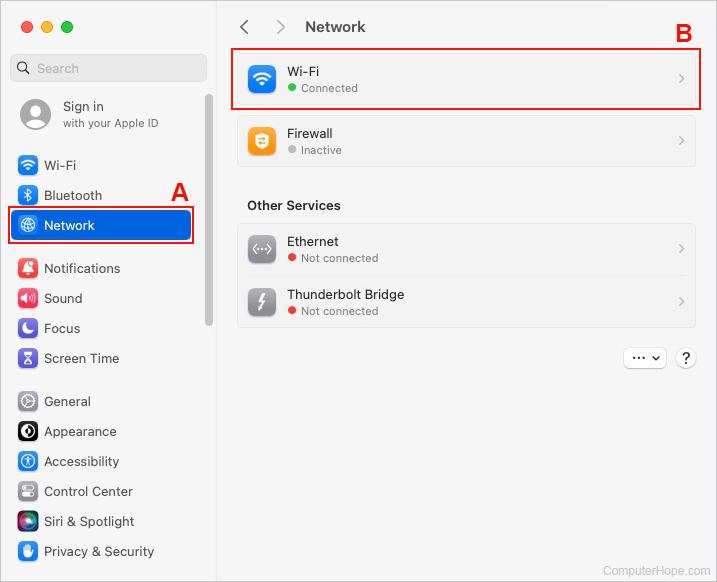
That’s it. Your Mac’s Keychain is user-specific, so you don’t need admin rights. For more detailed steps on other OS versions, see our WiFi password recovery for secured network guide. If you’re ever locked out after a system reinstall, the saved WiFi password recovery tutorial covers backup options.
Common Pitfalls
- **Wrong SSID**: The network name must be exact, including spaces and capitalization. If you get an error like “Profile is not found,” double-check the name.
- **Not connected**: The command and Keychain only show passwords for networks your computer has saved. If you’re not currently connected or haven’t saved it, this won’t work. Try borrowing a friend’s device or use WiFi password recovery using network settings instead.
- **Keychain locked**: On macOS, if Keychain asks for a password repeatedly, your login keychain might be locked. Enter your Mac’s login password to unlock it. If you’ve changed your login password recently, you may need to update the keychain password first.
Where to Next
Now you’ve got your WiFi password back. If you want to save a backup of all your saved networks before a device reset, check out our recover WiFi password from saved network guide. For more advanced methods like recovering from a command prompt or third-party tools, browse our other how-tos. Stay connected, and never get locked out again!