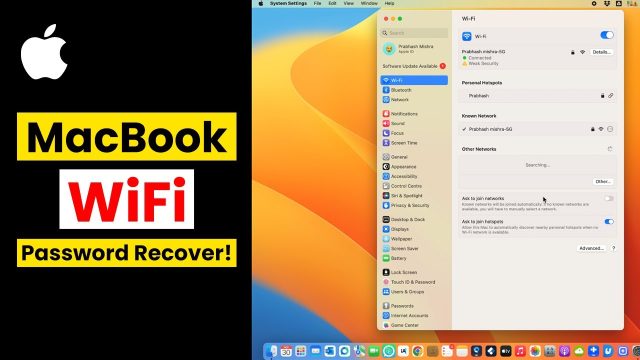
Ever had that awkward moment when a friend comes over and asks for the WiFi password, but you have no idea what it is? Or maybe you just reset your phone and need to reconnect to your home network. Don’t panic — if you’ve ever connected to that WiFi before, the password is likely still saved somewhere on your device. This guide is for anyone who’s forgotten a WiFi password but still has a device that’s already connected to it. By the end, you’ll know exactly how to dig up that password on Windows, Mac, Android, and iPhone, no router reset required.
Recovering a saved WiFi password is easier than you think. Most operating systems store network credentials in a way that’s accessible with just a few clicks or commands. We’ll walk through each platform step by step, so whether you’re using a laptop, desktop, or mobile device, you’ll be back online in no time. Let’s get started!
What You’ll Need
- A device that is already connected to the WiFi network you want to recover the password for.
- Admin access on that device (you’ll usually be logged in as the primary user).
- Optional: a QR code scanner app on Android if you want to share without typing.
Step 1: Recover WiFi Password on Windows
Windows makes it pretty simple to find saved WiFi passwords, especially if you’re on Windows 10 or 11. The fastest way is using Command Prompt or PowerShell. Open the Start menu, type “cmd”, right-click Command Prompt, and select “Run as administrator”. Then type the following command and press Enter:
This lists all the WiFi networks you’ve ever connected to. Find the one you need, then run:
Look for the line that says “Key Content” — that’s your password. If you prefer a GUI method, head to Network & Internet settings, click “Network and Sharing Center”, then click the WiFi name next to “Connections”. In the pop-up, click “Wireless Properties”, then the “Security” tab, and check “Show characters”. Easy, right? For more detailed walkthroughs, check out our guides on saved wifi password recovery windows and wifi password recovery command for windows.
Step 2: Recover WiFi Password on Mac
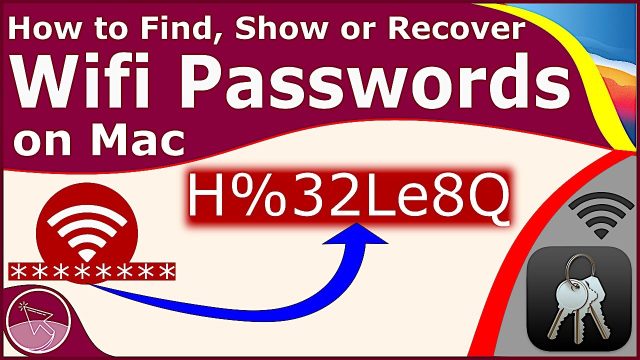
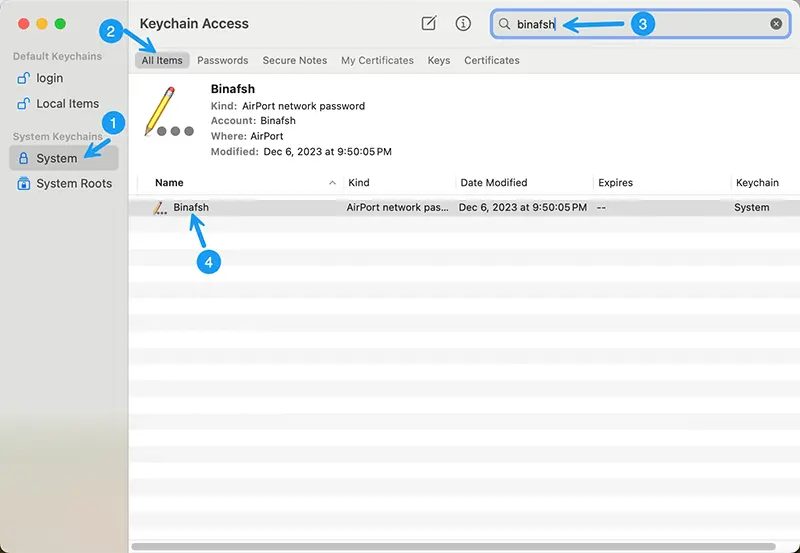
On a Mac, saved WiFi passwords live in the Keychain Access app. Open Keychain Access (you can find it via Spotlight — press Cmd+Space, type “Keychain Access”, and hit Enter). In the search bar, type the name of your WiFi network. Double-click the entry that appears. A window will pop up; check the box that says “Show password”. You’ll need to enter your Mac’s admin username and password to reveal it. That’s it — the password will be displayed in plain text. For a more in-depth look at network settings, check out our wifi password recovery using network settings guide.
Step 3: Recover WiFi Password on Android
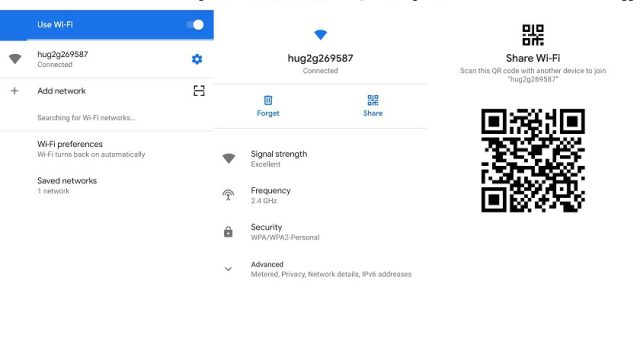
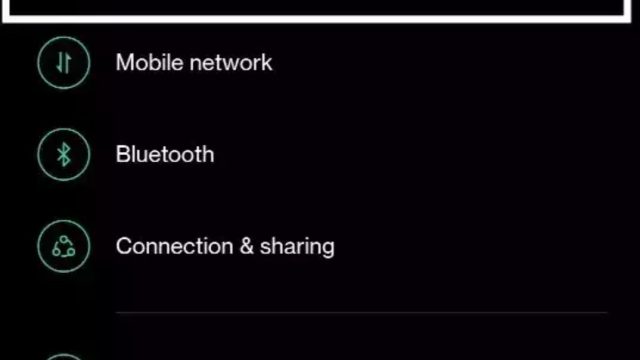
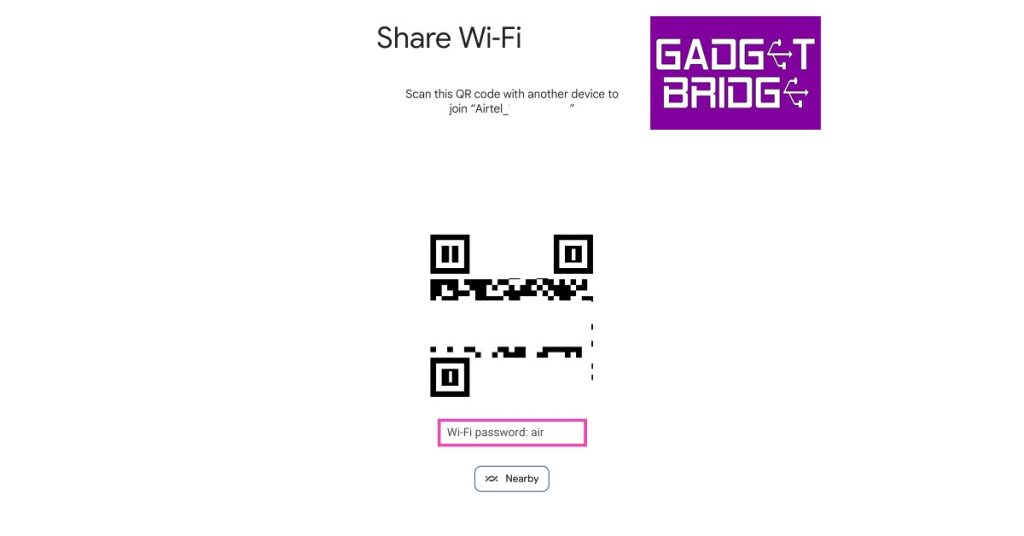
Android has gotten a lot better about sharing saved WiFi passwords. On stock Android (version 10 and up), go to Settings > Network & Internet > Wi-Fi. Tap the gear icon next to your connected network. There should be a “Share” button — tap it, and you’ll see a QR code. If you scan that QR with another device, it’ll connect automatically. Under the QR code, you’ll often see the password in plain text. On older Android versions, you might need a file explorer with root access to dig into system files, but the QR method works on most modern phones. If you’re stubborn, you can also use our show wifi password powershell method if you have a Windows PC connected to the same network.
Step 4: Recover WiFi Password on iPhone
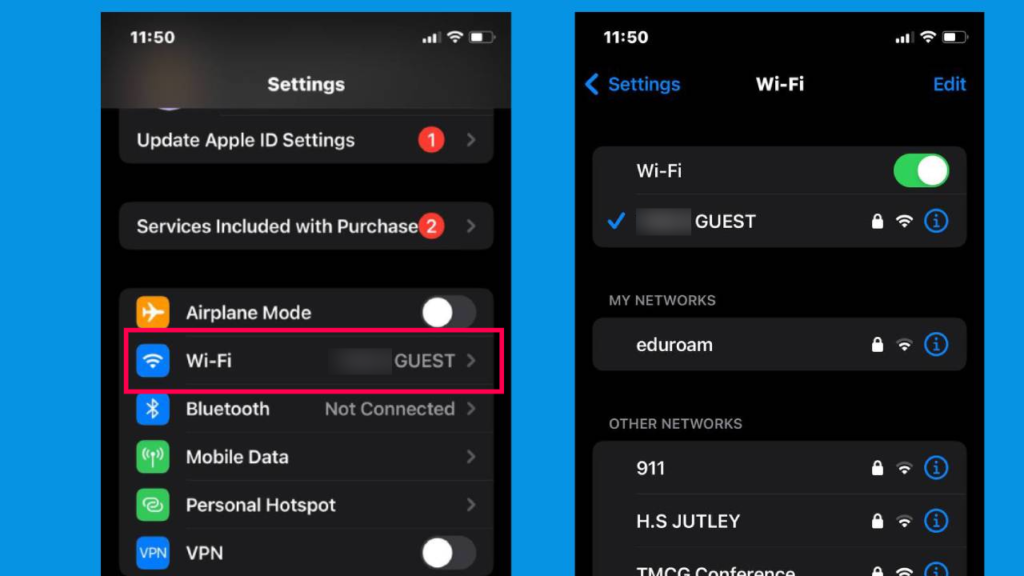
iPhones are a bit more locked down, but if you have a Mac synced with the same iCloud account, you can grab the password from Keychain Access on the Mac (see Step 2). Alternatively, on iOS 16+, you can view saved passwords in Settings > Wi-Fi. Tap the info (i) icon next to your network, then tap the password field and authenticate with Face ID or your passcode. The password will be revealed. No Mac? No problem — you can also use a third-party password manager that syncs across devices. For a dedicated guide, check out our article on how to find saved wifi password iphone.
Common Pitfalls
- You don’t have admin rights: If you’re on a work or school device, you might not be able to run commands or access Keychain. Try asking your IT department or use a different device that you own.
- The network is forgotten: If you’ve never connected to that WiFi on the current device, there’s no saved password to recover. You’ll need to get it from the router or someone who has it.
- Password is hidden in QR code but not shown: Some Android skins (like Samsung’s One UI) show the password under the QR code, while others don’t. In that case, scan the QR with another phone or use a QR reader app that extracts the text.
Where to Next
Now that you’ve recovered your WiFi password, write it down in a safe place — or better yet, export it using a tool like export wifi passwords automatically. If you run into issues, our wifi password recovery troubleshooting guide has you covered. And if you’re still locked out, you can always reset your router — but that’s a last resort. Happy surfing!