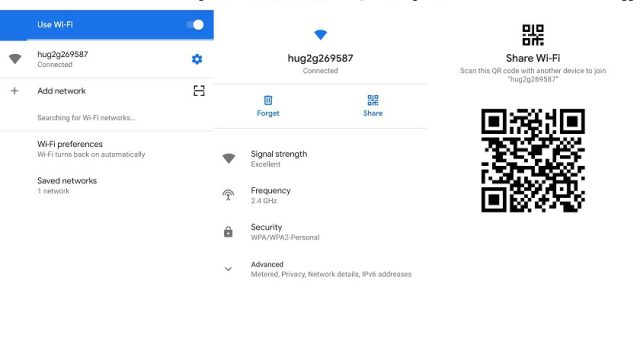
Ever needed to hand over your WiFi password to a guest but couldn’t remember it? Or maybe you’re setting up a new device and don’t want to dig through old paperwork. Manually hunting down WiFi passwords is a pain—especially if you have multiple saved networks. This guide is for anyone who wants a set-it-and-forget-it solution to automatically export all their saved WiFi passwords. By the end, you’ll have scripts that run on Windows, macOS, and Linux to dump your passwords into a simple text file, ready whenever you need them.
The best part? You don’t need any third-party software. Every tool used here is built into your operating system. We’ll cover the command-line methods for each OS, then show you how to automate them so they run on a schedule or with a single click. Whether you’re a sysadmin managing dozens of machines or just someone who hates re-entering passwords, this tutorial will save you time and frustration.
What You’ll Need
- A Windows PC (Windows 7 or later), a Mac (macOS 10.12+), or a Linux machine (with NetworkManager).
- Administrator or sudo access on the machine (to read WiFi profiles).
- A text editor (Notepad, TextEdit, nano, etc.).
- Basic familiarity with the command line (but we’ll walk you through every command).
- Optional: a USB drive or cloud folder to store the exported file if you want to keep it accessible across devices.
If you’re only interested in one OS, feel free to skip ahead. But if you manage multiple platforms, you’ll love the cross-platform approach.
Step 1: Export WiFi Passwords on Windows Using netsh
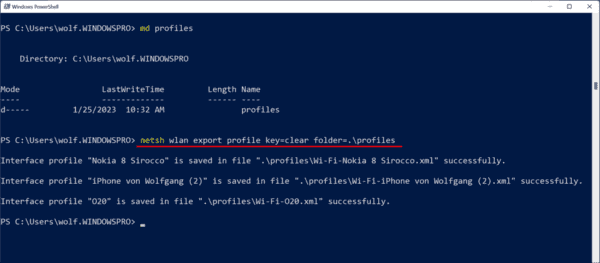
Windows stores WiFi profiles in XML files. You can export them with a single command. First, open Command Prompt as Administrator: hit Windows Key + X, then select “Command Prompt (Admin)” or “Windows PowerShell (Admin)”. Then run this command to export all profiles to your desktop:
netsh wlan export profile key=clear folder=”%USERPROFILE%Desktop”
Command Prompt
This creates an XML file for each saved network. The passwords are in plain text inside the XML, inside a tag. You can open any file with Notepad to see the password. If you only want certain profiles, you can specify the name: netsh wlan export profile name=”YourNetwork” key=clear. For a deeper look at password recovery on Windows, check out our guide on how to find saved wifi password on laptop.

To automate this, create a batch file (.bat) with that command and schedule it using Task Scheduler. Right-click the desktop, New > Text Document, paste the command, save as ExportWiFi.bat. Then open Task Scheduler, create a basic task that runs the batch file daily. Now you always have a fresh export.
Step 2: Export WiFi Passwords on macOS Using Keychain
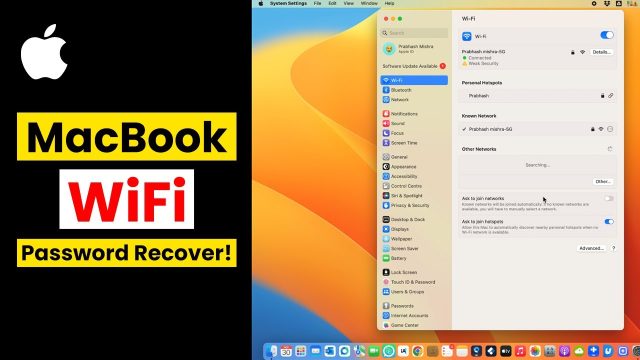
Macs store WiFi passwords in the Keychain. You can view them one at a time via Keychain Access, but to export automatically we’ll use the security command in Terminal. Open Terminal (from Utilities) and run:
security find-generic-password -wa “YourNetworkName”
Terminal
That prints just the password for one network. To export all saved networks, you first need a list of SSIDs. You can get it from the system’s WiFi preferences or by parsing the output of /System/Library/PrivateFrameworks/Apple80211.framework/Versions/Current/Resources/airport -s. But a simpler approach: manually list your known networks in a script. Here’s a script that loops through a list and saves passwords to a file:
Make the script executable (chmod +x export_wifi.sh) and run it. You’ll be prompted for your Mac password each time—unless you add it to your keychain’s access control. For step-by-step on macOS password recovery, see our tutorial on how to recover wifi password.

To run automatically, use a launchd plist or just set a reminder to run it monthly. If you have many networks, consider building a more comprehensive tool—like our wifi password recovery toolkit that works across platforms.
Step 3: Export WiFi Passwords on Linux Using nmcli
Most Linux distros use NetworkManager. The nmcli command can show saved passwords. First, list your connections:
nmcli connection show
Terminal
Note the SSID names. Then for each, run:
sudo nmcli -s connection show “YourSSID” | grep 802-11-wireless-security.psk
Terminal
This outputs the password. To export all in one go, use a script:
Run it with sudo. For a dedicated guide on Linux, see our post on how to export wifi passwords linux.

To automate, add the script to cron with a daily or weekly schedule. Edit your crontab with crontab -e and add a line like: 0 8 * * * /path/to/export_wifi.sh. That runs it every morning at 8 AM.
Step 4: Automate Cross-Platform with a Single Script
If you manage multiple OSes, you can wrap the above into a single master script that detects the OS and runs the appropriate commands. For example, a bash script can check uname and branch accordingly. This is exactly what our wifi password recovery toolkit does—it’s a collection of scripts you can adapt.
Alternatively, use PowerShell on Windows: the same netsh command can be run from a .ps1 script. For a detailed look at PowerShell, read up on how to show wifi password powershell.
No matter which OS you’re on, the goal is the same: have a file sitting on your desktop or cloud drive with all your WiFi passwords in plain text. Remember to keep that file secure—anyone with access can connect to your network.
Common Pitfalls
- **Privilege issues:** On Windows, running netsh without Admin rights yields “Access denied.” Always launch Command Prompt as Administrator. On macOS and Linux, you’ll need sudo. If you forget, nothing exports.
- **Incorrect network names:** macOS and Linux require exact SSID including spaces and special characters. Use quotes around the name. A typo means no password. Use nmcli connection show to verify names before scripting.
- **Security concerns:** Exporting passwords to a plain text file is convenient but risky. Anyone who gets that file can see all your passwords. Store it in an encrypted volume or delete it after use. For a safer approach, see our wifi password recovery complete guide.
If you encounter these issues, double-check your permissions and spelling. Remember, you can always find saved wifi password on laptop using manual methods if automation fails.
Where to Next
You now have the power to export WiFi passwords automatically on any major OS. Next steps: consider encrypting your exported file with GPG, or integrate the scripts into a team password manager. If you want to recover passwords from routers or repeaters, check out our guides on wifi password recovery on repeater and wifi password recovery for zte. For a broader perspective, browse our entire how to recover wifi password library. Happy scripting!