Ever been stuck trying to remember a WiFi password you set years ago? Or maybe you’re switching to a new laptop and want to bring all your saved networks along without re-typing every key. This guide is for anyone running Linux who wants to export all saved WiFi passwords quickly and safely. By the end, you’ll have a plain-text list or a backup file you can move to another machine, import into a password manager, or just keep for emergencies.
We’ll focus on the most common setup: NetworkManager with wpa_supplicant, which means any mainstream distro (Ubuntu, Fedora, Debian, Arch, etc.) should work out of the box. You don’t need extra software – just a terminal and a few commands. Let’s do this.
What You’ll Need
- A Linux computer with a user account that has sudo privileges (or root access)
- A terminal emulator (any will do – GNOME Terminal, Konsole, xterm, etc.)
- Basic comfort with typing commands
- Optional: a USB drive or cloud storage for the backup file
Step 1: Open a Terminal and Check Your Network Connections
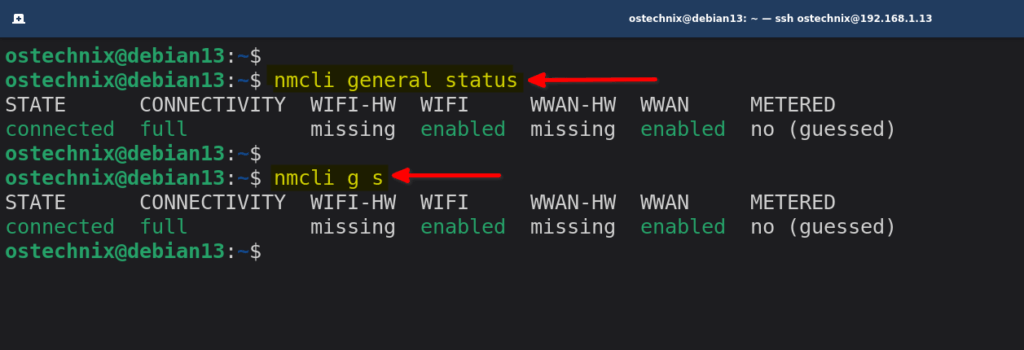
Fire up your terminal. First, see what networks you’ve already saved. Run: nmcli connection show. This lists all your stored connections – both wired and wireless. Look for the ones with type wifi. Note the exact name of each WiFi connection you want to export. If you have multiple, you can do them all at once later.
Step 2: Export a Single WiFi Password to the Terminal
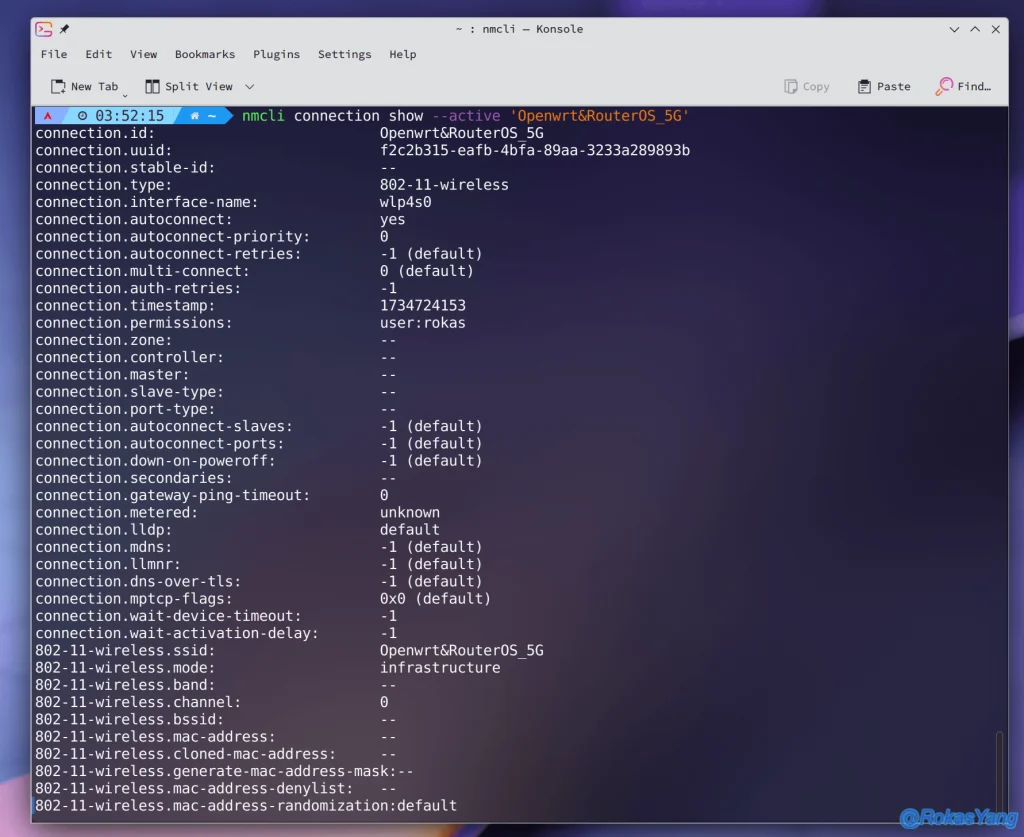
To see the password for one network, use: nmcli connection show "YourNetworkName" -s | grep psk. Replace YourNetworkName with the exact name from step 1. The -s flag shows secrets (including passwords). You’ll see something like 802-11-wireless-security.psk: mypassword. That’s your WiFi password, right there. If you prefer a cleaner output, you can use nmcli -s connection show "YourNetworkName" | grep psk.
For a quick view, this is all you need. But if you want to save it to a file, move to Step 3.
Step 3: Export All WiFi Passwords to a Text File
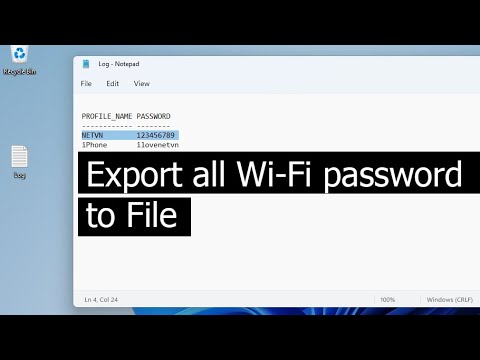
Let’s create a backup file of all your WiFi credentials. Run this one-liner: nmcli -s connection show | grep wifi | awk '{print $1}' | while read name; do echo "=== $name ==="; nmcli -s connection show "$name" | grep psk; done > wifi-passwords.txt. This loops through every saved WiFi network, prints its name and password, and saves everything to wifi-passwords.txt in your current directory. You can open it with any text editor.
Alternatively, you can copy the raw configuration files. NetworkManager stores them in /etc/NetworkManager/system-connections/. That folder is readable only by root, so use sudo cp -r /etc/NetworkManager/system-connections/ ~/wifi-backup/ to copy them to your home directory. Each file is named after your network and contains the password in plaintext inside a psk= line.
Step 4: (Optional) Transfer or Import the Passwords

Now that you have the file, you can copy it to another device. If you’re moving to another Linux machine, just copy the .nmconnection files (from the system-connections backup) to the same directory on the new computer, then run sudo systemctl restart NetworkManager. The new machine will automatically pick up the saved networks. For non-Linux devices, you’ll have to manually type the passwords (or use a password manager). This is also a great time to store your passwords in a secure vault like Bitwarden or KeepassXC – just import the text file.
Common Pitfalls
- Not using sudo: If you get a permission denied error, you forgot to run the command with
sudoor as root. The network configuration files are owned by root, so always usesudowhen accessing/etc. - Wrong network name: nmcli is case-sensitive. If your network is named “Home WiFi”, typing “home wifi” won’t work. Use the exact name from
nmcli connection show. - No WiFi connections saved: If the output is empty, you haven’t connected to any WiFi networks on this machine yet. Connect once, then retry.
Where to Next
Now you’ve got a backup of all your WiFi passwords – nice work! If you ever forget a password, you can reference this file. For more ways to manage networks, check out our wireless password recovery guide covering other devices. And if you’re on a different OS, our wifi password recovery on ubuntu post has distro-specific tips. Want to recover passwords without admin access? We’ve got that covered in wifi password recovery without admin access. For terminal lovers, the recover forgotten wifi password using terminal method is your friend.



