Ever been in that awkward spot where a friend asks for the WiFi password and your mind goes blank? You know it’s saved on your laptop, but digging through settings feels like a chore. If you’re comfortable with a bit of command-line magic, recovering that forgotten password is quick and painless. This guide is for macOS and Linux users who want to retrieve saved WiFi passwords using the terminal. By the end, you’ll be able to pull up any WiFi password your computer has ever connected to — no third-party apps needed.
We’ll cover two main approaches: on macOS using the Keychain command-line tool, and on Linux using the network manager config files. Both methods are built-in, safe, and work offline. Whether you have a MacBook, a Ubuntu desktop, or any Linux distro, these steps will get you that password in seconds. Let’s dive in.
What You’ll Need
- A computer running macOS or Linux (with a saved WiFi network)
- Administrator (sudo) access — you’ll need to enter your admin password
- Terminal application (Terminal on macOS, or any terminal emulator on Linux)
- The name (SSID) of the WiFi network whose password you want to recover
Step 1: Open the Terminal
First things first, fire up the terminal. On macOS, you can find it in Applications > Utilities > Terminal, or just search for it with Spotlight (Cmd+Space). On Linux, use the keyboard shortcut Ctrl+Alt+T or search for “Terminal” from your app menu.
Step 2: List Saved WiFi Networks (macOS)
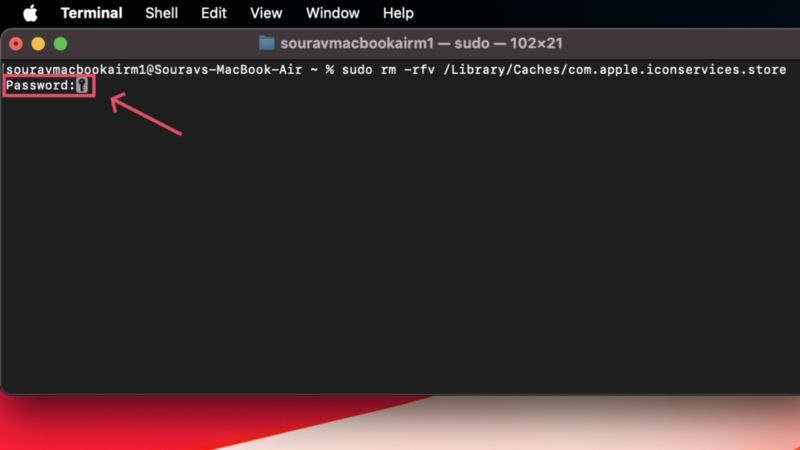
On macOS, saved WiFi passwords are stored in the Keychain. To see all saved networks, run the following command in the terminal:
security list-keychains
Terminal command
You should see a list of keychain files. The default is usually “login.keychain”. To view the WiFi networks, use:
security find-generic-password -wa ‘YourSSID’
Terminal command (replace ‘YourSSID’ with the actual network name)
Alternatively, to list all saved WiFi SSIDs, you can use:
networksetup -listpreferredwirelessnetworks en0
Terminal command
Note: en0 is usually the WiFi interface. Replace with en1 if needed. This shows all preferred networks but not the passwords. To get the password for a specific network, combine with the security command above.
Step 3: Recover WiFi Password on macOS
Once you have the exact SSID (case-sensitive), run:
security find-generic-password -D ‘AirPort network password’ -a ‘YourSSID’ -g
Terminal command
You’ll be prompted to enter your Mac’s admin password. After that, the password will appear in quotes after “password: “. For example: “password: “MyWiFiP@ss””. That’s your recovered WiFi password! You can also simplify with:
security find-generic-password -wa ‘YourSSID’
Terminal command
This prints just the password to the terminal. Copy it down and share it with your friend.
Step 4: List Saved WiFi Networks (Linux)
On Linux, WiFi passwords are stored in configuration files, often under /etc/NetworkManager/system-connections/. To list all saved connections, run:
sudo ls /etc/NetworkManager/system-connections/
Terminal command
You’ll see a list of files named after the SSIDs. Each file contains the password in plain text.
Step 5: Recover WiFi Password on Linux
To view the password for a specific network, read the corresponding file with cat or nano. For example:
sudo cat /etc/NetworkManager/system-connections/YourSSID
Terminal command (replace ‘YourSSID’ with the actual network name)
Look for the line that starts with psk= — that’s your password in plain text. If the file is encrypted, you might need to use a tool like nmcli. On newer systems, you can also use:
sudo grep psk= /etc/NetworkManager/system-connections/*
Terminal command
This searches all connection files and prints the SSID and password. Note: The password may be in quotes. Remove them to get the actual password.
Common Pitfalls
- SSID case sensitivity: macOS’s security command requires the exact SSID, including capitalization and spaces. Double-check the network name using networksetup -listpreferredwirelessnetworks.
- Missing sudo permissions: On Linux, you must use sudo to read the connection files. Without it, you’ll get a ‘Permission denied’ error. Always prefix the command with sudo and enter your admin password.
- Wrong interface name: On macOS, the WiFi interface might be en1 instead of en0 if you have multiple network interfaces. Run ‘ifconfig’ or look for ‘en0: flags=…’ to confirm.
Where to Next
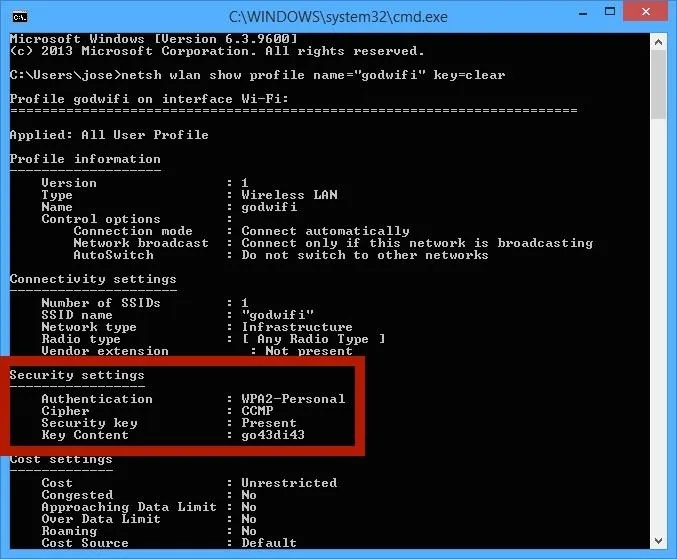
Now you’ve got your WiFi password back. If you’re on Windows, check out our wifi password recovery tutorial cmd for the command-prompt method. For a more visual approach, try a saved wifi password recovery tool. If you need to export multiple passwords at once, the wifi password recovery powershell automation can help. Linux users might also enjoy reading about how to recover wifi password on ubuntu for distro-specific tips. And if you switch between devices often, learning to export wifi passwords mac can save you time.
Happy surfing — and maybe write that password down this time!



