You know the feeling: you just got a new mesh WiFi system like Google Wifi, Eero, or Orbi, you set it up perfectly, and now a friend asks for the password — and you blank. Or maybe you need to connect a new device and can’t find the sticker. Don’t panic. Mesh WiFi systems make it pretty straightforward to retrieve your password, whether you’re using the app, the web interface, or even your computer’s command line. By the end of this guide, you’ll have your password in hand and be back online in minutes.
This article is for anyone with a mesh WiFi network who has at least one device already connected (phone, laptop, etc.) or access to the admin credentials. If you’ve never logged into your mesh system’s app or web portal, no problem — we’ll cover that too. For a broader look at different methods, check out our complete guide.
What You’ll Need
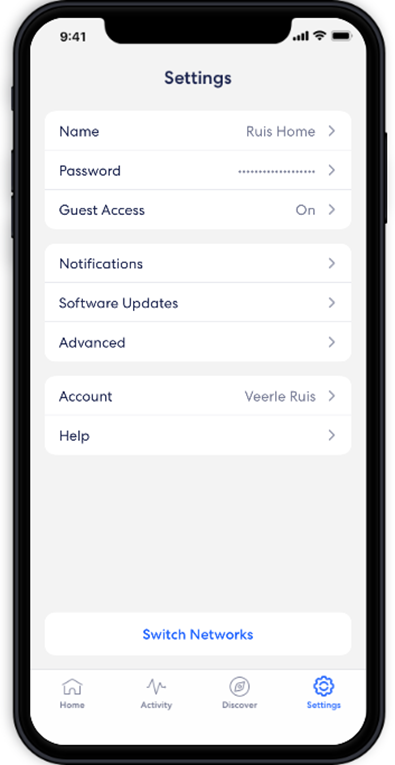
- The mesh system’s app (Google Home, Eero, Orbi, etc.) installed on your phone, or access to the web admin portal.
- Admin username and password for the mesh system. If you never changed it, the default is often on the router sticker.
- A device that’s currently connected to the mesh network (to avoid re-entering the password you forgot).
- Optional: computer with Windows, macOS, or Linux if you want to use command-line methods.
Step 1: Open Your Mesh App or Web Portal
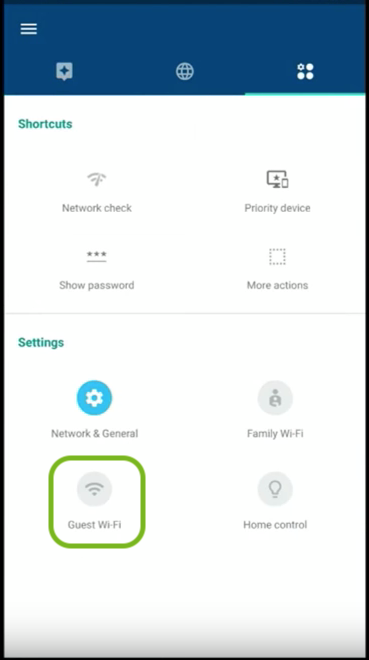
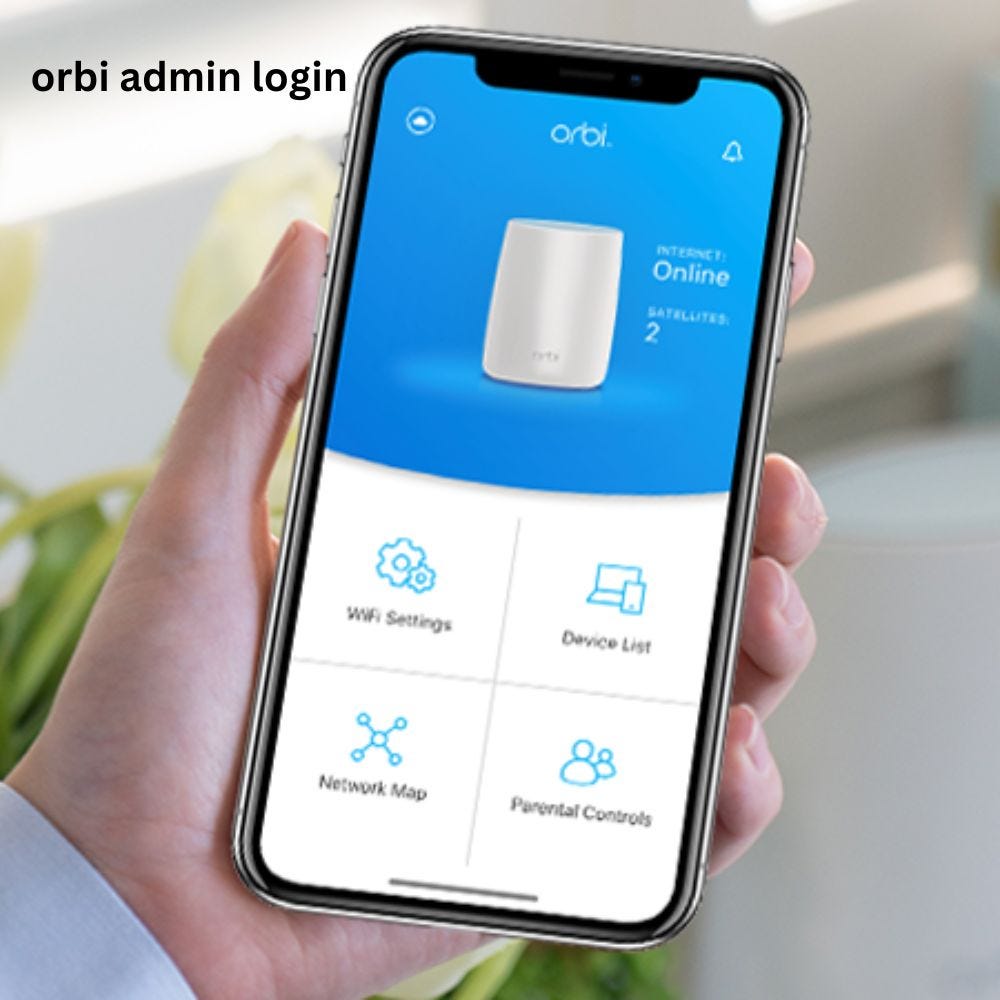
Most mesh systems have a dedicated app. Open it and log in with your admin account. If you don’t remember the admin password, look for a ‘Forgot password’ link — you’ll usually need access to the email you used during setup. Can’t access that? You might need to factory reset the router (we’ll touch on that in pitfalls). Some systems, like Orbi, also let you log in via a web browser at an IP address like 192.168.1.1. Check your router’s sticker or manual for the exact address.
Step 2: Navigate to WiFi Settings
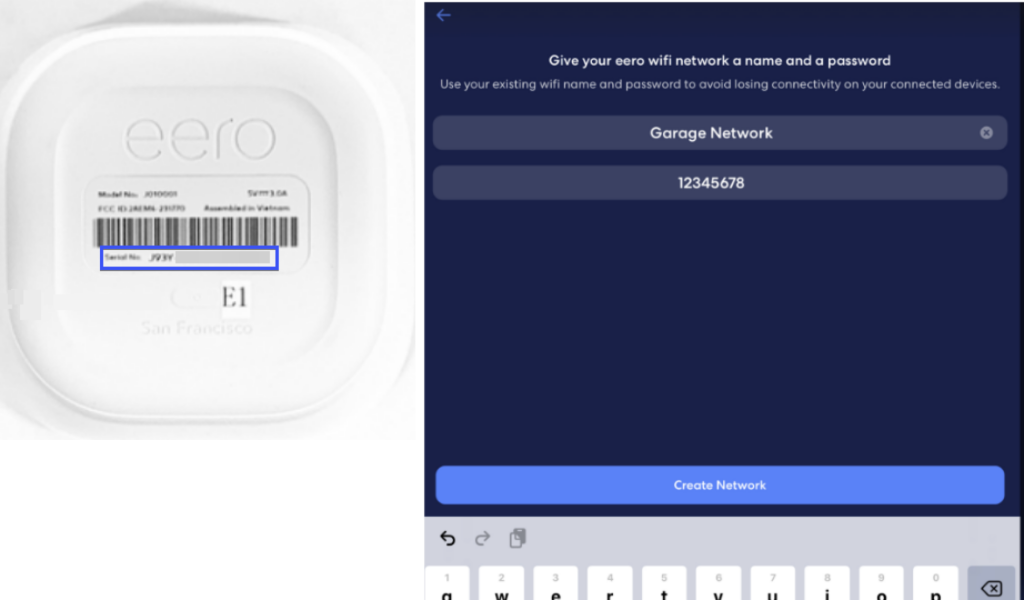
Once logged in, look for a section called ‘WiFi’, ‘Network’, or ‘Settings’. In Google Home, tap the device you want to manage, then tap the gear icon to see ‘Network Settings’. In Eero, go to ‘Settings’ > ‘Network’. In Orbi, it’s under ‘Wireless’. You’re looking for your network name (SSID) and password. In many apps, the password is displayed partially hidden — tap ‘Show’ or an eye icon to reveal it.
Mesh system apps almost always let you view the WiFi password right from the settings. No need for third-party tools.
Common wisdom from mesh users
If you can’t find it, try tapping your network name or the ‘i’ icon. Some systems also have a ‘Share’ button that generates a QR code for easy sharing — you can scan that with another phone to connect without typing the password. For a no-software option, no-software recovery is a great choice.
Step 3: View or Copy the Password
Once the password is visible, you can write it down or copy it. On a phone, you might be able to long-press to copy. On a computer, select and copy. For Eero, you can tap ‘Copy Password’. For Google Wifi, you’ll see the password in plain text after tapping ‘Show’. Write it down somewhere safe — maybe in a password manager. If you’re using the web admin, look for a field labeled ‘Pre-Shared Key’ or ‘Passphrase’. It’s usually on the same page as the SSID.
Step 4: Use Command Line (If the App Doesn’t Work)
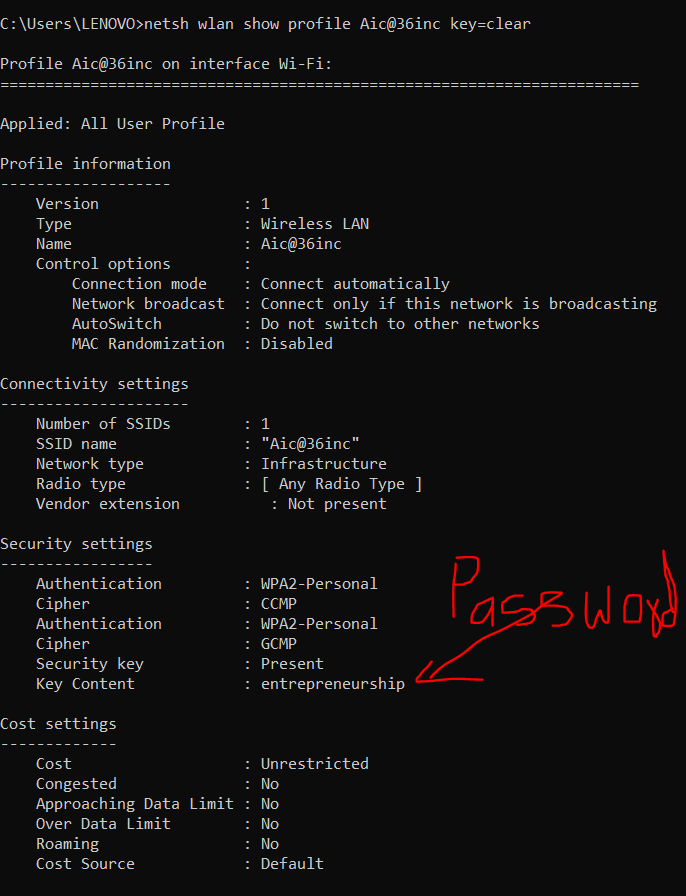
If you have a Windows laptop already connected to the mesh network, you can retrieve the password with a single command. Open Command Prompt as administrator and type: netsh wlan show profile name="YourNetworkName" key=clear. Look for ‘Key Content’ under Security settings. That’s your password. This is arguably the fastest method — our PowerShell method goes deeper into this.
On macOS, open Keychain Access, search for your network name, and check ‘Show password’. On Linux, check /etc/NetworkManager/system-connections/ (you may need sudo). For more details, see our Ubuntu recovery guide.
Common Pitfalls
- You forgot the admin password for the mesh app. If you can’t reset it via email, you may need to factory reset the entire mesh system. That will erase your network settings, so use it as a last resort.
- The password is hidden with no ‘Show’ option. Some systems, especially older firmware, may require you to reset the password via the app or web admin. Update your app or try the web interface.
- Web interface is disabled. Some mesh systems (like Google Wifi) do not have a web admin by default — you must use the app. If the app doesn’t let you see the password, you’re stuck with command-line or recovery apps. Check our trusted apps guide for third-party options.
Where to Next
You’ve got your password back. Now consider saving it in a password manager to avoid this headache again. If you run into trouble with other devices, like recovering on a phone, check our Android recovery guide. And if you ever lose the admin password entirely, a factory reset is always an option — just remember the recovery tools we covered. Stay connected!



