If you’re an Ubuntu user who’s forgotten the WiFi password for your home or office network, don’t panic. Your Ubuntu system has already saved that password — you just need to know where to look. This guide walks you through several ways to recover your stored WiFi password, from a simple graphical click to terminal commands. By the end, you’ll have your password back and be back online.
These methods work on any modern Ubuntu version (18.04 and later) and assume the network was previously connected and saved. You don’t need any extra software — just a few clicks or a couple of terminal commands. If you’re looking for more general techniques, check out our full wireless password recovery guide for other devices.
What You’ll Need
- An Ubuntu desktop or server (we’ll focus on the desktop GUI, but terminal methods work on servers too)
- Sudo access (you’ll need to be an admin user)
- A WiFi network that you’ve connected to before (the password is stored locally)
Step 1: Recover WiFi Password via GUI (Network Manager)
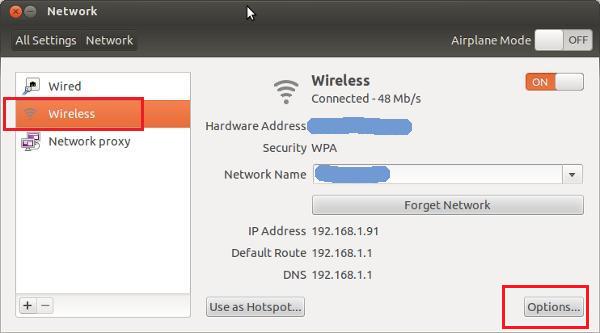
The easiest way to recover your WiFi password on Ubuntu is through the Network Manager GUI. Click on the WiFi icon in the top-right corner of your desktop (the system tray). Then select “Wi-Fi Settings” from the dropdown. In the settings window, click on the gear icon next to your connected network. A dialog will appear with the network details. Under the “Security” tab, check the box that says “Show password” — your password will appear in plain text. This is the quickest method and requires no typing.

Step 2: Recover WiFi Password via Terminal (nmcli)
If you prefer the command line or are using Ubuntu Server, you can use nmcli (NetworkManager command-line tool). Open a terminal and type the following command to list all saved connections:
Find the name of the WiFi network you want to recover (likely under the NAME column). Then run this command to view its details (including the password):
The output will show the 802-11-wireless-security.psk value — that’s your WiFi password. This method is part of the standard Network Manager tools and is a reliable saved wifi password recovery tool.

Step 3: Recover WiFi Password from NetworkManager Config Files
Another terminal method is to directly read the configuration files stored by NetworkManager. These files are located in /etc/NetworkManager/system-connections/. Each saved network has a file named after its SSID (with spaces replaced by underscores). Open a terminal and run:
Replace “YourNetworkName” with the actual SSID (use Tab to autocomplete). In the output, look for the line starting with psk= — the value after the equals sign is your WiFi password. This method works even without the GUI and is great for offline situations — it’s a form of wifi password recovery software offline.

Step 4: Use a Dedicated Tool (Optional)
If you’d rather have a simple GUI tool, you can install a small utility called “wifi-password”. Install it via terminal:
Then simply run the command:
It will display the password of the currently connected WiFi network. This is a handy shortcut and one of many wifi password recovery methods available for Linux.

Common Pitfalls
- **No sudo access**: If you don’t have admin rights, you won’t be able to read the config files or run nmcli with password visibility. You’ll need to ask the system administrator or use the GUI method (which may also require admin).
- **Network not saved**: If the network was never connected or the “Connect automatically” checkbox was unchecked, the password may not be stored. In that case, you’ll need to refer to the router or use a forgotten wifi password recovery guide.
- **Incorrect file permissions**: The system-connections folder is readable only by root. If you try to cat the file without sudo, you’ll get a permission denied error. Always use sudo for that step.
Where to Next?
Now that you’ve recovered your WiFi password, consider noting it down in a secure password manager. If you need to recover passwords on other devices — like Windows, macOS, or Android — check out our guides on find saved wifi password on pc, export wifi passwords mac, or wifi password recovery for android users. Mastering these methods will make you a networking pro.



