Ever had that moment where a friend asks for the WiFi password and you blank out? Or maybe you changed your router’s password years ago and have no idea what it is now. Don’t worry — you’re not alone. This guide is for anyone who needs to recover a WiFi password they’ve connected to before, or even the one printed on the router. Whether you’re on Windows, Mac, Linux, or just have access to the router itself, I’ll walk you through the easiest built-in methods — no sketchy third-party tools required.
By the end of this tutorial, you’ll be able to dig up any saved WiFi password on your own devices, and even recover the current router password if you have admin access. You’ll know the simplest wifi password recovery method for each platform, plus a few clever tricks for those edge cases. Let’s get started.
What You’ll Need
- A computer or phone that has connected to the WiFi network before
- Admin access to your router (username/password, often on a sticker)
- For router method: a web browser and the router’s IP address (usually 192.168.0.1 or 192.168.1.1)
- No extra software — everything uses built-in OS tools or the router’s admin panel
Step 1: Recover a Saved WiFi Password on Windows
Windows stores all your saved WiFi profiles, including passwords, in a handy place. Here’s how to pull them up.
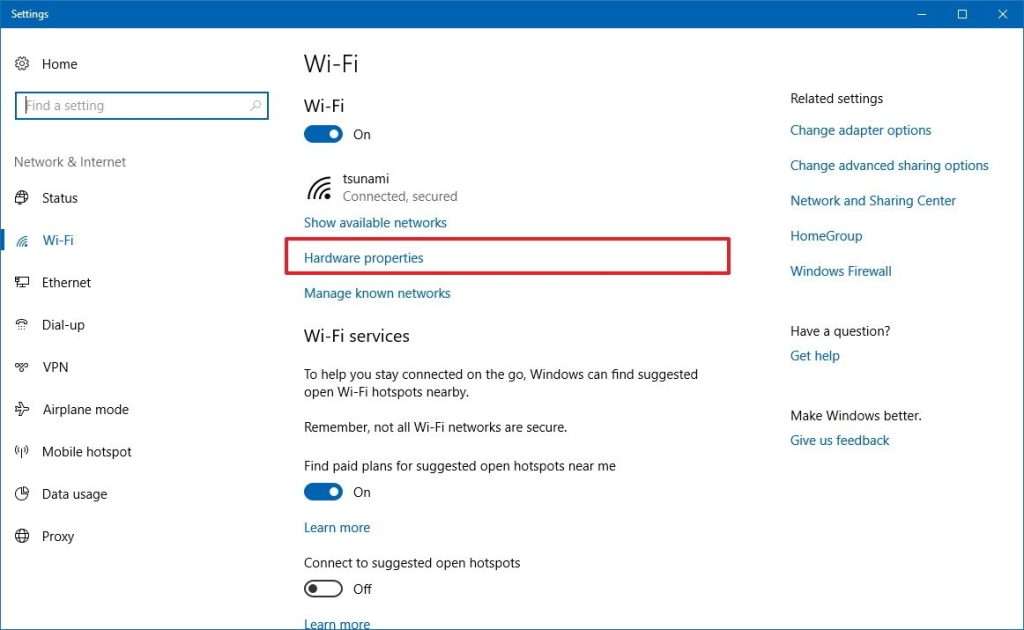
First, open the Control Panel and go to ‘Network and Sharing Center’. Click on your current WiFi network name (next to ‘Connections’). In the pop-up, click ‘Wireless Properties’, then the ‘Security’ tab. Check ‘Show characters’ and the password will appear. For older saved networks, use the command prompt: open CMD as administrator and type netsh wlan show profile to list all profiles. Then for each one, type netsh wlan show profile name="PROFILE NAME" key=clear. Look for ‘Key Content’ — that’s your password. This is the classic way to find saved wifi password on pc. If you want a more automated approach, check out the saved wifi password recovery tool that creates a quick script.
Step 2: Recover a Saved WiFi Password on macOS
Mac users can use the Keychain Access app to view stored WiFi passwords.
Open ‘Keychain Access’ from Utilities or Spotlight. In the search bar, type the name of your WiFi network. Double-click the entry (usually starts with ‘AirPort’ or the network name). Check the box ‘Show password’ and enter your Mac admin password. Boom — the WiFi password is revealed. Need to share or save it? You can export wifi passwords mac to a text file for backup. This method works for all networks you’ve connected to, past and present.
Step 3: Recover a Saved WiFi Password on Linux
Linux stores WiFi credentials in plaintext (almost) in network manager config files.
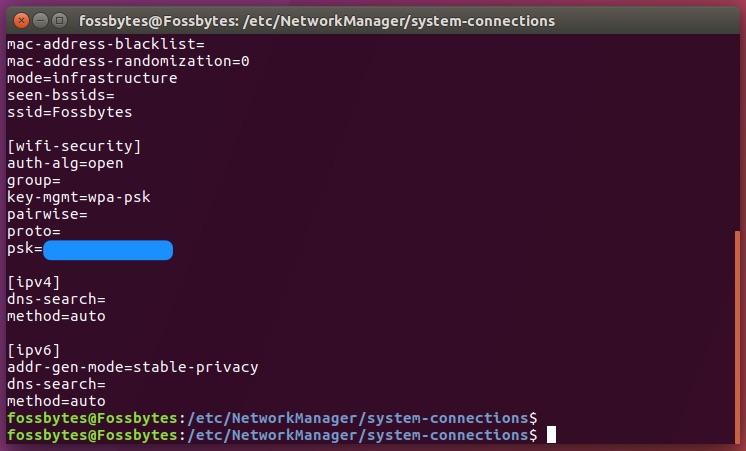
Open a terminal and navigate to /etc/NetworkManager/system-connections/. Use ls to list saved networks. Then sudo cat the file for your network (e.g., sudo cat MyWiFi). Look for the line starting with psk= after the [wifi-security] section. That’s your password. If you have multiple networks, just repeat. This method lets you show wifi password network manager directly without any extra tools. For a more visual approach, you can open the network settings GUI and click on the gear icon next to your current connection — some distros show the password under ‘Security’.
Step 4: Recover Your Router’s WiFi Password via Admin Panel
If you don’t have a device connected but have physical access to the router, log into its admin interface.
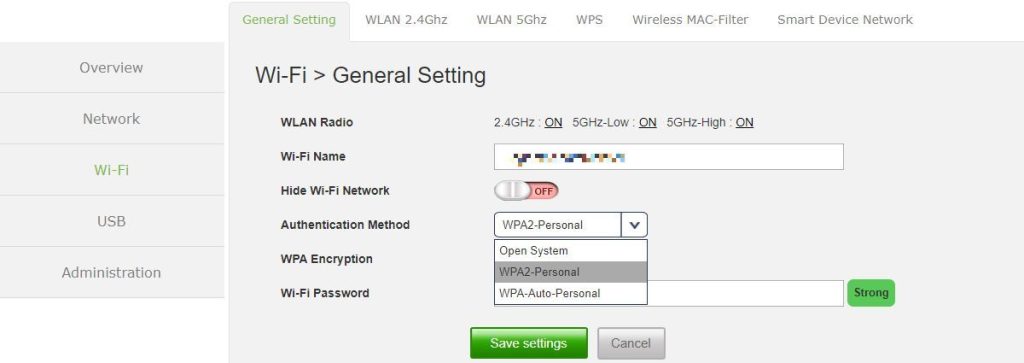
Open a browser and enter your router’s IP address (try 192.168.0.1 or 192.168.1.1 — common defaults). Log in with the admin username and password (often ‘admin’/’admin’ or found on a sticker). Look for a section like ‘Wireless’, ‘WiFi’, or ‘Security’. The password is usually labeled ‘Passphrase’, ‘WPA Pre-Shared Key’, or ‘Network Key’. It might be hidden by asterisks but can often be shown by clicking an eye icon or changing the field type. Write it down or take a photo. This is one of the wifi password recovery tricks that works even if you’ve never connected a device.
Common Pitfalls
- Forgetting the router admin password: If you changed it and don’t remember, you’ll need to factory reset the router (press and hold the reset button with a paperclip for 10 seconds). This wipes all settings, so use it as a last resort.
- Not running as administrator on Windows: The command prompt method requires admin rights. If you see ‘Access denied’, right-click CMD and select ‘Run as administrator’.
- Keychain asking for a login keychain password: On Mac, if it asks for a ‘keychain’ password instead of your admin password, you may need to reset Keychain. Don’t panic — usually just clicking ‘Allow’ after entering your admin password works.
Where to Next
Now that you have your WiFi password back, consider securing your network. Change your router’s default admin password and enable WPA3 if available. If you want to keep a backup of all your passwords for future use, check out our guide on how to backup wifi passwords to usb. For more advanced recovery scenarios, like after a motherboard replacement, we have a dedicated article. And if you’re ever stuck, remember: there’s always the simplest wifi password recovery method — just look at the router sticker.



