
Ever needed to connect a new device to your office WiFi but can’t find the password anywhere? Maybe you’re setting up a guest network or just got a new laptop and don’t want to bother IT again. This guide is for you — whether you’re an employee trying to reconnect or a junior IT admin helping users. By the end, you’ll know how to pull the saved WiFi password from your Windows, macOS, or Linux machine using built-in tools. No extra software needed.
Keep in mind: enterprise networks often use 802.1X authentication with usernames and certificates, not a simple shared password. But many still store a password (or at least the credentials) locally. We’ll cover both cases. Always make sure you’re authorized to access the network — only recover passwords for networks you own or have permission to use.
What You’ll Need
- A computer (Windows, macOS, or Linux) that has previously connected to the enterprise WiFi.
- Administrator access on Windows, or your user password on macOS/Linux (sudo rights on Linux).
- Basic comfort with the command line — we’ll walk you through each command.
- Patience: if the password isn’t stored, you may need to contact IT using the template we provide.
Step 1: Recover WiFi Password on Windows
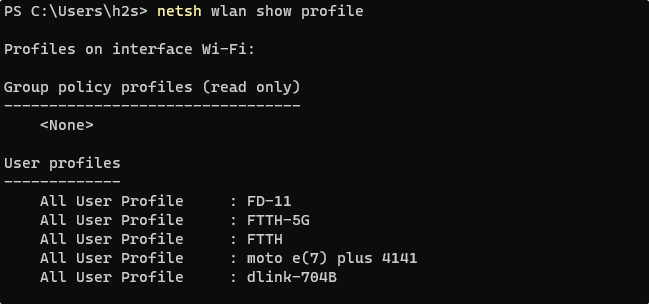
Open Command Prompt as Administrator (right-click Start > Command Prompt (Admin) or Windows PowerShell (Admin)). Then run:
netsh wlan show profiles
This lists all saved WiFi networks. Find the enterprise network name (SSID). Then run:
netsh wlan show profile name=”YourSSID” key=clear
Look for the ‘Key Content’ line under Security settings — that’s your password. For enterprise networks (like WPA2-Enterprise), you might see the password only if the network uses a PSK or if the username/password pair is stored. If you see ‘Key Content’ blank, your network likely uses certificates or a different credential type. In that case, try the PowerShell method below.
Alternatively, you can use our find saved wifi password on pc guide for a visual walkthrough. For automation, check out wifi password recovery powershell automation.
Step 2: Recover WiFi Password on macOS
On macOS, saved WiFi passwords are stored in the Keychain. Open Keychain Access (Applications > Utilities > Keychain Access). In the search bar, type the WiFi network name. Double-click the entry for your enterprise network. Check the box ‘Show password’ and enter your Mac login password. The password will appear in the field. For 802.1X networks, you may also see the username — take note if needed.
If you need to share all your saved WiFi passwords at once, see our export wifi passwords mac tutorial.
Step 3: Recover WiFi Password on Linux
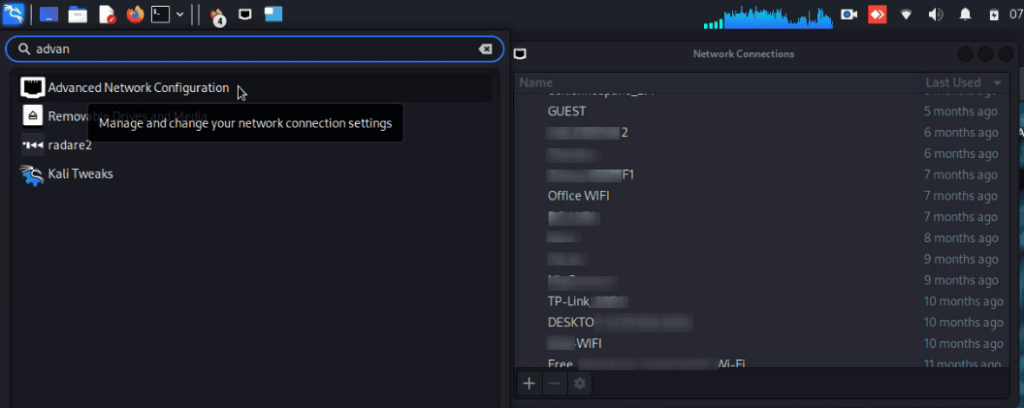
On most Linux distributions, saved WiFi configurations are in /etc/NetworkManager/system-connections/. Open a terminal and run:
sudo cat /etc/NetworkManager/system-connections/YourSSID
Replace YourSSID with the actual network name (case-sensitive). Look for the ‘psk=’ line for WPA2-PSK networks. For enterprise networks (WPA2-Enterprise), you’ll see ‘password=’ under the [802-1x] section. If the password is not there, it may be stored in a keyring like GNOME Keychain or KDE Wallet. In that case, use the GUI: go to Settings > Wi-Fi > click the gear icon next to your network > show password (enter your user password). For more details, check our show wifi password network manager guide.
Step 4: What If It’s 802.1X with Certificates?

If your enterprise network uses certificates or smart cards, there may not be a recoverable password. In that case, you need to obtain a new certificate from IT. However, many 802.1X networks still prompt for a username and password during initial connection and can save them. On Windows, look under ‘Manage known networks’ in Wi-Fi settings — check if ‘Use my Windows sign-in info’ is enabled. On macOS, the credentials are saved in your login keychain as shown in Step 2. On Linux, check the configuration file for the ‘password’ field. If none of these work, you’ll need to request credentials from IT.
Step 5: Request Credentials from IT (If All Else Fails)
When you can’t recover the password yourself, it’s time to contact your IT department. Be polite and explain why you need it. Here’s a template email:
Subject: Request for WiFi credentials
Hi IT Team,
I need to connect a new device to the [Network Name] WiFi. I’ve tried recovering the password from my existing device but it’s stored as a certificate. Could you provide the network credentials or instructions on how to obtain the certificate? My device is [device type] and my username is [your username].
Thanks,
[Your Name]
Common Pitfalls
- No admin rights: On Windows, you need administrator privileges to run netsh. If you don’t have them, you’re stuck — contact IT or use a different device you do control. On macOS and Linux, you at least need your user password.
- Password not saved: If you previously selected ‘Forget this network’ or if the network uses only certificates, the password won’t be stored. You’ll need to reconfigure the connection from scratch.
- Group policy blocks viewing: Some enterprise IT departments disable storing or viewing passwords for security. In that case, the netsh output may show ‘Key Content’ as blank, or Keychain Access may deny viewing. Respect company policies — don’t try to bypass them without authorization.
Where to Next
Now that you’ve recovered your enterprise WiFi password, consider backing it up securely. We have a guide on how to backup wifi passwords to usb. Also, explore more general wifi password recovery methods for home networks or other scenarios. If you frequently deal with network credentials, our saved wifi password recovery tool page might come in handy. Stay connected!



