Ever needed to connect a new device to your WiFi but can’t remember the password because it’s been saved in your Linux laptop for years? You’re not alone. This guide is for anyone using Linux with Network Manager (the default on Ubuntu, Fedora, and most major distros) who wants to view a saved WiFi password without installing extra software. By the end, you’ll be able to pull up any stored WiFi password using either a simple terminal command or a graphical tool.
We’ll cover two primary methods: the quick CLI approach with nmcli, and the friendly GUI route via nm-connection-editor. If you’re comfortable with a terminal, method one takes ten seconds. If you prefer clicking, method two is just as straightforward. Either way, you’ll have that password in hand. Let’s dive in.
What You’ll Need
- A Linux system running NetworkManager (almost any desktop distro)
- sudo or root access to read password files
- Terminal emulator (for CLI method)
- nm-connection-editor (usually pre-installed on GNOME; install via your package manager if missing: sudo apt install network-manager-gnome or similar)
Step 1 – Find the Exact Connection Name with nmcli
Open a terminal and type: nmcli con show. This lists all saved network connections. Look for the one whose password you want—it might be labeled with your SSID or a custom name. Write down the exact name (case-sensitive). If you have many connections, the --active flag shows only currently connected ones.

Step 2 – View the Password via nmcli (CLI Method)
Now run: nmcli -s con show "YourConnectionName" | grep 802-11-wireless-security.psk. Replace "YourConnectionName" with the name from Step 1. The -s flag reveals secrets (including passwords). The output will show the line with the PSK (pre-shared key)—that’s your WiFi password. If you get no output, try nmcli -s con show "YourConnectionName" | grep psk.

Step 3 – Use nm-connection-editor (GUI Method)
Prefer a graphical interface? Launch nm-connection-editor from your application menu or by typing that command in a terminal. A window will appear listing all saved connections. Double-click the one you need. In the connection settings, go to the WiFi Security tab. You’ll see a password field with dots; check the box Show password (or similar). The password will be revealed in plain text.

Step 4 – Directly from System-Connections Files (Advanced)
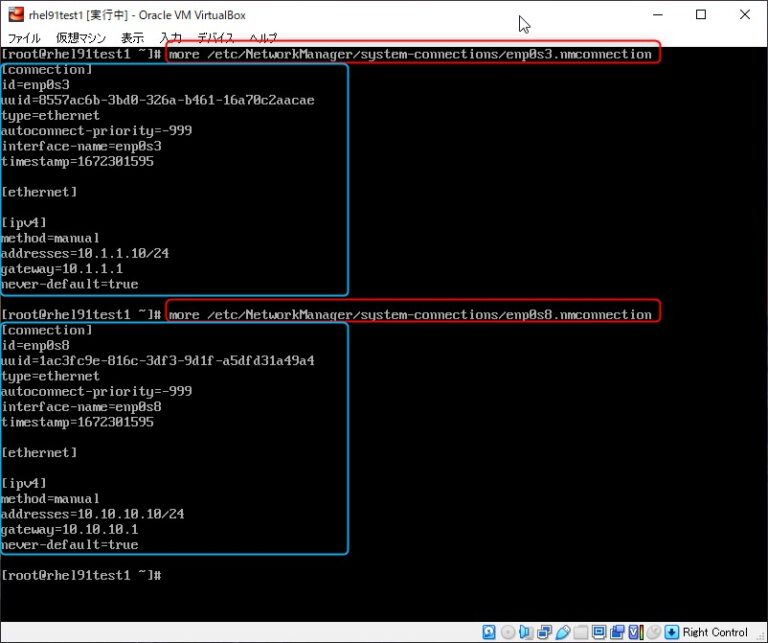
As a fallback, Network Manager stores connection files in /etc/NetworkManager/system-connections/. Use sudo cat /etc/NetworkManager/system-connections/YourSSID.nmconnection (replace YourSSID with your WiFi name). Look for a line starting with psk= — that’s your password. This method requires sudo because these files are root-owned. For a simpler approach, stick to the nmcli method above; it’s the simplest recovery method for most users.
Common Pitfalls
- Permission denied: If you get an error like “Secrets were not allowed” or can’t open the file, you forgot
sudo. Usesudo nmcli ...orsudo cat .... The GUI method usually prompts for authentication. - Wrong connection name: nmcli is case-sensitive. List connections with
nmcli con showand copy-paste the exact name. If your SSID has spaces, enclose it in quotes. - Password not displayed for open networks: Open (unsecured) WiFi networks don’t have a password, so there’s no PSK to show. This guide only works for WPA/WPA2 secured networks.
Where to Next
Now you know how to recover your WiFi password on Linux using Network Manager. If you need to recover passwords on other devices, check out our router password recovery guide for direct router access, or the WiFi password recovery tutorial covering Windows and macOS. For backing up all your saved networks, see our recovery restore guide and learn how to backup WiFi passwords to a USB drive. And if you ever need to reset a modem’s default password, our modem password recovery article has you covered.



