Ever been in that awkward spot where you need to connect a new device to your home WiFi, but you have absolutely no clue what the password is? Maybe you wrote it on a sticky note that’s long gone, or you let your router auto-generate a monster of a key. Whatever the case, you don’t need to call your ISP or buy any fancy software. If you can access your router, the answer is right there in its settings. This guide is for anyone who has physical or admin access to their router and wants to recover the WiFi password without resetting the whole thing. By the end, you’ll have the password in plain text, ready to share with any device.
The best part? No extra downloads. If you’ve ever used a wifi password recovery app or a wireless password recovery tool, you know those can be hit-or-miss. Going straight to the router is the most reliable method, and it’s surprisingly easy. We’ll walk through finding your router’s IP address, logging in, and locating the wireless security settings. Whether you’re on Windows, macOS, or just using a phone browser, these steps work. Let’s get that password back.
What You’ll Need
- A device (laptop, desktop, phone, tablet) that can connect to your router’s network – even if you can’t get online, a wired connection works too.
- Your router’s admin username and password (if you’ve never changed it, check the sticker on the router itself; common defaults are ‘admin’ / ‘admin’ or ‘admin’ / ‘password’).
- A web browser (Chrome, Firefox, Safari, Edge – any will do).
- About 10 minutes of patience.

Step 1: Find Your Router’s IP Address
To get into your router’s brain, you need to know its local IP address. This is usually something like 192.168.1.1 or 192.168.0.1. The easiest way to find it is to look on your connected device. On Windows, open Command Prompt and type ipconfig – look for ‘Default Gateway’. On macOS, go to System Settings > Network, click your connection, then ‘Details’ – the router’s IP appears under ‘Router’. On a phone, you can check the WiFi settings under your network’s info; it’s often labeled ‘Gateway’ or ‘Router’. Write this number down – you’ll need it to log in.

Step 2: Log Into Your Router’s Admin Panel
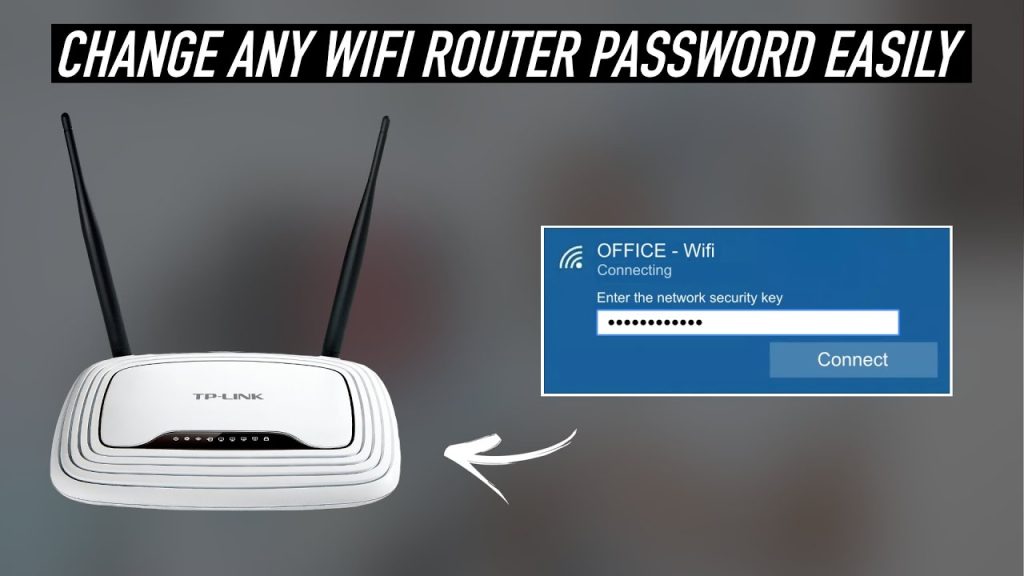
Open a web browser and type the router’s IP address into the address bar like a normal URL. Hit Enter. You should see a login page. Enter your admin username and password. If you’ve never changed these, check your router’s sticker or manual. If you changed them but forgot, wifi password recovery without resetting router becomes tricky – you might need to do a hardware reset (hold the reset button for 10 seconds). But let’s hope you remember! Once logged in, you’ll land on the router’s dashboard. Every router interface looks different, but don’t be intimidated. We’re after the wireless settings.

Step 3: Navigate to the Wireless / WiFi Section
Look for tabs or menus labeled ‘Wireless’, ‘Wi-Fi’, ‘Setup’, or ‘Security’. On many routers, it’s under ‘Wireless Settings’ then ‘Security’. On newer mesh systems, it might be under ‘Network’ > ‘WiFi’. If you’re lost, check the user manual online for your router model – but usually it’s on the main navigation. Once you’re in, look for a field called ‘Passphrase’, ‘Pre-Shared Key’, ‘Network Key’, or ‘Wireless Password’. The password might be hidden behind asterisks – sometimes there’s a ‘Show’ checkbox or an ‘eye’ icon to reveal it. If not, you can change it to something new (just write down the new one!).

Step 4: Write Down or Change the Password
Once you can see the password, either copy it exactly (long press or right-click to copy) or write it down in a secure place. If the field is masked and you can’t reveal it, you have the option to enter a new password. Make sure it’s strong but memorable – mix letters, numbers, and symbols. After making any changes, click ‘Save’ or ‘Apply’ (sometimes the button is at the top of the page). Your router might reboot – give it a minute. Then test the new password by connecting a device. If you don’t want to change it, just note the current one and you’re done. For a deeper dive on viewing passwords on devices, check out how to show wifi password settings on your laptop or phone.
Step 5: (Optional) Verify the Password Works
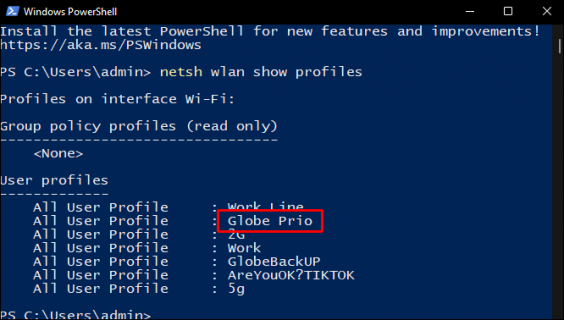
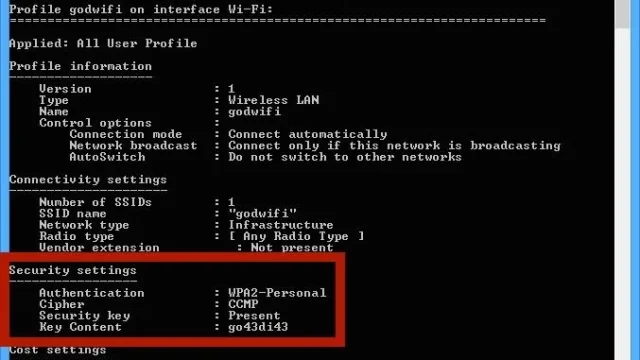
Grab a device that’s not currently connected – or disconnect one – and try joining your network using the password you just recovered. If it connects, you’re all set. If not, double-check that you copied the password correctly (case-sensitive!). Sometimes the router’s admin interface shows the key with hidden characters; make sure you’re reading it right. You can also use a wifi password recovery via terminal on your computer as a backup method to confirm, but the router method is the most authoritative. If you’ve changed the password, make sure to reconnect all your devices with the new one.
Common Pitfalls
- Wrong admin credentials: If you’ve changed the router’s login and forgotten it, the only sure way is a factory reset. That will wipe all custom settings (including your WiFi password), so you’ll have to set up everything again. Before resetting, try common defaults like ‘admin/admin’ or look up your model online.
- Changed IP address: Some ISPs or routers use a non-standard IP like 10.0.0.1. If the usual 192.168.x.x doesn’t work, check your computer’s default gateway from Step 1. Or try scanning the network with an app like Fing.
- Can’t see the password field: Some routers hide the password by default and only show it if you choose a ‘show’ option. If there’s no ‘show’ button, you may need to change the password to see it clearly – just be sure to write down the new one before saving.
Where to Next
Now that you’ve got your WiFi password back, you might want to keep it safe for the future. Consider using a password manager or just writing it on the bottom of your router with a permanent marker (yes, it’s okay). If you’re still having trouble, check out our guide on how to recover wifi password on laptop from your saved networks – it’s another handy method. And if you’re ever without admin access, a wifi password recovery app might help. Good luck, and stay connected!