Ever been locked out of your own WiFi network because you forgot the password? If you’ve ever connected a laptop or desktop to that network before, the password is still stored on your machine. This guide walks you through how to dig it out using the terminal — no third-party apps required. Whether you’re on Windows, macOS, or Linux, you’ll have your WiFi key back in a few minutes.
By the end of this wifi password recovery command line tutorial, you’ll be able to recover saved WiFi passwords on any operating system using simple commands. If you need a broader approach, check out our recover wifi password on laptop guide for GUI alternatives.
What You’ll Need
- A computer that has previously connected to the WiFi network you want to recover.
- Administrator or root access (for Windows you need admin, for macOS/Linux you might need sudo).
- A terminal or command prompt (already installed on every OS).
Step 1: Recover WiFi Password on Windows
Windows saves every WiFi profile you’ve connected to. To view the password for a specific network, open Command Prompt as Administrator. Press Win+R, type ‘cmd’, then press Ctrl+Shift+Enter. Alternatively, search for ‘Command Prompt’, right-click, and choose ‘Run as administrator’.
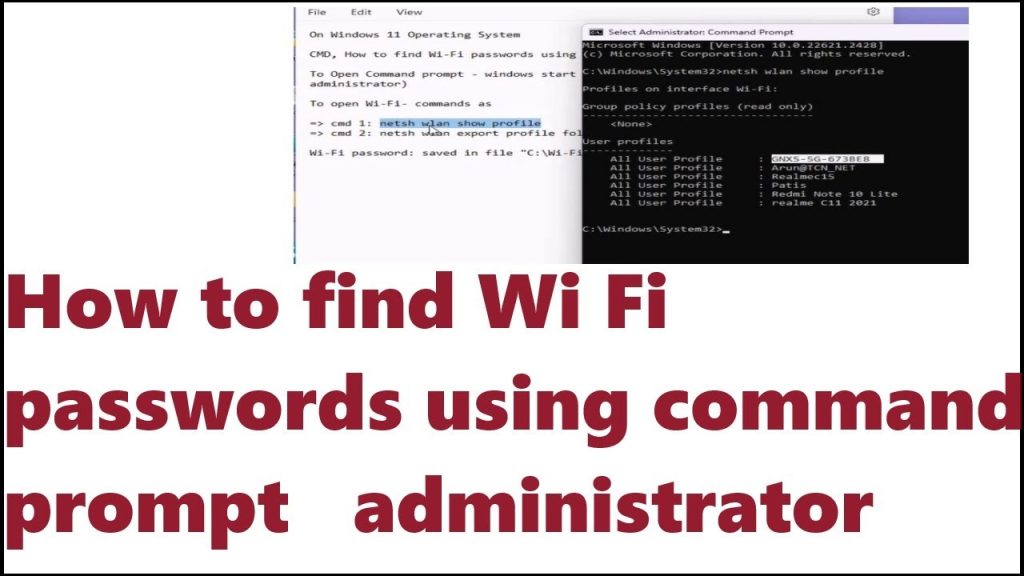
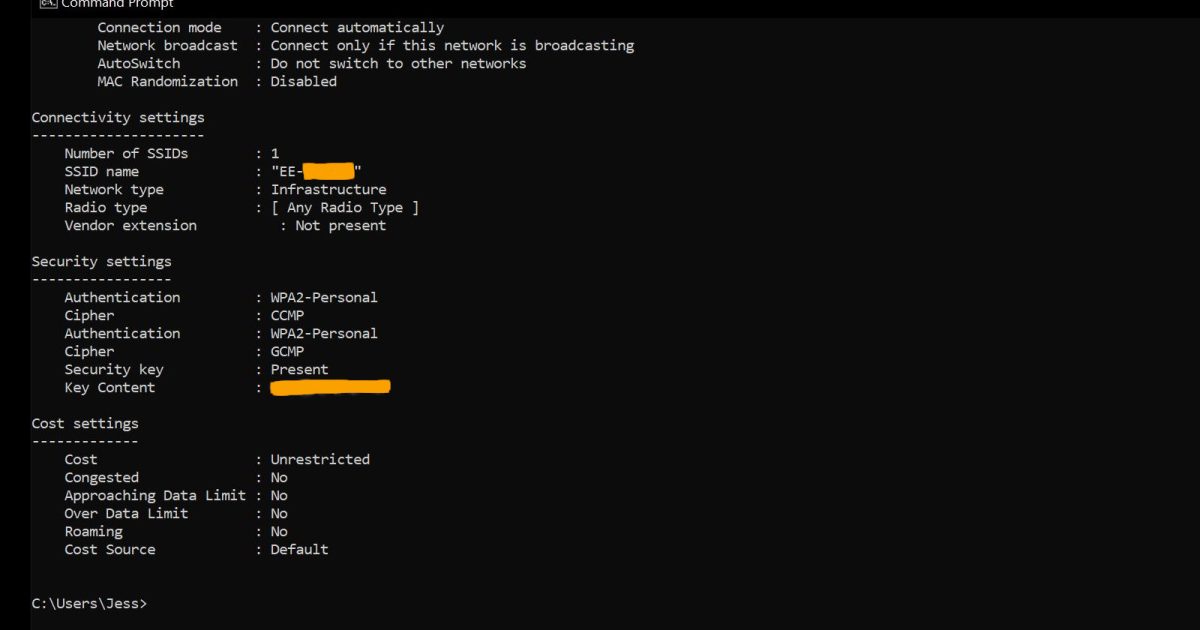
Once the terminal is open, type the following command to list all saved WiFi profiles: netsh wlan show profiles. Find the network name you want. Then run: netsh wlan show profile name=”YourNetworkName” key=clear. Look for the ‘Key Content’ field — that’s your password. You can also backup wifi passwords windows by exporting profiles, but this command is the fastest way to grab a single password.
Step 2: Recover WiFi Password on macOS
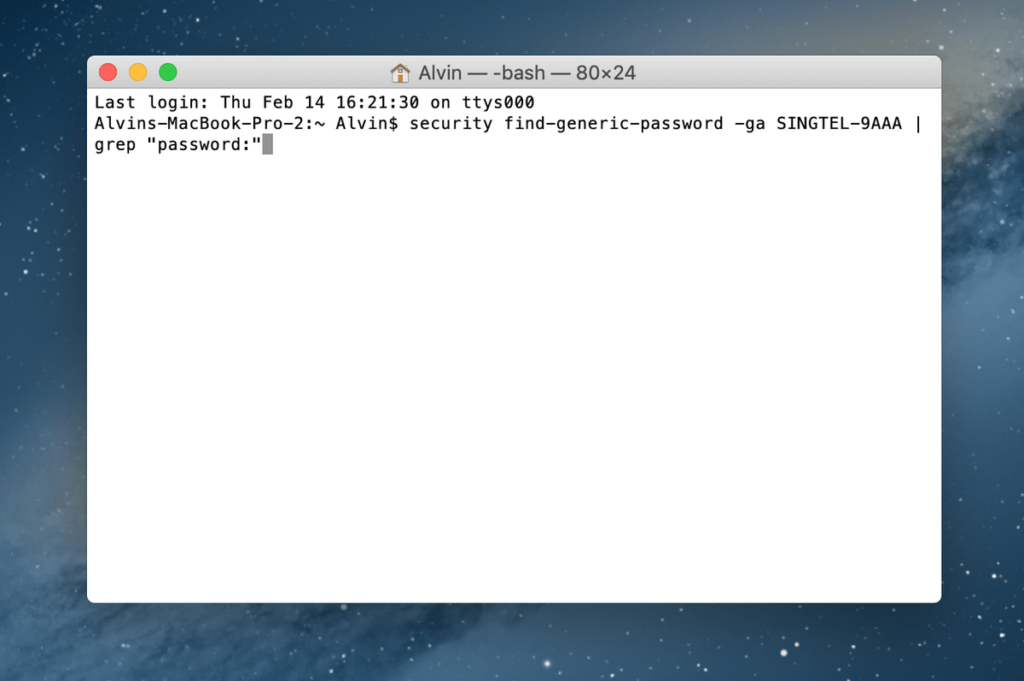
On macOS, WiFi passwords are stored in the Keychain. Open Terminal (Finder > Applications > Utilities > Terminal). Then run the following command, replacing ‘YourNetworkName’ with the actual SSID: security find-generic-password -wa ‘YourNetworkName’. You’ll be prompted for your Mac’s admin password — enter it. The WiFi password will appear in plain text.
If you need to recover multiple passwords, you can script this or use the Keychain Access app. For mobile devices, see our recover forgotten wifi password on mobile guide.
Step 3: Recover WiFi Password on Linux
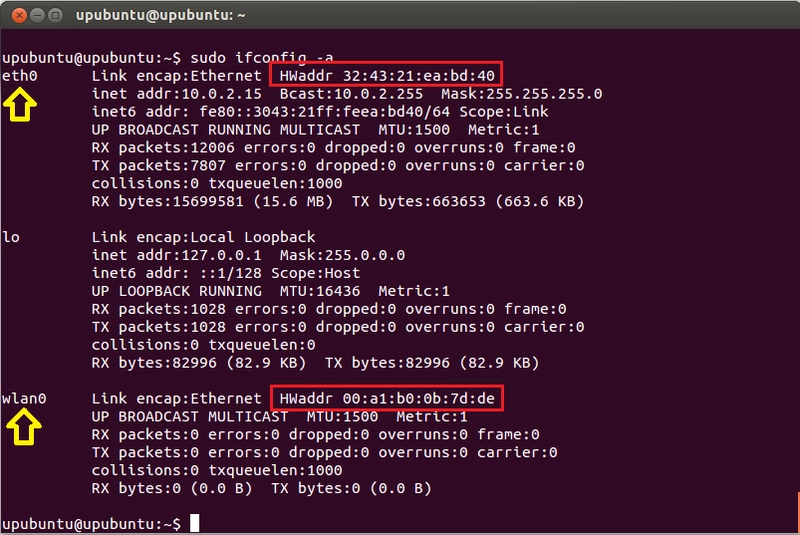
Linux stores WiFi configurations in /etc/NetworkManager/system-connections/ or you can use the nmcli tool. First, list saved connections: nmcli connection show. Then get the password for a specific connection: nmcli connection show ‘YourNetworkName’ -s | grep ‘802-11-wireless.security.psk’. If nmcli isn’t available, check the config file directly: sudo cat /etc/NetworkManager/system-connections/YourNetworkName and look for psk= under [wifi-security]. For more details, check our forgotten wifi password recovery linux guide.
Common Pitfalls
- Need admin/root: Windows requires admin rights; macOS and Linux need sudo. Without elevated privileges, the commands won’t show passwords.
- Only saved networks: This method only works for WiFi networks your computer has connected to before. If you’ve never connected, try wifi password recovery with modem config instead.
- Case sensitivity: WiFi network names are case-sensitive. Make sure you type the SSID exactly as shown.
Where to Next?
You now know how to recover WiFi passwords from the terminal. Next steps: learn how to recover wifi password on laptop using GUI tools, or explore wifi password recovery software safe for automated recovery. Stay connected!



