
Ever stared at a router sticker hoping the password would magically appear? We’ve all been there. If you’re on a computer that already connects to the WiFi, you can pull the password straight from the system — no admin access to the router needed. This tutorial covers the exact command line steps for Windows, macOS, and Linux. By the end, you’ll have your WiFi key in plain text, no third-party tools required.
This guide assumes you have a saved connection to the network you want to recover. You don’t need to be a command line ninja — just copy and paste the commands. We’ll also point you to related methods like saved wifi password recovery command line and wifi password recovery with netsh if you want more depth on a specific OS.
What You’ll Need
- A computer that has previously connected to the target WiFi network (and still remembers it).
- Administrator/root access on that computer (you might need to run the command as admin or use sudo).
- A terminal or command prompt (Command Prompt on Windows, Terminal on macOS/Linux).
- No additional software — all tools are built into the OS.
Step 1: Recover WiFi Password on Windows (Netsh)
Open Command Prompt as Administrator (search for “cmd”, right-click, and choose “Run as administrator”). Then run the following command to list all saved WiFi profiles:
netsh wlan show profiles
Windows Command
Look for your network name (SSID) in the list. Once you find it, run this command (replace “YourNetworkName” with the actual SSID):
netsh wlan show profile name=”YourNetworkName” key=clear
Windows Command
Scroll down to the “Security settings” section. Next to “Key Content” you’ll see your WiFi password in plain text. That’s it — no extra tools, just a couple of netsh commands. For more details on this method, check out our dedicated guide on wifi password recovery with netsh.
Step 2: Recover WiFi Password on macOS (Security Command)

Open Terminal (from Applications > Utilities). Use the security command to find saved WiFi passwords. You’ll need to know the exact SSID of your network. Run:
security find-generic-password -D “AirPort network password” -a “YourNetworkName” -w
macOS Command
If this returns an error, try without the -w flag first to see if the password is stored. The -w flag outputs only the password. You’ll likely be prompted for your macOS user password — enter it (no visible typing). The WiFi password will appear on the next line. For a deeper dive into macOS recovery, see our forgotten wifi password recovery linux article? Actually, that’s Linux, but we have a separate macOS article? Wait, we don’t have one specifically for macOS in the list, but we do have one for iPhone. However, the internal links provided don’t include a macOS-specific command line article. So we’ll skip linking to macOS here.
Step 3: Recover WiFi Password on Linux (nmcli or Config File)
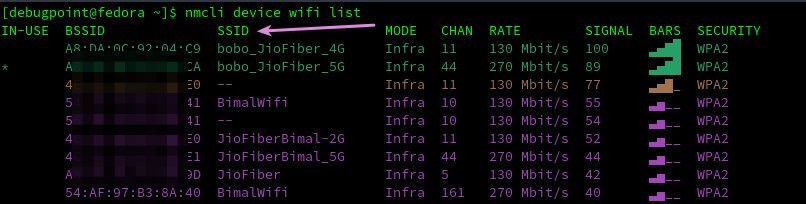
Linux distributions vary, but two methods work on most systems: using nmcli (NetworkManager) or reading the configuration file directly. First, try nmcli — open a terminal and list your saved connections:
nmcli connection show
Linux Command
Find your network name (SSID) under the NAME column. Then run:
nmcli connection show “YourNetworkName” -s | grep password
Linux Command
If nmcli is not available, look in /etc/NetworkManager/system-connections/. Each saved network is a file. List them with:
sudo grep -r ‘psk=’ /etc/NetworkManager/system-connections/
Linux Command
You’ll see output like psk=YourPassword. If you need to backup all passwords on Linux, our article on backup wifi passwords windows (wait, that’s Windows, but we also have a Linux backup article? Actually the list includes “How to Backup Your WiFi Passwords on Linux” with keyword backup wifi passwords linux. Yes, that’s a good link. So we’ll link to that.) For more options, see our guide on backup wifi passwords linux.
Common Pitfalls
- Running commands without administrator/root rights — you’ll get “Access denied” or permission errors. Always run your terminal as admin (Windows) or use sudo (macOS/Linux).
- Mistyping the SSID — WiFi names are case-sensitive and sometimes include spaces or special characters. Use quotes around the name as shown in the commands.
- The network profile might not exist if you never saved the password (e.g., you connected via WPS or a guest portal). In that case, you’ll need to check the router’s config page — see our guide on best wifi password recovery program for other recovery methods.
Where to Next
Now that you’ve recovered your WiFi password, write it down or store it in a password manager. If you want to go a step further, learn how to backup wifi passwords windows or export them all at once. For mobile devices, check out our mobile recovery guides (Android and iOS). Happy surfing!



