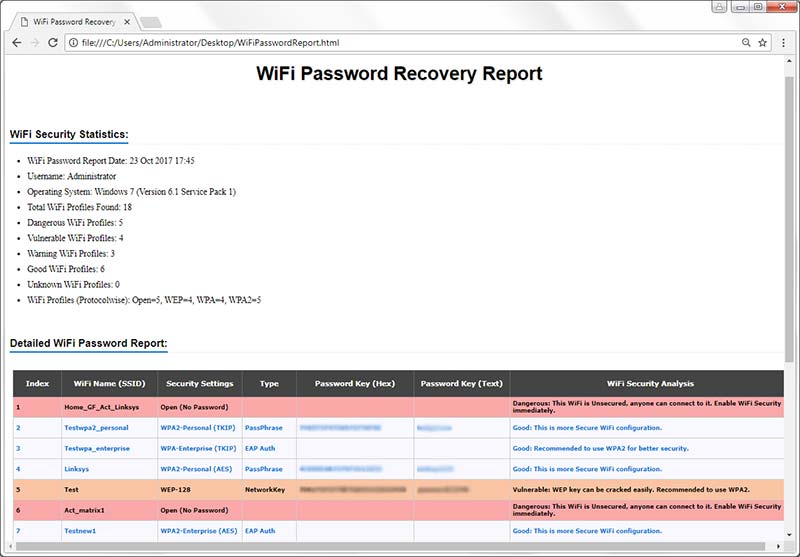
Forgetting your WiFi password is a pain, especially when guests ask for it or you need to connect a new device. You might be tempted to grab any random password recovery tool from the web, but that can be dangerous – many are loaded with malware or spyware. This guide is for anyone who wants to recover a lost WiFi password safely, whether you’re on Windows, macOS, or Linux. By the end, you’ll have a step-by-step process to find and save your network key using trusted software, without risking your privacy or security.
We’ll walk through picking reputable software, running it securely, and backing up the recovered password for future use. We’ll also cover common mistakes that can trip you up. If you’re in a hurry, you can also check out our guide on using a wireless password recovery app for a quick fix, but for a thorough and safe approach, stick around.
What You’ll Need
- A Windows, macOS, or Linux computer that has previously connected to the WiFi network
- Administrator or root access on that computer
- A reliable internet connection to download the recovery software
- Patience – some scans take a few minutes
Step 1: Research and Download a Trusted WiFi Password Recovery Tool
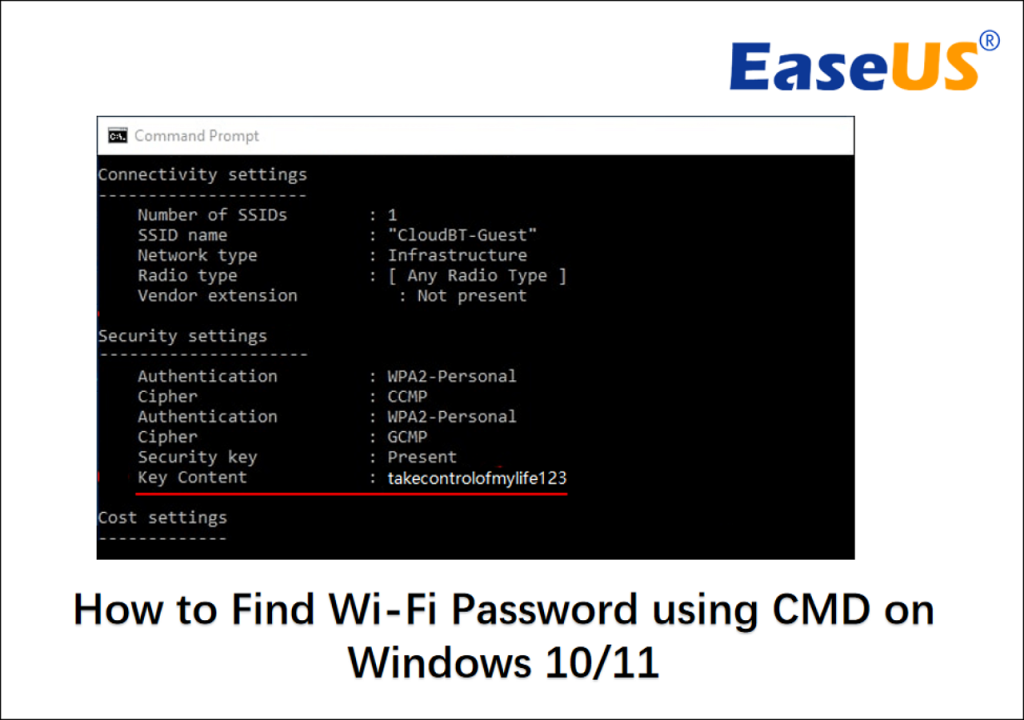
The biggest mistake you can make is downloading random tools from shady sites. Stick to well-known, open-source or widely reviewed programs. For Windows, the built-in method using Command Prompt (netsh) is already safe and effective – check our wifi password recovery with netsh guide. But if you want a graphical tool, I recommend WirelessKeyView (NirSoft) or WiFi Password Revealer (SecurityXploded). On macOS, the Keychain Access app is built-in and trustworthy. On Linux, you can use the terminal or a tool like Wifite (careful – only for your own network). Always download from the official developer website or a trusted repository like GitHub.

Step 2: Run the Software and Scan for Saved Networks
Before opening the tool, temporarily disconnect from the internet (unplug Ethernet or disable Wi-Fi) to prevent any potential data leakage. Then run the software with administrator privileges. On Windows, right-click and select “Run as administrator.” The software will scan your system for stored WiFi profiles. It usually takes only a few seconds. You’ll see a list of network names (SSIDs) and their passwords. Some tools also show security types (WPA2, WEP, etc.). If you’re on macOS, open Keychain Access, search for your WiFi network name, and check “Show password.” For a saved wifi password recovery command line, you can also use Terminal commands on Linux or macOS.

Step 3: Recover and Save Your Password Securely
Once the scan completes, you’ll see your WiFi password displayed next to your network’s name. Write it down on paper or save it in a password manager – never save it in a plaintext file on your desktop. If the software offers an export feature, use it to save an encrypted file, or simply memorize it. For Windows users, the backup wifi passwords windows guide covers how to export all passwords in one go. On Linux, you can backup your config files – see our forgotten wifi password recovery linux article for details.
Step 4: Verify the Recovered Password Works
Before you finish, test the password on a device that hasn’t connected yet (like a phone or tablet). Go to Wi-Fi settings, select your network, and enter the password you just recovered. If it connects, you’re golden. If not, you might have mistyped it or the network password was changed. Double-check for uppercase vs. lowercase characters. For more tips, read our roundup of the best wifi password recovery program options.
Common Pitfalls
- Downloading from untrusted sources – always use the official website or GitHub. Pirated versions often contain malware.
- Forgetting to run as administrator – many tools will show blank results if you don’t have elevated privileges.
- Assuming the software can crack any password – these tools only recover passwords already stored on your computer, not crack unknown passwords. If you’re on a new device, you’ll need to reset the router.
Where to Next
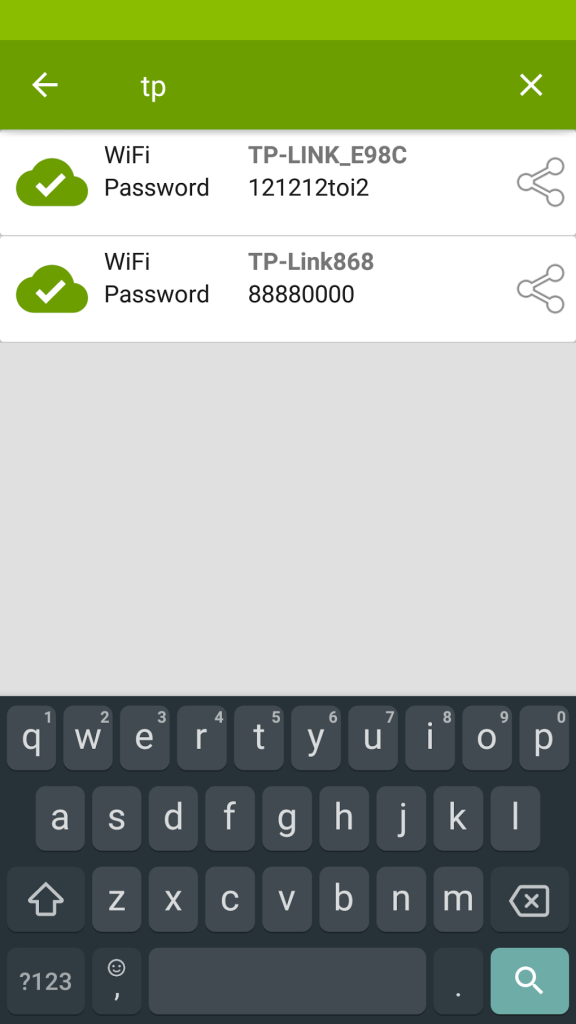
Now that you’ve safely recovered your WiFi password, consider making a backup so you never lose it again. Check out our guide on backup wifi passwords to cloud for a secure cloud storage method. For mobile users, see recover forgotten wifi password on mobile. And if you’re curious about other methods, our wifi password recovery with modem config guide shows how to find it directly from your router. Stay safe and never get locked out again!



