
We’ve all been there: a friend asks for your WiFi password, and your mind goes blank. Or maybe you just got a new phone and can’t remember the key you set years ago. Whatever the case, you don’t need to call your ISP or reset the router. If your mobile device is already connected to the network, you can dig out that password in minutes. This guide walks you through recovering a forgotten WiFi password on both Android and iPhone — no technical skills required.
By the end, you’ll be able to view, share, or write down your WiFi password from your phone. We’ll cover built-in options first, then mention a few third-party tools for trickier cases. If you prefer to use a computer, check out our guides on saved profile recovery or command line recovery for Windows.
What You’ll Need
- A mobile device (Android or iPhone) that is currently connected to the WiFi network you want the password for.
- Access to the phone’s settings (no root or jailbreak required for the built-in methods).
- Optional: A QR code scanner (most phones have one built-in).
Step 1: Check Your Router’s Sticker
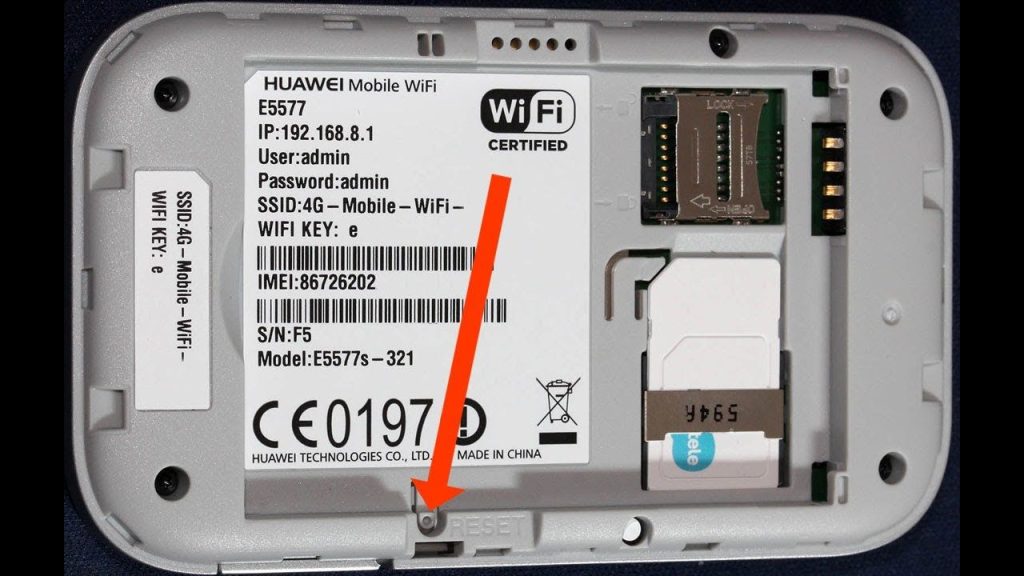
Before diving into phone settings, take a look at your router. Most routers have a sticker on the back or bottom that shows the default SSID (network name) and password. If you never changed it, that’s your password right there. This is the easiest fix — but if you customized the password, move to Step 2.
Step 2: Recover on Android (No Root)
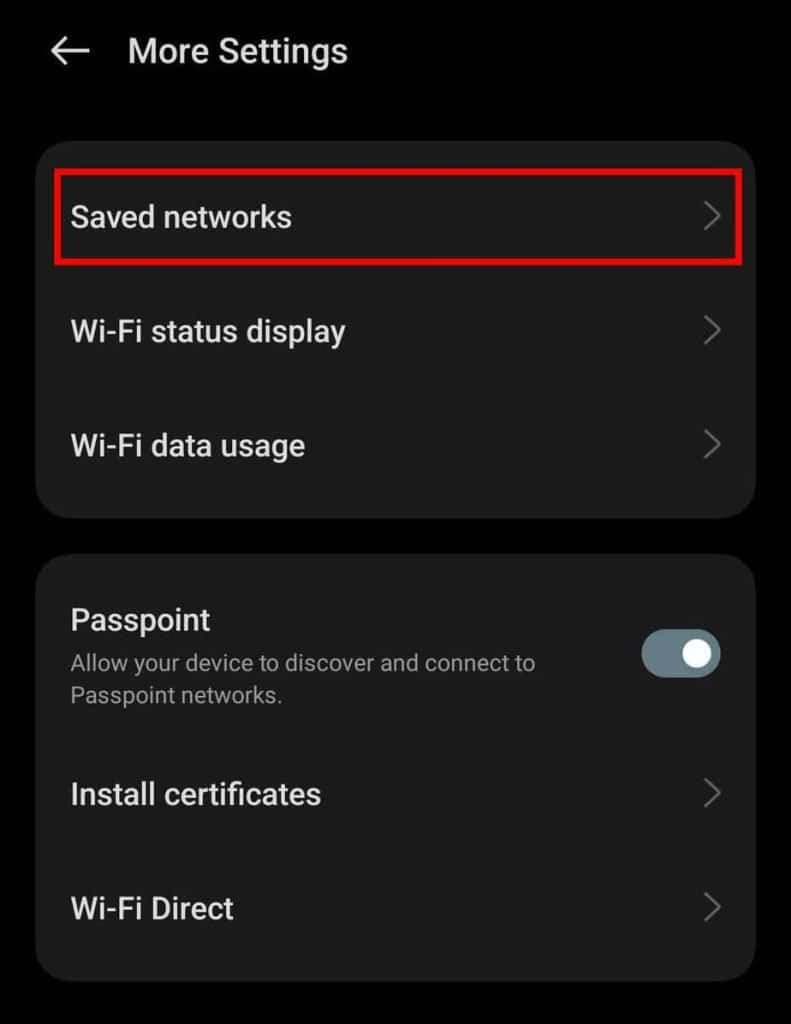
Android 10 and later let you view the password of the current WiFi network without any extra apps. Here’s how: Open Settings > Network & Internet > WiFi. Tap the network you’re connected to (or the gear icon next to it). A screen will appear showing network details. Look for a “Share” button or a QR code icon. Tap it — you may need to verify your PIN, pattern, or fingerprint. After verification, you’ll see a QR code that others can scan to join. Below the code, the password is usually displayed in plain text. For older Android versions, you can try third-party apps like WiFi Key Recovery (requires root for some). See our dedicated recover without root guide for more details.
Step 3: Recover on iPhone (iOS)
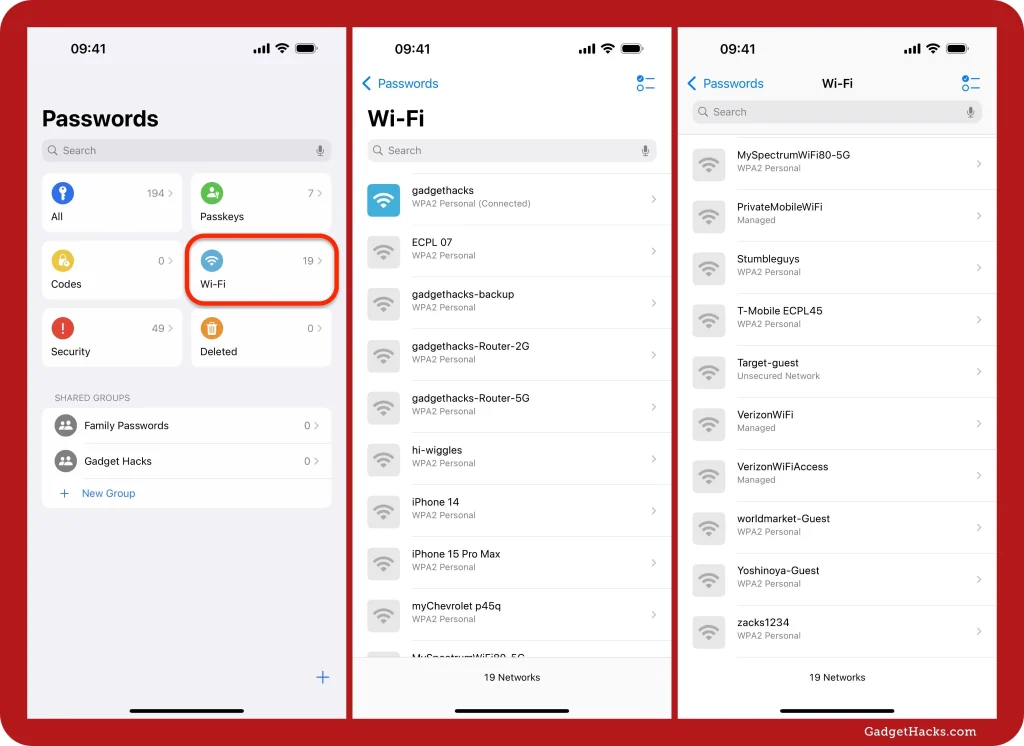
iPhones don’t show the password directly in settings, but you can still retrieve it using iCloud Keychain on a Mac or via the “Share Password” feature. On your iPhone, go to Settings > WiFi and tap the blue “i” next to your network. You won’t see the password, but if you have a Mac signed into the same iCloud account, open the Keychain Access app on your Mac, search for your network name, and check “Show password”. Alternatively, you can use the built-in WiFi sharing: have a friend’s iPhone or iPad near yours, select your network on their device, and your iPhone will pop up a prompt to share the password. This works for instant sharing rather than viewing. For a full walkthrough, see our iPhone password recovery post.
Step 4: Use a Third-Party App (Optional)
If the built-in methods don’t work — for example, you’re on an older Android version — you can try a specialized app. Apps like “WiFi Password Viewer” or “WiFi Key Recovery” can show saved networks, but many require root access on Android. On iOS, third-party apps are limited by system restrictions, so your best bet is the Mac Keychain method above. If you’re open to more advanced tools, our Android WiFi recovery tutorial covers options for non-rooted devices as well.
Common Pitfalls
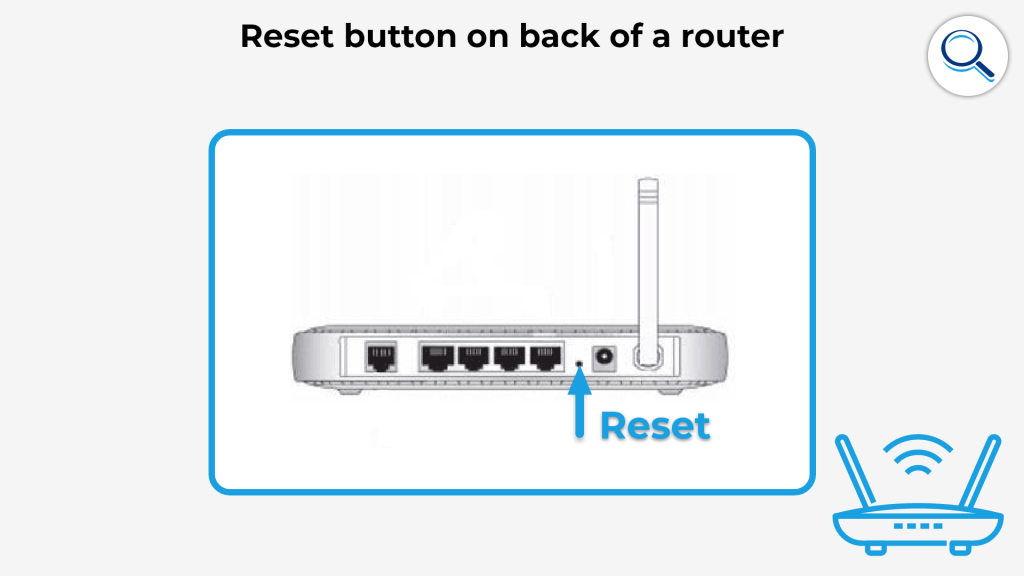
- Network not showing in saved list: If your phone has forgotten the network or you’re not connected, these methods won’t work. You’ll need to check the router or use a mobile password recovery tool that scans saved profiles (some require root).
- QR code doesn’t reveal password: On some Android skins (e.g., Xiaomi), the password may not be displayed in plain text after tapping Share. In that case, try scanning the QR code with another phone to extract the password, or refer to our saved profile recovery guide.
- iPhone sharing prompt doesn’t appear: Both devices must have WiFi and Bluetooth enabled, and the other person’s device must be trying to join the network. If it still doesn’t work, restart both devices and try again.
Where to Next
Now that you’ve recovered your password, consider backing it up so you never lose it again. You can save it in a password manager or take a screenshot of the QR code. For more advanced methods, check out our guides on Android WiFi recovery tutorial or iPhone password recovery. And if you ever need to recover passwords on other devices, we have you covered with Windows, Mac, and router methods.



