Ever been caught off guard when a friend asks for your WiFi password and you draw a blank? Don’t stress – if your phone is already connected to the network, the password is hiding right inside your device. This guide is for anyone who has a mobile phone (Android or iPhone) that’s currently connected to a WiFi network but can’t recall the password. By the end, you’ll have the password in plain text, ready to share or save.
We’ll cover the easiest, no-root, no-jailbreak methods for both platforms. For Android users running version 10 or newer, you can get the password in seconds using a built-in QR code feature. Older Androids still have a trick using ADB backup. iPhone users can recover passwords through iCloud Keychain and a Mac. Let’s dive in.
What You’ll Need
- Your Android phone (already connected to the WiFi network) or iPhone
- For Android 10+: no extra tools
- For Android 9 or earlier: a Windows/Mac/Linux computer with ADB installed
- For iPhone: a Mac computer with iCloud Keychain enabled
- Optional: a QR code scanner app (most phones have one built-in)
Step 1: Recover WiFi Password on Android 10+ Using the QR Code Method
This is by far the simplest method. Google introduced a native way to view and share WiFi passwords starting with Android 10. No third-party apps or root required. The password is displayed alongside a QR code that others can scan to join.
First, open the Settings app on your Android phone. Tap on “Network & Internet” (or “Connections” on Samsung). Select “WiFi” and then tap on the name of the network you’re currently connected to (it may be labeled as “Saved networks” or “Connected network”). On the network details page, look for a “Share” button – it often appears as a QR code icon. Tap it, and you’ll see a QR code on the screen. Beneath the code, the password is written in plain text. You can also let a friend scan the QR code to join instantly.
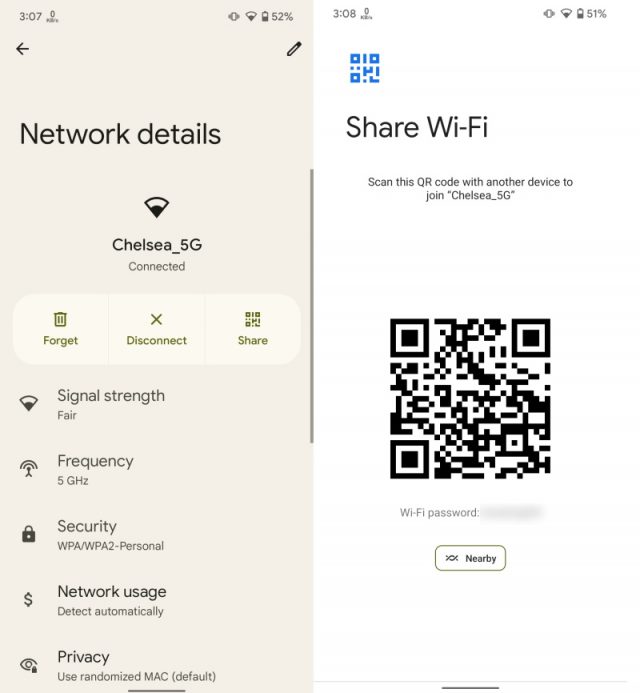
If you can’t find the Share option, make sure you’re actually connected to the network. For a more detailed walkthrough, check out our full guide on WiFi password recovery on Android. And if you’re on a custom skin like Samsung One UI, the steps are nearly identical – just look for the QR share icon on the network details page.
Step 2: Recover WiFi Password on Older Android Using ADB Backup
If your phone runs Android 9 or earlier, the QR code method isn’t available. But you can still recover the password using an ADB backup. This method requires a computer and USB debugging enabled. Don’t worry – it sounds scarier than it is.
First, enable Developer Options on your phone: go to Settings > About Phone and tap “Build Number” seven times. Then go back to Settings > System > Developer Options and enable “USB Debugging”. Connect your phone to your computer with a USB cable. On your computer, open a command prompt or terminal and run: adb backup -f wifi.backup -noapk com.android.providers.settings. You’ll see a prompt on your phone – tap “Back up my data”. After the backup finishes, use a tool like Android Backup Extractor to extract the backup, then open the generated file and look for a section containing “wpa_supplicant”. The network name (SSID) and password will be there in plain text.
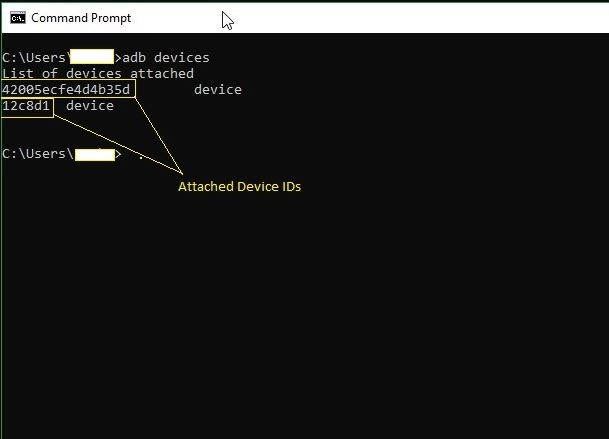
For a visual guide on this process, our tutorial on show your WiFi password on Android covers the ADB method in more detail. Alternatively, you could use a third-party app, but most require root access. If you’re willing to root, apps like “WiFi Password Viewer” can do the job with one tap.
Step 3: Recover iPhone WiFi Password Using iCloud Keychain
Apple doesn’t let you view WiFi passwords directly on the iPhone itself, but if you use iCloud Keychain and have a Mac, the password is accessible. This method assumes both devices are signed into the same iCloud account and Keychain is enabled.
On your Mac, open System Preferences (or System Settings on newer macOS) and click on your Apple ID. Select “iCloud” and make sure “Keychain” is checked. Then open the Keychain Access app (in Applications > Utilities). In the search bar, type the name of your WiFi network. Double-click the entry and check the box “Show password”. You’ll need to enter your Mac’s admin credentials. The password will appear in the field. For a complete breakdown, read our guide on forgotten WiFi password recovery on iPhone.
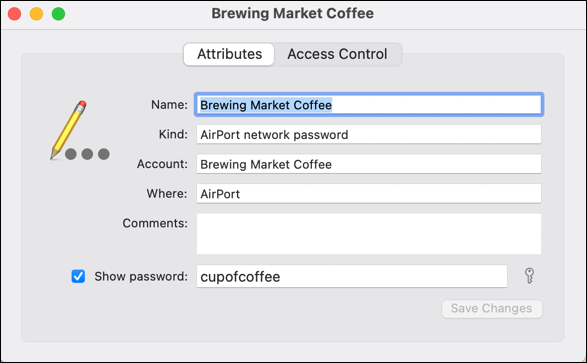
If you don’t have a Mac, you can try using iCloud for Windows with the iCloud Passwords app, but that only shows saved website passwords – not WiFi. Another option is to reset the router and set a new password, but that’s more hassle. For more general tips, check out our WiFi password recovery tips article.
Common Pitfalls
- Not connected to the network: Both the QR method and ADB backup require the phone to be actively connected to the WiFi network whose password you want. If you’re not connected, these methods won’t work.
- ADB backup permission denied: On some Android versions, the backup operation may require unlocking the phone and confirming the backup. If you skip the confirmation step, the backup file will be empty.
- No Mac for iPhone recovery: The only reliable way to get an iPhone WiFi password without jailbreak is via a Mac. If you don’t have one, consider asking the network owner or resetting the router.
Where to Next
Now that you’ve recovered your password, it’s a great idea to keep a safe copy. Consider using a password manager to store your network credentials. You can also backup your WiFi passwords on Windows for future reference. If you ever need to recover a password from your router directly, our guide on how to recover WiFi password from your ISP router can help. Stay connected and never get locked out again!