Ever been at a friend’s place and needed the Wi‑Fi password but it’s stuck on their phone? Or maybe you just reset your router and forgot what you changed it to. If you’re on Android and you’ve connected to a network before, you can dig up that password in seconds — no root, no shady apps. This guide walks you through the built‑in tools that work on Android 10 and up.
By the end of this tutorial, you’ll know exactly how to show wifi password android on your device, share it via QR code, and even copy it to your clipboard. We’ll cover stock Android (Pixel, OnePlus, Samsung One UI) and briefly touch on older versions. Let’s get started.
What You’ll Need
- An Android phone or tablet running Android 10 or later (the steps work on most skins like Samsung One UI, Xiaomi MIUI, etc.)
- A Wi‑Fi network you’re already connected to or have saved
- Optional: a second device to scan QR codes
Step 1: Open Wi‑Fi Settings
Unlock your phone and pull down the notification shade. Tap and hold the Wi‑Fi icon (or go to Settings > Network & Internet > Wi‑Fi). You’ll see a list of available networks and the one you’re connected to.
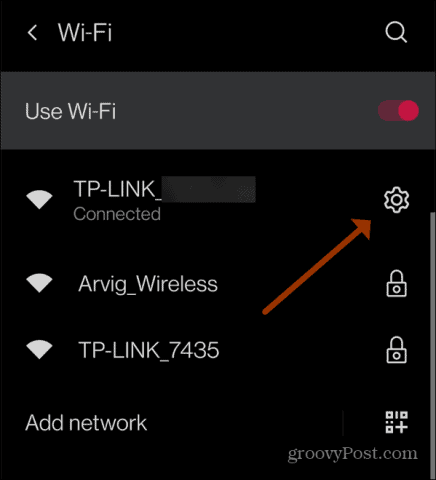
Step 2: Tap the Network Details
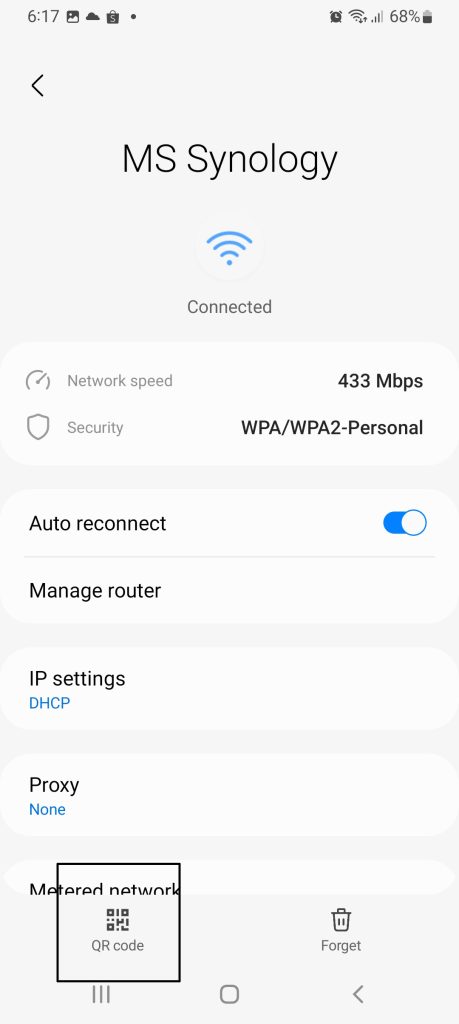
Tap the gear icon (or the network name) next to the Wi‑Fi network you want the password for. This opens the network details page.
Step 3: View the Password (Stock Android)
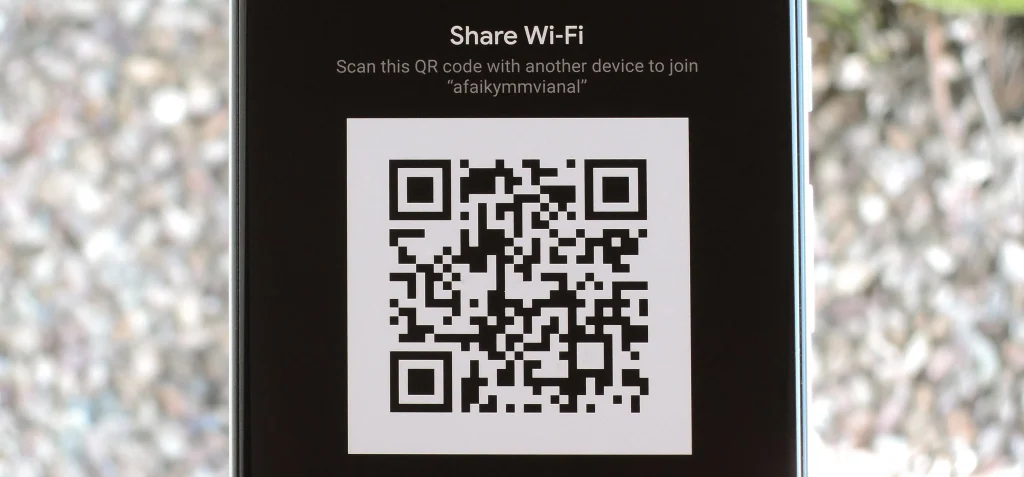
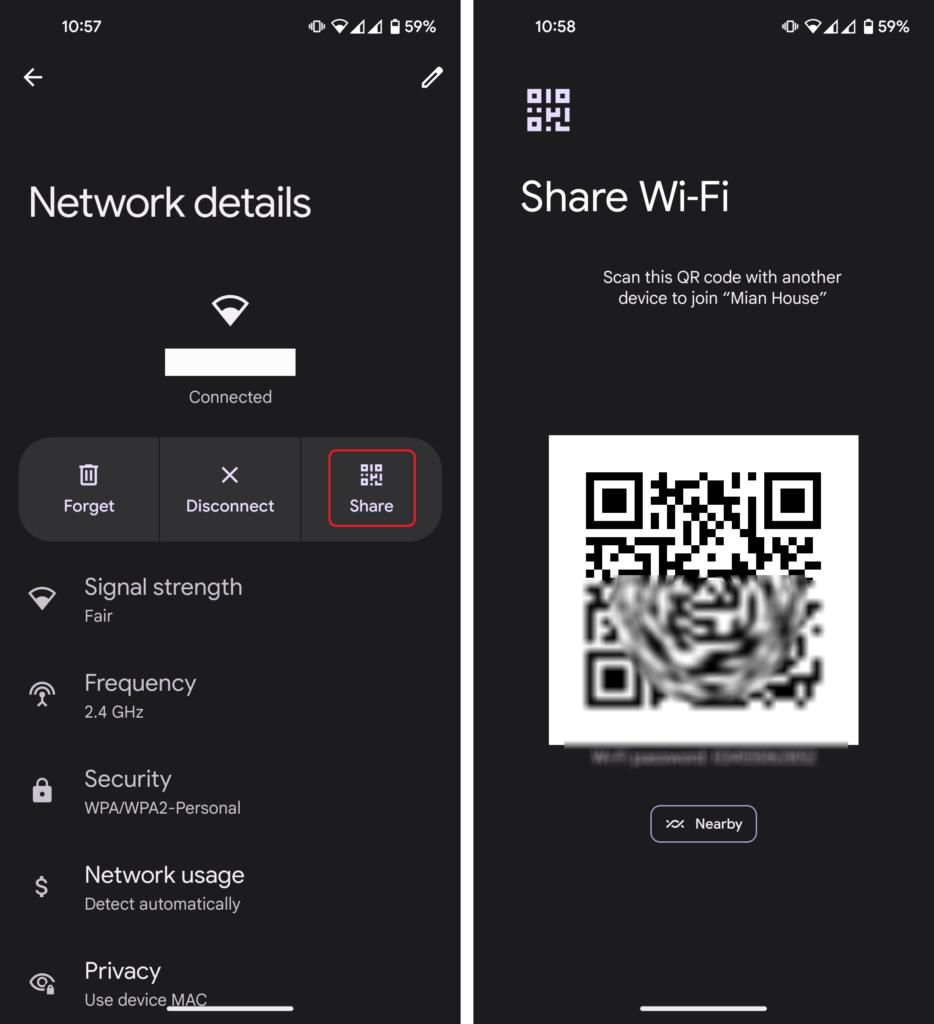
On stock Android (Pixel, Android One), tap the ‘Share’ button. A QR code appears — but below the QR code you’ll see the Wi‑Fi password in plain text, like ‘Password: mysecret123’. If you don’t see a Share button, try the next step.
Step 4: For Samsung One UI / Other Skins
If you have a Samsung phone, go to Settings > Connections > Wi‑Fi. Tap the gear icon next to the network, then tap ‘QR code’. You’ll see the QR code and the password below it. On some MIUI phones, you may need to tap ‘Share’ and then scan the QR code with another phone to reveal the password.
Step 5: Copy or Share the Password
Once you see the password, you can copy it to your clipboard or take a screenshot of the QR code. To share, just let a friend scan the QR code with their Android phone — they’ll automatically connect. That’s it!
Common Pitfalls
- You’re on Android 9 or older: The built‑in viewer may not show passwords. Try third‑party apps like WiFi Key Recovery (requires root) or check on another device. Check out our post on offline wifi password recovery solutions for alternatives.
- The Share button isn’t showing: If you’re on a corporate or enterprise network (e.g., 802.1X), the option may be hidden or disabled by the admin. In that case, you’ll need to ask the IT department.
- You think you’ve found the password but it’s wrong: The password shown is the one stored on your phone. If the router password was changed after you connected, you’ll see the old one. Use the recover wifi password from modem method instead.
Where to Next
Now that you’ve retrieved your Wi‑Fi password, consider backup wifi passwords before formatting so you never lose it again. Our guide shows you how to export all your saved networks. Also, if you’re on Windows, don’t miss the wireless password recovery windows tutorial. And for extra security, check out the safest wifi password recovery method to keep your network safe.