Have you ever been locked out of your own WiFi because you forgot the password? Or worse, you formatted your computer and lost all your saved network profiles? It’s a pain, but it doesn’t have to happen again. This guide is for anyone who wants a simple, free way to backup their WiFi passwords to the cloud so you can restore them anytime, anywhere.
By the end of this tutorial, you’ll have a neat text file or exported profile saved in your cloud drive (Google Drive, Dropbox, OneDrive, or iCloud) containing all your saved WiFi passwords. I’ll cover Windows 10/11, macOS, and Android. No third‑party apps required for most steps—just built‑in tools and a free cloud account.
What You’ll Need
- A computer running Windows 10/11, macOS, or an Android phone/tablet
- A cloud storage account (Google Drive, Dropbox, OneDrive, or iCloud)—free tier is fine
- Administrator access on Windows (to run Command Prompt as admin)
- Your device must be connected to the networks you want to back up (they need to be saved in the system)
- Optional: a USB flash drive if you want to transfer the backup offline first
Step 1: Export WiFi Passwords on Windows Using Command Prompt
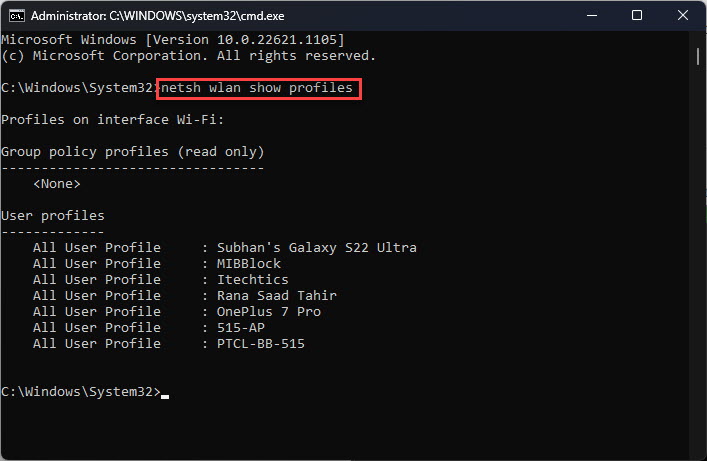
Windows saves every WiFi profile you’ve ever connected to. You can export them all with a single command. Press the Windows key, type cmd, right‑click Command Prompt, and choose Run as administrator. In the black window, type this and press Enter:
netsh wlan export profile key=clear folder=”%USERPROFILE%DesktopWiFiBackup”
This creates an XML file for every saved network on your Desktop inside a folder named WiFiBackup. The key=clear part makes sure the password is stored in plain text inside the XML—you’ll need it when you restore later. Don’t worry, the file is on your local machine only.
If you want a more manual approach, you can also use the wireless password recovery windows method to view passwords one by one, but the export command is far faster for batch backup.
Step 2: Export WiFi Passwords on macOS Using Keychain Access
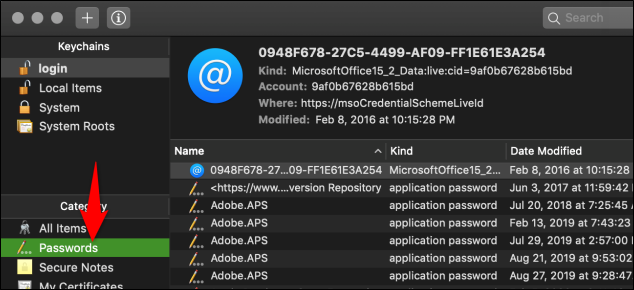
On a Mac, WiFi passwords live inside the Keychain app. Open Keychain Access (you can find it in Applications > Utilities). In the search box, type AirPort or just scroll to find your networks. Each entry is named like AirPort: YourNetworkName.
To export all of them at once—unlike Windows, there’s no bulk export built in. But you can use a quick script. Open Terminal (Applications > Utilities) and paste this:
security find-generic-password -l ‘AirPort’ -w > ~/Desktop/WiFiPasswords.txt
That command saves all saved AirPort network passwords into a plain text file on your Desktop. However, it might not include the network name. For a more complete backup, consider using a third‑party tool like WiFi Password Recovery (free on Mac App Store) or manually copy the password from each entry by double‑clicking and checking Show password (you’ll need your Mac login password).
If you want the safest approach, you can also find saved wifi password from keychain one by one, but for backup purposes, the text file is fine.
Step 3: Export WiFi Passwords on Android Using QR Codes
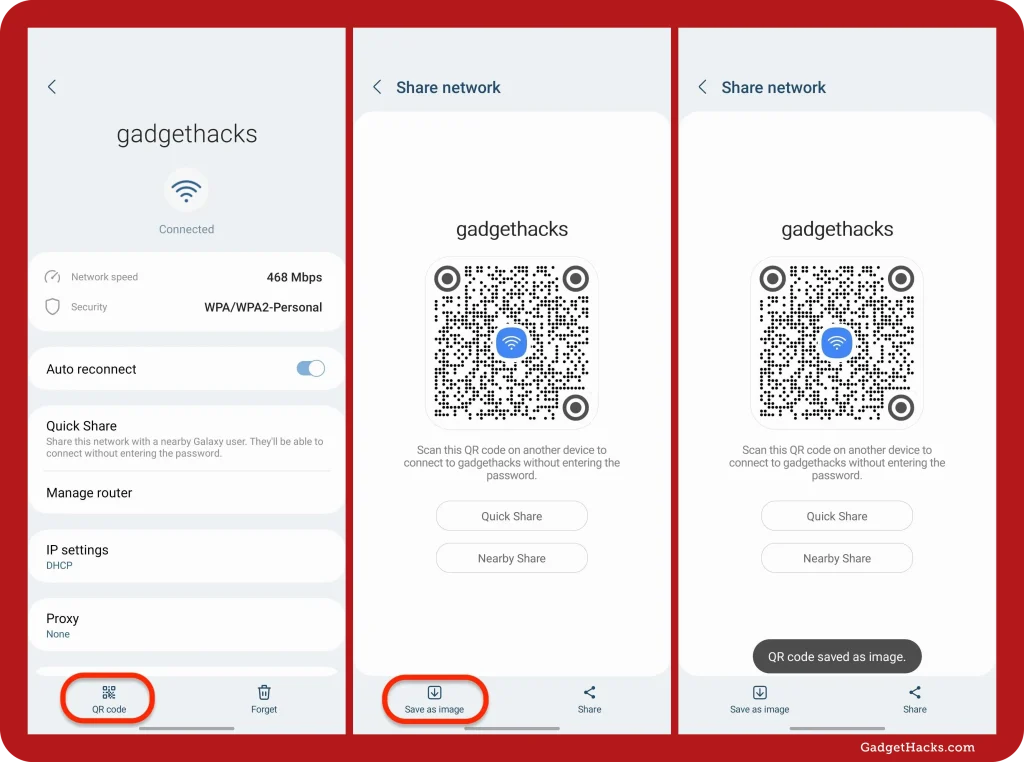
Android 10 and above let you share WiFi passwords via a QR code. Open Settings > Network & Internet > WiFi. Tap the gear icon next to your connected network. Look for Share or QR code (may be under a three‑dot menu). The phone will ask for your PIN or pattern. Then it shows a QR code that contains the password.
You can screenshot that QR code and upload it to your cloud drive. Better yet, use the show wifi password android feature to see the password in plain text after scanning the QR code with another phone. Or install a free app like WiFi Backup & Restore to export all saved networks to a file.
For a manual backup on Android without QR codes, you can use ADB (Android Debug Bridge) if you’re a bit technical: connect your phone to a PC, run adb backup -f wifi.ab -noapk com.android.settings, then extract the backup. But the QR method is the easiest for most people.
Step 4: Upload Your Backup File to the Cloud
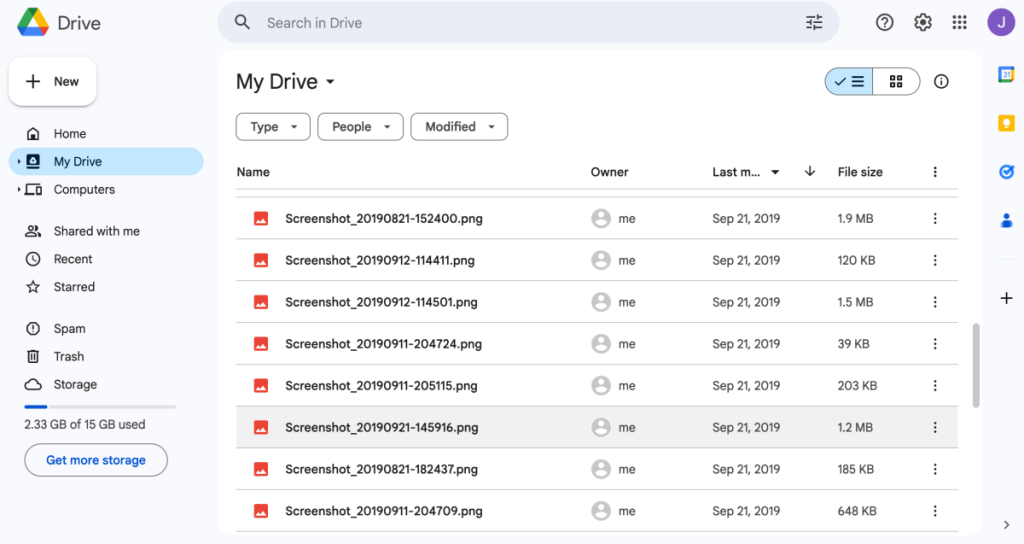
Now that you have your WiFi passwords saved as a file (XML on Windows, TXT on macOS, or a screenshot/ADB backup on Android), it’s time to upload to your preferred cloud service. Open your cloud storage website or app—Google Drive, Dropbox, OneDrive, or iCloud Drive—and upload the file(s) to a folder you’ll remember, like WiFi Backups.
For extra safety, consider encrypting the file with a password before uploading. You can use 7‑Zip or a simple ZIP with password. That way, even if someone gets access to your cloud, they can’t see your network passwords. A popular approach is to compress the file and set a password in Windows or macOS using the built‑in archive tool.
If you ever need to restore, just download the file and use the appropriate method for your device. For a full guide on that, check out wifi password recovery from backup or recover wifi password from cloud backup.
Common Pitfalls
- Forgetting to run Command Prompt as administrator: If you don’t, the netsh export command will give an error like “The request is not supported.” Always right‑click and select Run as administrator.
- Not including key=clear: Without that parameter, the exported XML files show “KeyMaterial” as a blank or asterisks. You’ll get a backup file that’s useless for recovery. Double‑check your command.
- Overwriting old backups: If you export again, the new files will overwrite the old ones if you use the same folder. Either rename the folder each time or add a date stamp. You don’t want to lose an old backup that had a network password you’ve since forgotten.
Where to Next?
Now that your WiFi passwords are safely in the cloud, you can relax. If you already formatted your computer before backing up, don’t panic—there are still ways to recover old passwords from your router or from a friend’s device. Read our wifi password recovery tips for more tricks, or follow the safest wifi password recovery method to ensure you never get locked out again.
And if you’re planning to wipe your device soon, remember to run through the backup wifi passwords before formatting checklist first. A little preparation now saves a lot of frustration later.



