
Ever needed to connect a new gadget to your WiFi but can’t find the password printed on the router? Or maybe you want to help a friend log in without giving them access to your router settings. If you’ve ever connected a Windows PC to that network, the password is already saved on your computer — and you can dig it out in under a minute.
This guide is for anyone who needs to recover a forgotten WiFi password on their Windows PC. We’ll cover two built-in methods: one using the graphical interface (perfect for beginners) and another using the Command Prompt (great for geeks or when you need the password quickly). By the end, you’ll have the password in plain text, and you’ll know how to do it again anytime.
What You’ll Need
- A Windows PC (7, 8, 10, or 11) that has connected to the WiFi network before
- The WiFi network must be active or at least saved in your profile
- Administrator access (only required for the Command Prompt method)
Step 1: Open Network Settings
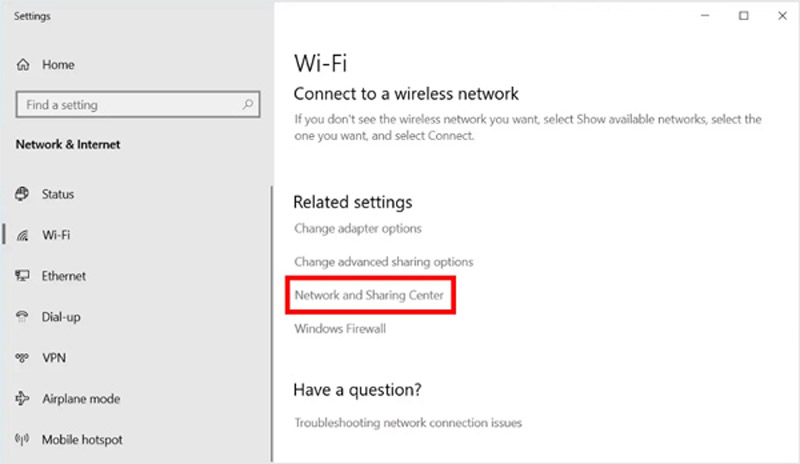
Right-click the WiFi icon in your system tray (the little network bars near the clock). From the menu that appears, choose “Open Network & Internet settings” (or “Open Network and Sharing Center” on older Windows). If you see a quick link to “Network and Sharing Center”, click it. Otherwise, scroll down and click “Network and Sharing Center” under Advanced network settings.

Step 2: Access Wireless Properties
In the Network and Sharing Center, you’ll see your active network listed under “View your active networks”. Click on the name of your WiFi network — it’s a blue link next to “Connections”. A WiFi Status window will pop up. Click the “Wireless Properties” button at the bottom.
Step 3: Reveal the Password
In the Wireless Network Properties window, switch to the “Security” tab. You’ll see a field called “Network security key” with dots hiding your password. Check the box that says “Show characters” — and there it is! You can now copy or write down the password.

Alternative Method: Use Command Prompt
If you prefer the command line or need to recover multiple passwords at once, this method is faster. It also works on networks you’ve connected to but aren’t currently active.
Step 4: Open Command Prompt as Administrator
Press the Windows key, type “cmd”, then right-click “Command Prompt” and select “Run as administrator”. Confirm the UAC prompt. Alternatively, press Windows+X and choose “Command Prompt (Admin)” or “Windows Terminal (Admin)”.

Step 5: List All Saved WiFi Networks
In the command prompt, type the following and press Enter:
netsh wlan show profiles
This will display a list of every WiFi network your computer has ever connected to. Note the exact name (SSID) of the network you want the password for.
Step 6: Get the Password for a Specific Network
Now type the following command, replacing “YourNetworkName” with the actual SSID from the list:
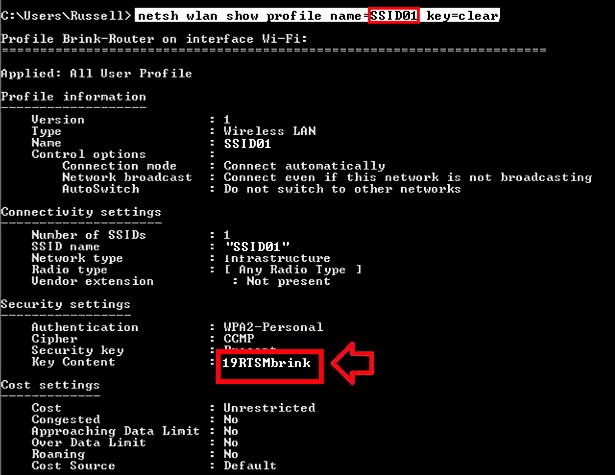
netsh wlan show profile name=”YourNetworkName” key=clear
Look for the line labeled “Key Content” under the Security settings section. That’s your WiFi password in plain text.
Common Pitfalls
- You need administrator rights for the Command Prompt method; otherwise you’ll get an error.
- If the network profile is corrupted or manually removed, the password may not be recoverable.
- On domain-joined (corporate) laptops, the network password might not be stored locally due to group policy.
If you need to recover a password without being connected to the internet, check out our guide on wifi password recovery no internet required. And for advanced command-line techniques, see our dedicated guide on wifi password recovery command from profiles.
Where to Next
Now you know how to recover any saved WiFi password on Windows. Keep your passwords secure — once you have them, consider storing them in a password manager. For more recovery methods on different devices, browse our tutorials on secure wifi password recovery tools or free wifi password recovery software. Happy networking!



