
Ever been in a situation where you need to connect a new device to your home WiFi, but you’ve completely forgotten the password? Or maybe you’re helping a friend set up their laptop and they can’t remember their network key. Don’t worry — you don’t need to reset your router or call your ISP. There are plenty of free ways to recover saved WiFi passwords on your own devices. This guide is for anyone who has ever forgotten a WiFi password and wants a quick, no-cost solution.
By the end of this tutorial, you’ll know how to dig out those hidden passwords from your Windows PC, Mac, or Android phone using built-in tools and free third-party software. No sketchy downloads or paywalls — just straightforward methods that actually work. Let’s get started.
What You’ll Need
- A computer running Windows (7/10/11) or macOS (any recent version)
- An Android phone (optional, for recovering passwords on mobile)
- Administrator access on your Windows PC (for CMD or third-party tools)
- A free third-party tool like WirelessKeyView (Windows) or Keychain Access (Mac) — no payment required
- A bit of patience — you won’t break anything if you follow these steps
Step 1: Use Windows Command Prompt (Built-in, No Downloads)
The quickest way to recover saved WiFi passwords on Windows is via Command Prompt. This method works for any network you’ve ever connected to. No extra software required. Open Command Prompt as administrator (right-click Start menu > Command Prompt (Admin)). Then type: netsh wlan show profiles. You’ll see a list of all saved networks. Pick the one you need, then type: netsh wlan show profile name="YOURNETWORKNAME" key=clear. Look for the “Key Content” line — that’s your password.
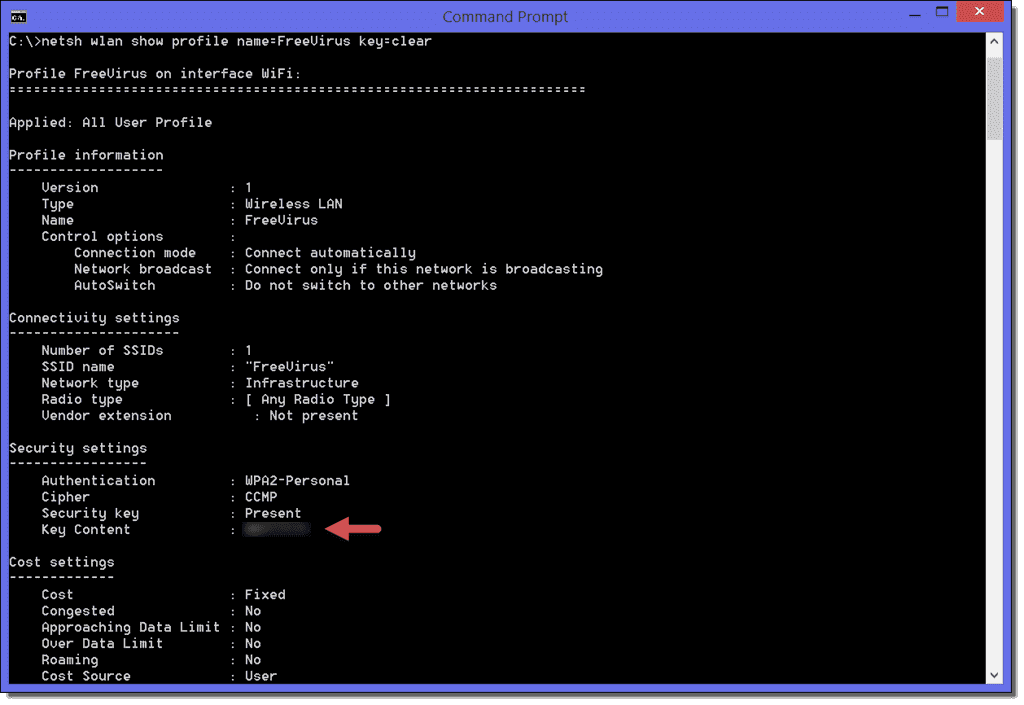
If you prefer a GUI approach, you can also use the Network & Sharing Center. But the command line is faster once you get the hang of it. For a more detailed walkthrough, check out our guide on how to show wifi password windows using various methods.
Step 2: Use Free Third-Party Software (Windows)
If the command line isn’t your thing, grab a free portable tool like WirelessKeyView (by NirSoft). It’s a single executable — no installation needed. Download it from a trusted source (like the official NirSoft website), run it as administrator, and it instantly displays all saved WiFi passwords. You can even export the list as a text file. Other reliable options include WiFi Password Revealer and SterJo Wireless Key Finder. These are among the best wifi password recovery software available for free.

Always download from official or reputable sites to avoid malware. We’ve tested several tools — for a curated list of safe options, see our article on secure wifi password recovery tools.
Step 3: Recover Passwords on Mac Using Keychain Access
Mac users can use Keychain Access, which is built into macOS. Open Keychain Access from Applications > Utilities (or Spotlight search). In the search bar, type the name of your WiFi network. Find the entry under “System” or “Login” keychains — it usually starts with “AirPort network password.” Double-click it, then check the “Show password” box. You’ll be prompted for your Mac’s administrator username and password (NOT the WiFi password). Once entered, the network key is revealed.
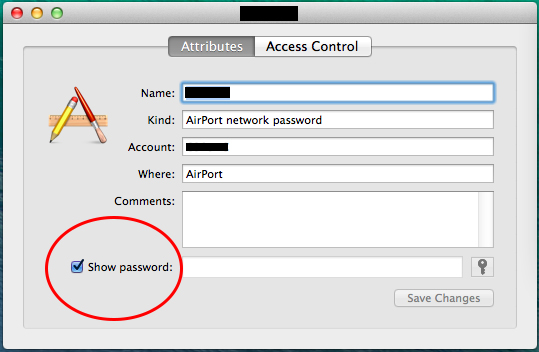
If you prefer Terminal, you can run a single command: security find-generic-password -wa "YOURNETWORKNAME". This method is especially handy for scripting. For a full breakdown, visit our tutorial on how to restore wifi passwords mac using both GUI and command-line approaches.
Step 4: Recover WiFi Passwords on Android (No Root Needed)
On Android 10 and later, you can share WiFi credentials via QR code — no root required. Go to Settings > Network & Internet > WiFi, then tap the saved network (or the gear icon next to it). You’ll see a “Share” or “QR code” option. Scan that QR code with another phone to connect, or screenshot it and use a QR reader to extract the password. For older Android versions or to see passwords in plain text, you may need a root-exploring app like WiFi Key Recovery (requires root).

If you updated your phone and lost access, check out our guide on wifi password recovery after android update for specific strategies.
Step 5: Use macOS Terminal for a Quick Hit
For a speedier macOS method, open Terminal (Applications > Utilities) and type: security find-generic-password -wa "YourNetworkName". Replace “YourNetworkName” with the exact SSID. Hit Enter, enter your Mac admin password, and the WiFi password appears. This is identical to the Keychain Access method but faster. It’s a great trick for power users.
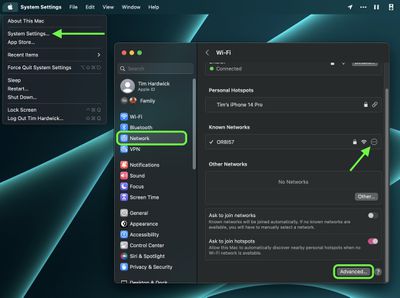
Just like the command line approach on Windows, this command works for any saved network. For more Terminal tricks, see our post on wifi password recovery command for mac.
Common Pitfalls
- Antivirus false positives: Some free WiFi recovery tools (like WirelessKeyView) may be flagged as malware by overzealous antivirus software. They’re safe — just whitelist them if needed. Always download from the official source.
- Administrator rights required: On Windows, you must run the tool or Command Prompt as administrator. If you’re on a work or school computer, you might not have those privileges. In that case, you’ll need to ask your IT admin.
- Android root requirement: Many Android password recovery apps require root access. If your phone isn’t rooted, you’ll need to use the QR code method (Android 10+) or use a PC to recover via the router’s web interface.
Where to Next?
Now that you’ve recovered your WiFi password, consider saving it in a password manager so you never lose it again. If you run into trouble with a specific router, check out our guide on how to recover forgotten wifi password using cmd for more command-line tricks, or explore our collection of best wifi password recovery software for alternative tools. Happy connecting!



