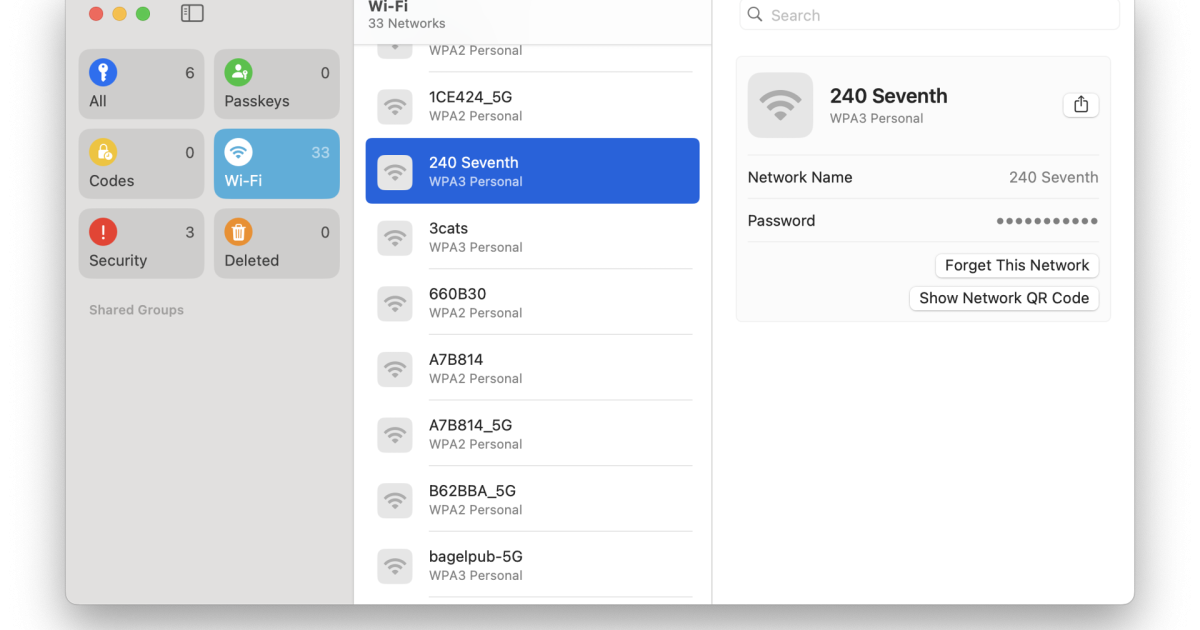
We’ve all been there – a friend asks for the WiFi password, and you draw a blank. Or maybe you just got a new device and need to reconnect but can’t recall that jumble of characters. If you’ve ever connected to a network on your Mac before, the password is still there, stored safely in the Keychain. This tutorial will show you two dead-simple methods to restore your WiFi passwords on Mac: using the friendly Keychain Access app or a quick Terminal command. By the end, you’ll be able to pull up any saved password in seconds.
This guide is perfect for Mac beginners and anyone who wants to avoid installing third-party software. We’ll cover both the GUI and command-line ways, so pick the one that feels most comfortable. All you need is your Mac and an admin account.
What You’ll Need
- A Mac running macOS 10.10 or later (Yosemite and up)
- An administrator username and password for your Mac
- The name (SSID) of the WiFi network you want to recover
- Basic familiarity with your Mac’s interface (no Terminal experience needed for the first method)
Step 1: Open Keychain Access
Keychain Access is macOS’s built-in password manager. You’ll find it in the Utilities folder inside Applications. Press Cmd+Space to open Spotlight, type “Keychain Access”, and hit Enter. Alternatively, go to Applications > Utilities > Keychain Access.

Step 2: Find Your WiFi Network
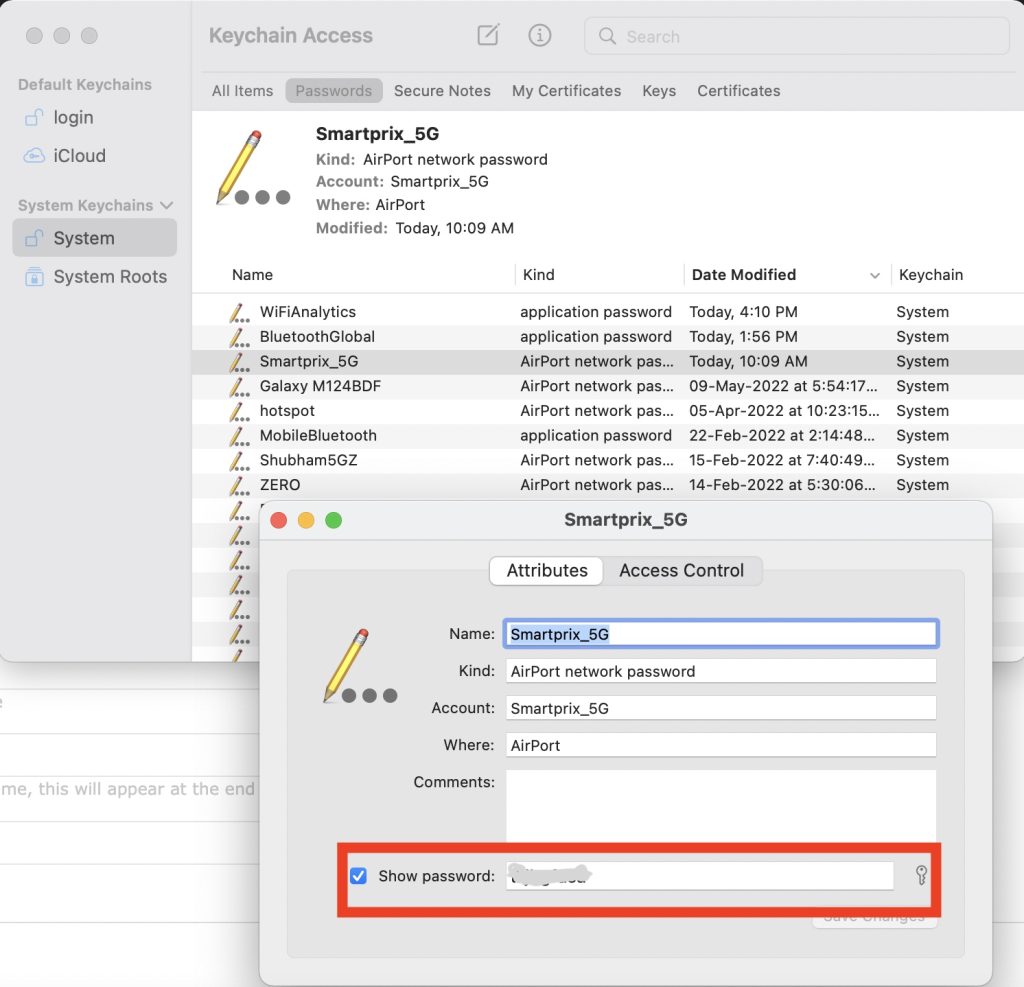
In Keychain Access, click on “System” under Keychains on the left sidebar, then click on “Passwords” under Category. You’ll see a list of saved items. Look for your WiFi network name (SSID). If you have many entries, use the search bar at the top right. Double-click on the network entry to open its properties.

Step 3: Reveal the Password
A new window will pop up. Check the box that says “Show password”. You’ll be prompted for your Mac’s administrator username and password. Enter them and click Allow. The password will appear in the field. You can copy it or write it down.
Step 4: Alternative – Use Terminal (Faster for Power Users)
If you prefer the command line, open Terminal from Applications > Utilities or via Spotlight. Type the following command, replacing “YourNetworkName” with your actual WiFi SSID: security find-generic-password -wa "YourNetworkName". Hit Enter. You’ll be asked for your Mac’s password (not the WiFi password). Type it (no characters will show) and press Enter. The WiFi password will appear on the next line.

For more details on this method, check out our dedicated guide on the wifi password recovery command for mac. And if you’re interested in the broader world of terminal-based password recovery, our wifi password recovery using terminal article covers macOS and Linux.
Step 5: Export Passwords (Optional)
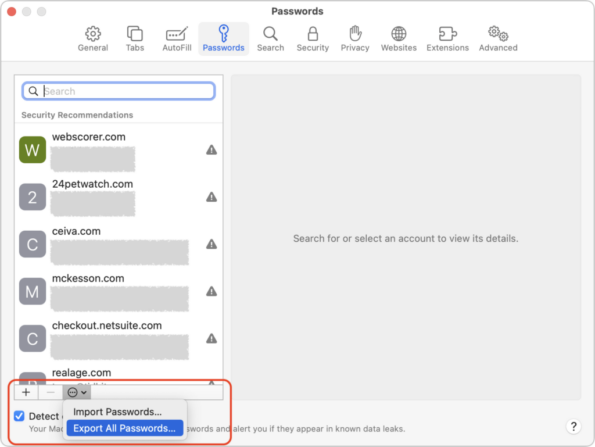
If you want to back up all your saved WiFi passwords, you can export them from Keychain Access. Select the entries you want (Cmd+click for multiple), then go to File > Export Items. Choose a location and format (CSV is best for reading). This creates a plain-text file with network names and passwords. For a full walkthrough, see our post on how to export wifi passwords to csv.
Common Pitfalls
- **Can’t find the network in Keychain?** You might be looking in the wrong keychain. Check if it’s under “System” or “login”. Also, ensure you’re actually connected to the network – if you’ve never joined it, it won’t be saved.
- **Password prompt doesn’t accept your admin credentials?** Make sure you’re using the correct Mac login password. If you recently changed it, restart Keychain Access and try again. Sometimes a reboot helps.
- **Terminal command returns “couldn’t find item”** – Double-check the network name spelling, including spaces and case. Use quotes if the name contains spaces. You can also list all saved WiFi passwords with
security find-generic-password -l "WiFi"to see exact names.
Where to Next
Now that you’ve restored your WiFi passwords on Mac, you might want to share them with others or keep them handy. If you’re helping a friend who uses a different OS, check out our beginner wifi password recovery tutorial that covers Windows, Android, and more. Also, our wifi password recovery from saved network guide gives you a universal approach. Stay connected – and never get locked out again!



