
Ever tried to connect a new device to your home WiFi and realized you have no clue what the password is? If you’ve got a Mac that’s already connected to that network, you’re in luck. You don’t need any fancy software — just a single command in the Terminal. This guide is for anyone with a Mac who needs to retrieve a saved WiFi password quickly. By the end, you’ll have the password in plain text, ready to share or type into another device.
The method works for any WiFi network your Mac has ever connected to, as long as it’s still saved in your keychain. No admin tricks or third-party tools required — just a minute of your time.
What You’ll Need
- A Mac that has connected to the WiFi network before (it must be saved in the keychain).
- Administrator access to your Mac (you’ll need your login password).
- The exact name (SSID) of the WiFi network. If you’re not sure, check the network list in System Settings > Wi-Fi.
- The Terminal app (found in Applications > Utilities, or search with Spotlight).
Step 1: Open Terminal
Click the Spotlight icon (the magnifying glass in the top-right corner) or press Command + Space. Type “Terminal” and hit Enter. A dark window with a command prompt will open.
Step 2: Run the WiFi Password Recovery Command
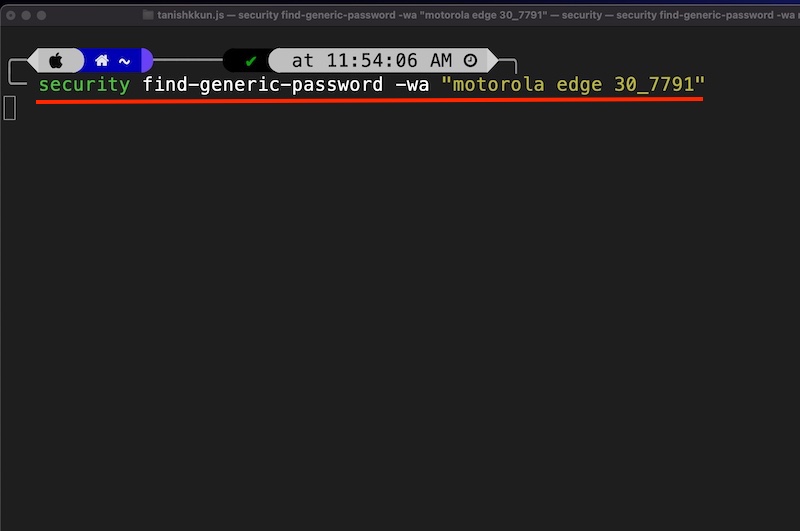
In the Terminal, type the following command, but replace YourNetworkName with the exact SSID of the WiFi network you want to recover:
security find-generic-password -wa “YourNetworkName”
Make sure to include the quotes around the network name. For example, if your network is called “HomeWiFi”, you’d type: security find-generic-password -wa "HomeWiFi". The -w flag tells the command to output only the password, and -a specifies the account (the SSID).
Step 3: Enter Your Mac Admin Password
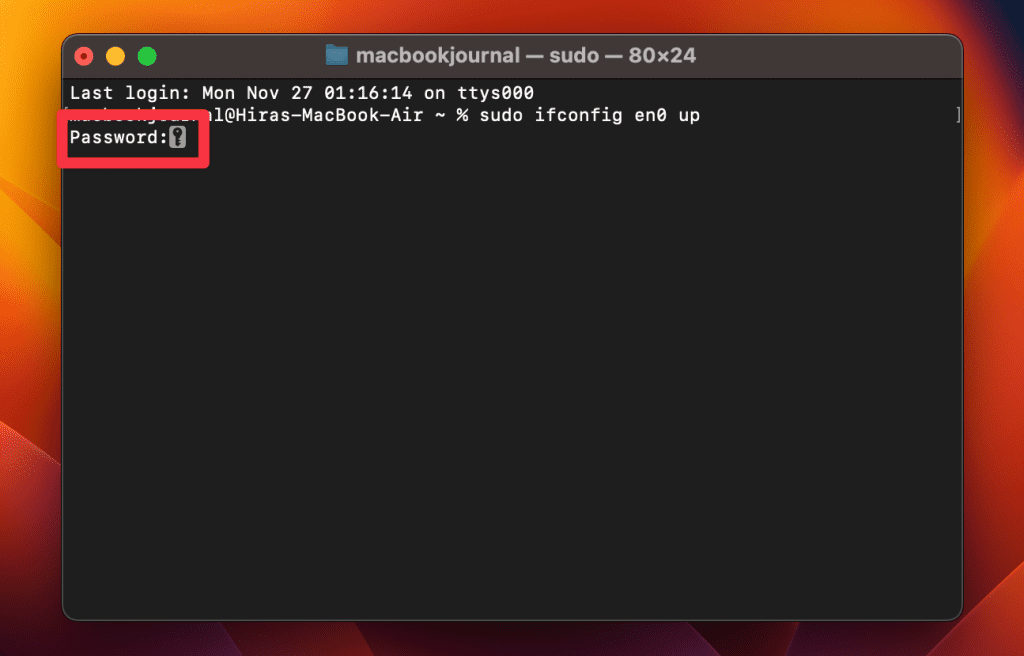
Hit Enter. You’ll be prompted to enter your Mac’s administrator password (the same one you use to log in). As you type, nothing will appear on screen — that’s normal for security. Press Enter again. If the network is saved, the WiFi password will appear in plain text right below your command.
That’s it! You can now copy the password or write it down. Note that if the network is not found or if you mistyped the SSID, you’ll see an error like “password: item not found”. Double-check the spelling and try again.
Common Pitfalls
- Incorrect SSID: If you type the network name wrong (including uppercase/lowercase), the command won’t find it. Use the exact name as shown in your Wi-Fi list.
- Network never saved: This only works for networks your Mac actually connected to and saved. If you only connected once and then forgot the network, it might not be in the keychain.
- Not an admin user: The command requires administrator privileges. If you’re using a standard account, you won’t be able to run it. Switch to an admin account or ask the admin.
Where to Next
Now that you’ve recovered your WiFi password on Mac, you might need to do the same on other devices. Check out our guides to recover forgotten WiFi password using CMD for Windows, or WiFi password recovery using the Terminal for Linux. For a more general approach, see our WiFi password recovery from saved network tutorial. And if you want to back up all your saved passwords, learn how to export WiFi passwords to CSV.



